1.Check PoE Connection
Verify that the device is properly connected via PoE (Power over Ethernet) and that the network cable is securely plugged in without damage or loose connection.
2.Check Power and Firmware Version
- Ensure the device is powered on normally.
- Then confirm the device firmware is a cloud-enabled version (V3.0 or later).
- If it is an older firmware version, upgrade it to the latest firmware version before attempting to add the device on the cloud again.
3.Verify Cloud Registration Enablement
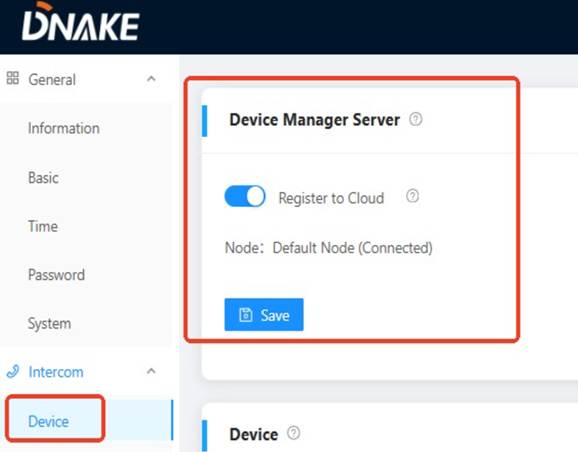
- Access the device’s web interface, go to the Intercom→Device setting, and check that the Register to cloud function is enabled.
- If disabled, turn it on and save.
4.Confirm MAC Address Accuracy
Doublecheck that the MAC address entered on the cloud platform is completely identical to the actual MAC address of the device (no missing digits, extra spaces, or incorrect characters).
5.Check Correct Device Model Selection
Make sure the device model selected on the cloud platform matches the actual model of the device you are adding.
Incorrect model selection will cause register failure.
6.Contact DNAKE Technical Support
If the device still cannot be added after completing all the above steps, please provide the following information to the DNAKE technical team for further diagnosis:
- Device model
- Device MAC address
- Device firmware version
- Cloud platform account and password
Was this article helpful?
That’s Great!
Thank you for your feedback
Sorry! We couldn't be helpful
Thank you for your feedback
Feedback sent
We appreciate your effort and will try to fix the article