Symptom 1:
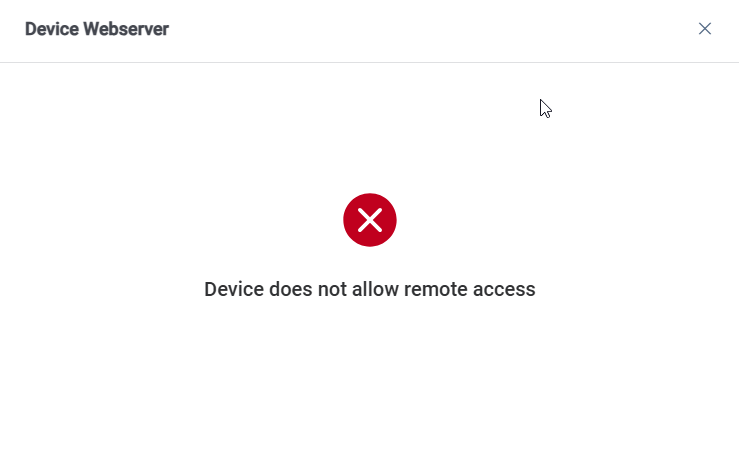
When clicking “Access Device Webserver” for the AC02C on the DNAKE Cloud Platform, the following error is displayed: “Device does not allow remote access.”
Solution:
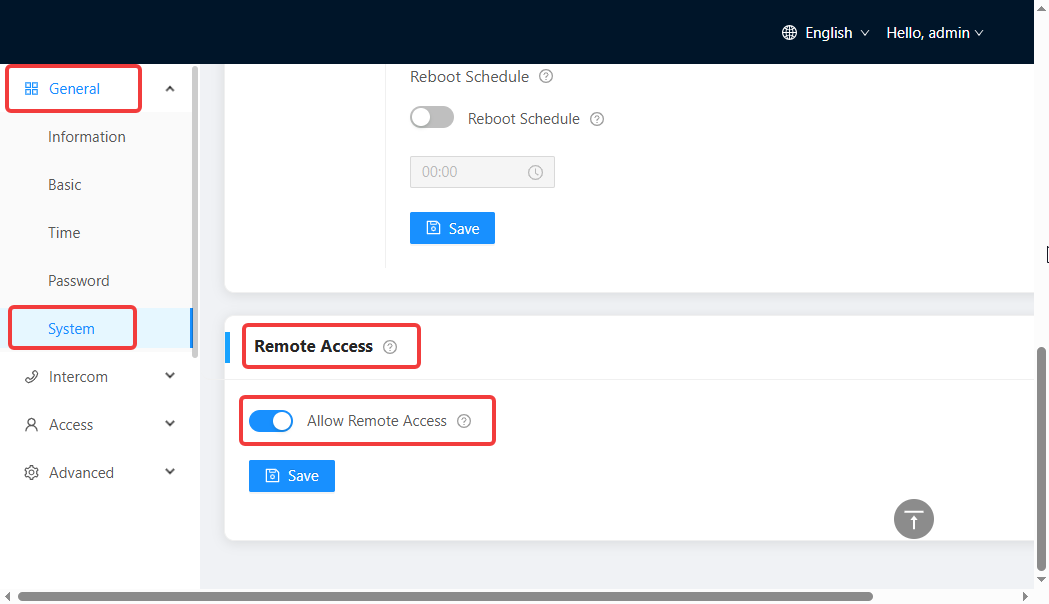
Use a computer on the same LAN as the AC02C to access its Web UI. Go to General > System > Remote Access, enable “Allow Remote Access”, and save the settings.
Symptom 2:
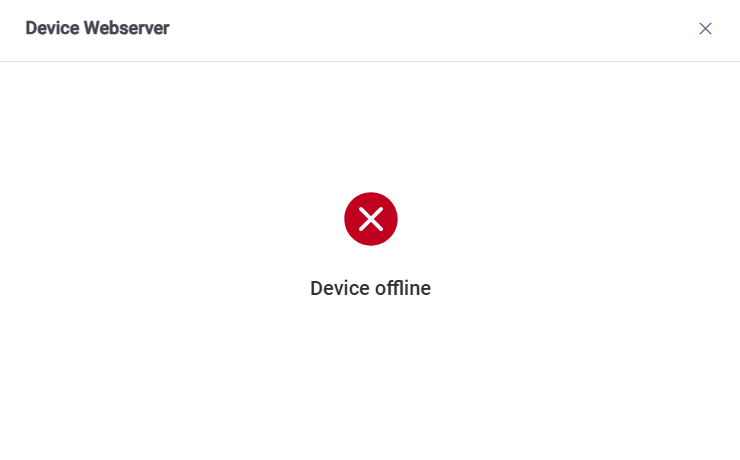
When clicking “Access Device Webserver” for the AC02C on the DNAKE Cloud Platform, the following error is displayed: “Device offline.”
Solution:
Check the network connection of the AC02C and ensure that it can connect to the Internet normally.
Symptom 3:
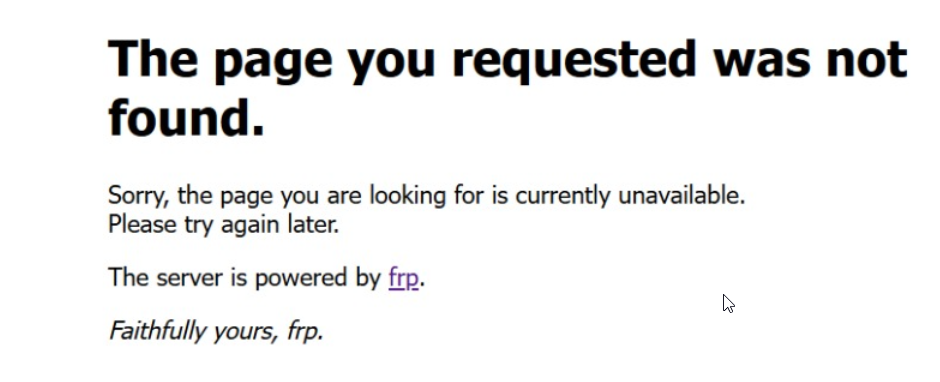
When clicking “Access Device Webserver” for the AC02C on the DNAKE Cloud Platform, the following error is displayed: “The page you requested was not found.”
Solution:
When upgrading an AC02C from a firmware version that does not support Remote Access to a newer version that supports it, the device must first be upgraded using the img firmware package, followed by an upgrade using the rom firmware package. This ensures that the device is fully upgraded and that remote access works properly. If the device has already been upgraded using the img firmware package, upgrade it again using a rom firmware package of the same or a higher version.
Was this article helpful?
That’s Great!
Thank you for your feedback
Sorry! We couldn't be helpful
Thank you for your feedback
Feedback sent
We appreciate your effort and will try to fix the article