1. Unify Card reading mode & display mode settings between Cloud Platform and AC Web
Please note:
● The cloud platform synchronizes to the AC by default in Decimal.
Therefore, if you select Hexadecimal on the cloud platform, the card number displayed on the AC will be different.
Upgrading to this firmware version(170AC_1_2_1_14_GA_20260721) or later can resolve the issue of different card read logic between the cloud platform and the AC.
● Please use the DNAKE card reader when reading cards through the cloud platform.
- Log in to the cloud platform, navigate to the Access Control > Person configuration page.
- Check the card settings:
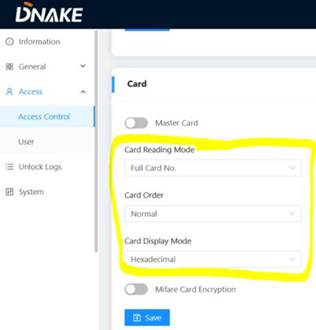
- Card Reading Mode (e.g., Compatible Mode / Full Card No.)
- Card Display Mode (e.g., Hexadecimal / Decimal)
- Log in to the AC device’s web page, go to Access > Access Control.
- Set the AC’s Card Reading Mode and Card Display Mode to exactly match the settings on the cloud platform, then click Save.
2. Verify successful cloud-to-device data synchronization
Confirm the cloud-added user and card data have been fully synced to the local AC device:
- Complete card addition and user saving operations on the cloud platform, wait a few minutes for automatic data synchronization.
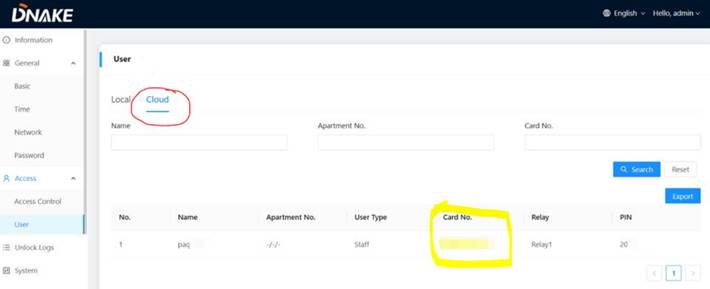
- Access the AC web interface, open the Access > User tab, switch to the Cloud subpage.
- Check if the newly created user and corresponding card number from the cloud are displayed in the user list.
- If the data is missing: Recheck the cloud device binding status and cloud service switch on the AC’s General > Network page; re-trigger manual synchronization on the cloud platform.
- If the data exists: Proceed to Step 3 for further inspection.
3. Check Access Rule restrictions for synchronized cloud users
Unlocking failure may be caused by limited device access or time limits configured in the access rule bound to the cloud user:
- On the cloud platform, open the user editing page of the synchronized card user.
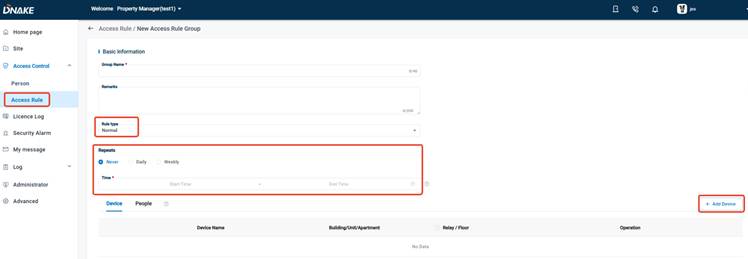
- Locate the bound Access Rule, enter the rule configuration page.
- Verify two key restrictions:
- Device allowed: Confirm the target AC device is added to the allowed device list of this access rule; delete redundant device filtering if needed.
- Access Time Schedule: Check whether the current time falls within the valid access time period set in the rule; adjust the time window to full-time access for testing.
- Save the modified access rule, wait for data re-synchronization to the AC, then test card swiping again.
4. Collect AC device log for deep diagnosis (if Step 3 does not resolve the issue)
If the above checks pass but the card still cannot unlock the door, export AC unlocking logs to locate the root cause:
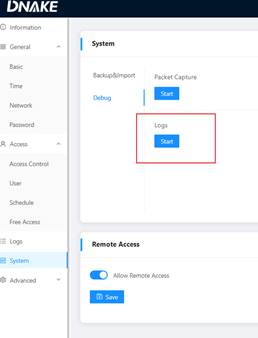
- Log in to the AC web interface, go to the System tab, enable log capture function.
- Return to the cloud platform, re-read the target card and re-save the user data to trigger re-synchronization with the AC.
- Go back to the AC’s Access > User > Cloud page, double-check that the latest cloud card number is fully synchronized and displayed correctly.
- Swipe the card on the AC to trigger an unlocking attempt.
- Stop the log capture on the AC web System page.
- Provide the exported log file to DNAKE technical support for analysis.
Was this article helpful?
That’s Great!
Thank you for your feedback
Sorry! We couldn't be helpful
Thank you for your feedback
Feedback sent
We appreciate your effort and will try to fix the article