1.Access the device web interface
Connect your PC and S213K to the same local area network (LAN). Open a browser and enter the S213K’s IP address to log into its web management page.
2.Verify PIN code configuration
- Go to Access → Person and confirm the corresponding PIN code is set for the user.
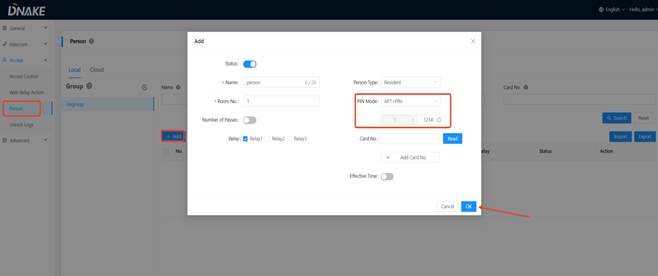
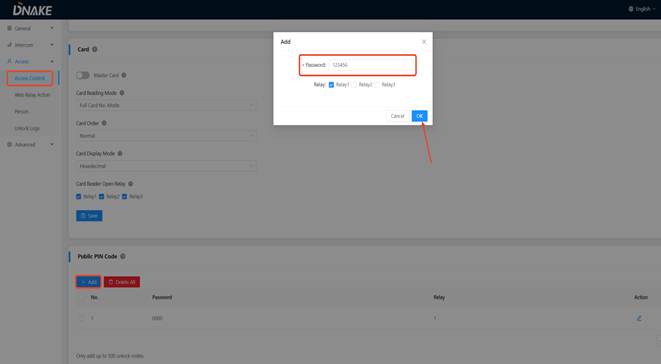
- Or go to Access → Access Control and confirm a Public PIN Code has been added.
3.Unlock with user-specific PIN code (configured in Person)
Enter: Apartment No. + PIN Code + # on the keypad to unlock the door.
4.Unlock with Public PIN Code
Enter: Public PIN Code + # directly on the keypad to unlock the door.
5.Check device operating mode
If the above steps still fail, check Intercom → Device → Mode on the web interface:
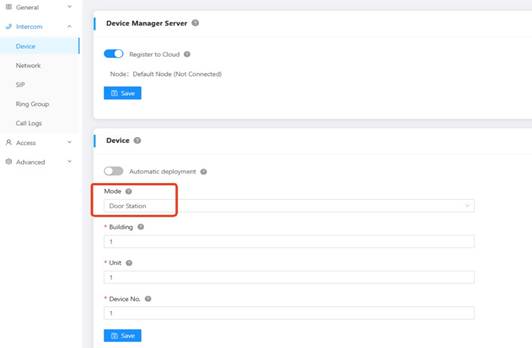
If set to Villa Mode: Use the PIN input methods in Step 3 or Step 4.
If set to Door Station Mode: First press # to enter PIN code mode, then enter Apartment No. + PIN Code + # or Public PIN Code + # to unlock.
6.Test other unlocking methods
Try unlocking via registered card, indoor monitor, or APP to check if the access control system works normally.
7.Factory reset the device
If all unlocking methods fail, go to General → System → Reset on the web interface to restore factory settings, then reconfigure the PIN code and test again.
8.Contact DNAKE technical support
If the problem persists after factory reset: Please Contact DNAKE technical support team.
Provide: operation video, device firmware version, system logs, and network packet capture data.
Was this article helpful?
That’s Great!
Thank you for your feedback
Sorry! We couldn't be helpful
Thank you for your feedback
Feedback sent
We appreciate your effort and will try to fix the article