Precondition
The Delivery feature is exclusively available for S617 device model currently.
Step-by-step Configuration & Troubleshooting Procedures
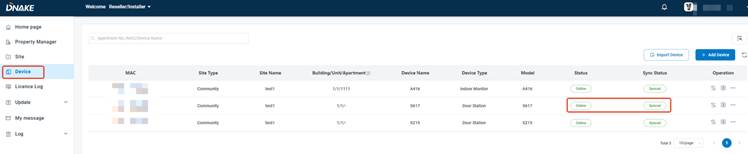
1.Confirm S617 Online Status under Reseller/Installer Account
- Log in to DNAKE Cloud Platform with your Reseller/Installer account.
- Verify S617 is already added into the corresponding site on cloud platform.
- Check the device is powered on and connected to stable network, confirm online and sync status on Device list.
2.Enable Delivery function on Device Setting
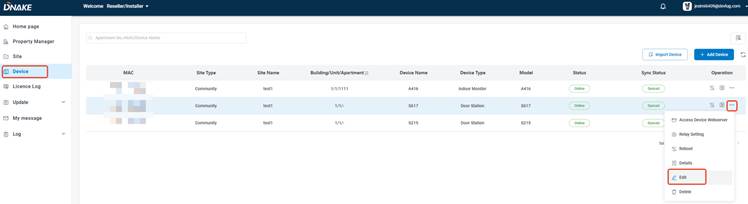
- Navigate to Device menu, find target S617 from device list.
- Click Edit behind S617 entry.
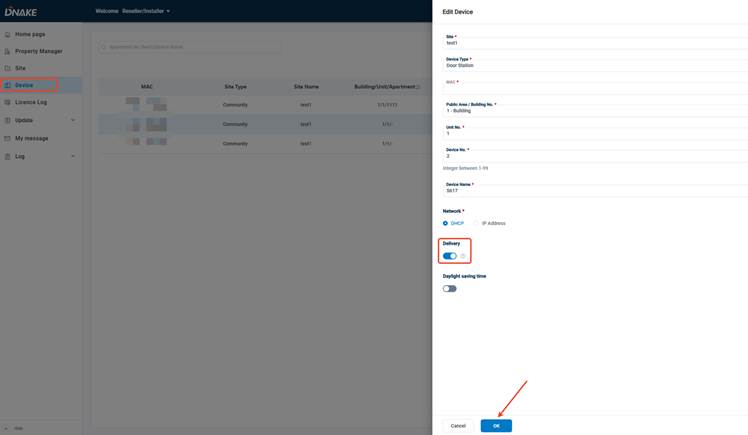
- Toggle to enable the Delivery option and save configuration.
3.Check DELIVERY Icon Display on S617 Screen
- Go to physical S617 door station and check main interface.
- Confirm DELIVERY icon appears on the interface.
4. Switch Cloud Login Role to Property Manager Account
After DELIVERY icon shows normally on S617, switch current cloud account to bound Property Manager role.
5.Create New Access Rule Group under Access Control
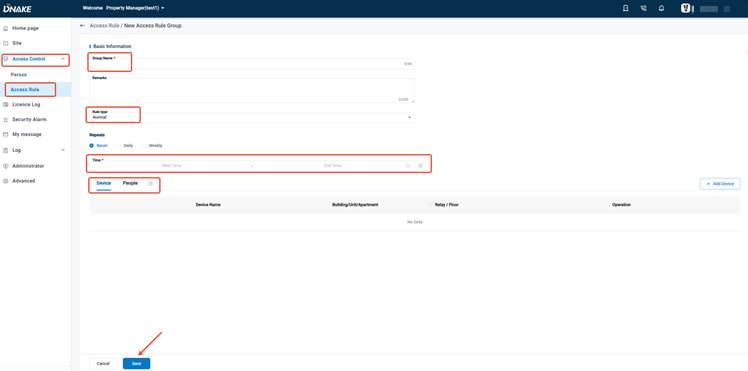
- Go to Access Control > Access Rule, click Create New Access Rule Group.
Complete required parameters:
- Group Name, Remarks
- Rule Type (Normal / Free Access)
- Repeat Cycle: Never / Daily / Weekly
- Valid Start & End Time
- Bind related access devices and authorized persons
- Save the access rule group.
6.Generate Delivery Code
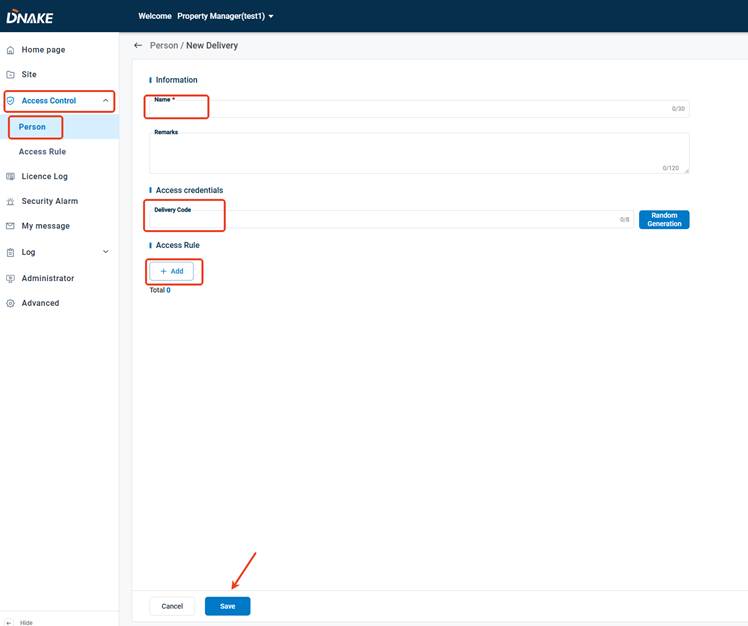
- On Property Manager page, enter Access Control > Person > Delivery.
- Tap Add New Delivery.
- Fill in Name, Remarks, auto or manually generate unique Delivery Code.
- Bind the pre-created Access Rule to this delivery entry and save settings.
7. Test Delivery Code & Resident Notification on S617
- Tap the DELIVERY icon on S617 main screen.
- Input the configured Delivery Code via on-screen keypad.
- Select target resident/apartment, input package quantity (range:1~99).
- Submit to send real-time arrival notification to target resident’s DNAKE Smart Pro APP.
Supplementary Tips
- Delivery Passcode is one-time or period-limited based on bound access rule schedule.
- Check Configuration Log / System Message on Property Manager cloud page if abnormal occurs during testing.
Was this article helpful?
That’s Great!
Thank you for your feedback
Sorry! We couldn't be helpful
Thank you for your feedback
Feedback sent
We appreciate your effort and will try to fix the article