1.Enable Delivery function for S617 device on Distributor/Reseller & Installer Cloud Account
- Log into the DNAKE Cloud Platform with your Reseller/Installer account, navigate to the Device, find the target S617, enter device edit page and turn on the Delivery.
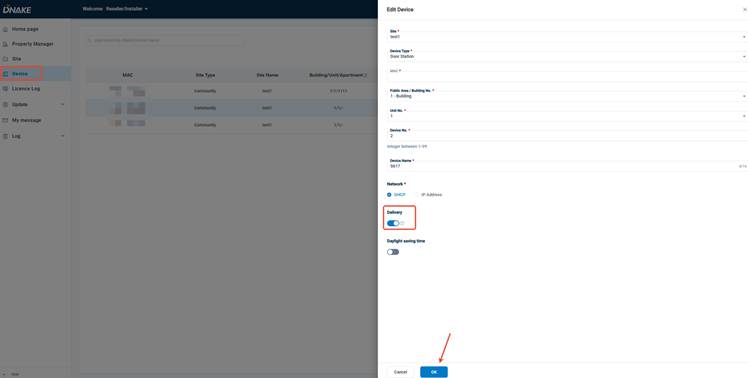
- Confirm the DELIVERY icon is displayed on the main screen of the S617 door station after configuration sync.
2.Activate Create temporary delivery code permission under corresponding community on Cloud Platform
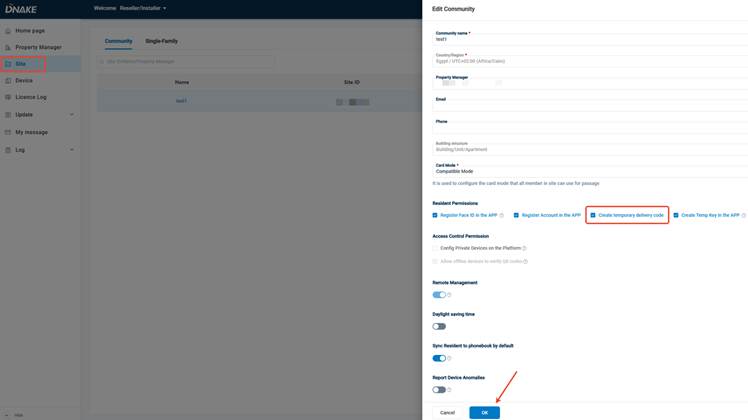
- On the same Reseller/Installer cloud account, go to the Site page,
- Select the community where the S617 device belongs, click the Edit button of this community,
- Enable Create temporary delivery code and save changes.
3.Generate delivery temporary key on DNAKE Smart Pro APP
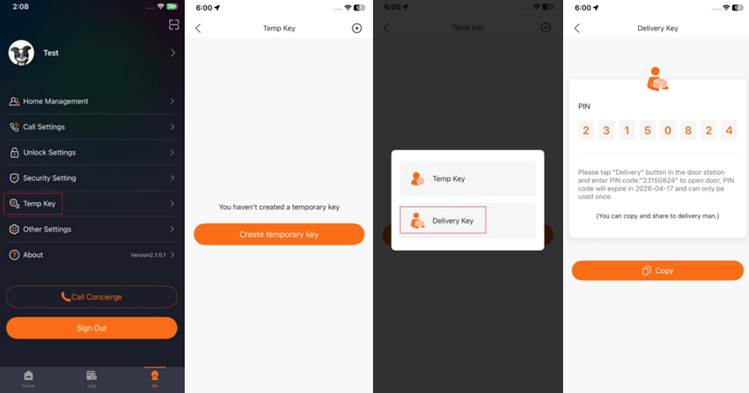
Open DNAKE Smart Pro APP > Enter Me tab > Select Temp Key > Tap CREATE TEMPORARY KEY, the Delivery Key option will automatically appear for creation after above two cloud configurations are finished.
4.Important Notes for Delivery Temporary Key
The generated delivery PIN code is valid for single-time use only and will expire automatically on the next day.
5.If Delivery Key option still missing after above setup
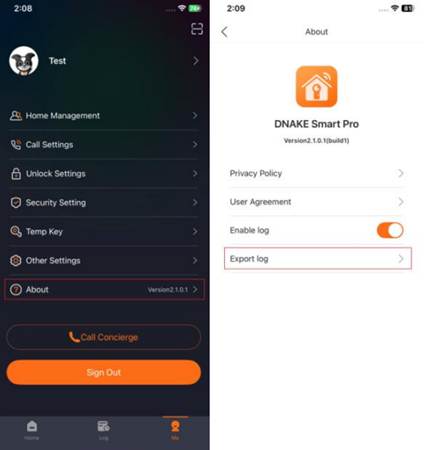
- Navigate to APP path: Me > About > Enable log to start capturing running logs of Smart Pro APP;
- Current firmware version of your DNAKE Smart Pro APP;
- Export the captured logs and submit log files together with APP version info to DNAKE Technical Support Team for further analysis.
Was this article helpful?
That’s Great!
Thank you for your feedback
Sorry! We couldn't be helpful
Thank you for your feedback
Feedback sent
We appreciate your effort and will try to fix the article