Prerequisites
- E217 and troubleshooting PC are in the same LAN
- Obtain E217 IP address (via Settings > Version on device or DNAKE Remote Upgrade Tool)
- Log in to E217 web interface (default credentials: admin / 123456)
1. Verify SIP Phonebook Configuration
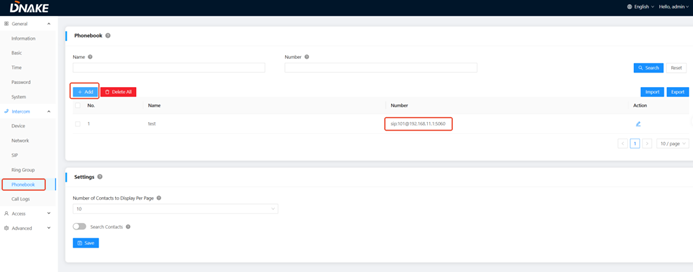
Access the E217 web interface and go to Intercom > Phonebook. Check the SIP contact configuration.
- Ensure Type is set to SIP address
- Verify Address format follows the correct standard:
sip:[SIP Account]@[SIP Server IP/Domain]:[SIP Port]
Example: sip:101@192.168.11.1:5060
Example: sip:101@192.168.11.1:5060
2. Correct Phonebook Configuration if Needed
If the Phonebook format is incorrect:
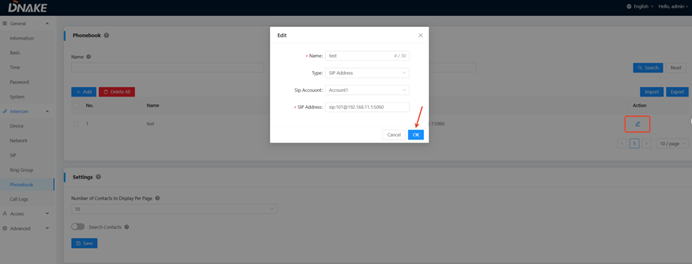
- Edit the faulty contact entry
- Modify the address to the standard SIP format
- Ensure Type is set to SIP address
- Save all changes on the Phonebook page
3. Retest SIP Call and Check SIP Service
Retest the SIP call via E217 touch screen:
Dial > Phonebook
If the call still fails:
- Go to Intercom > SIP
- Check if SIP toggle is set to Enabled
4. Verify SIP Server Configuration
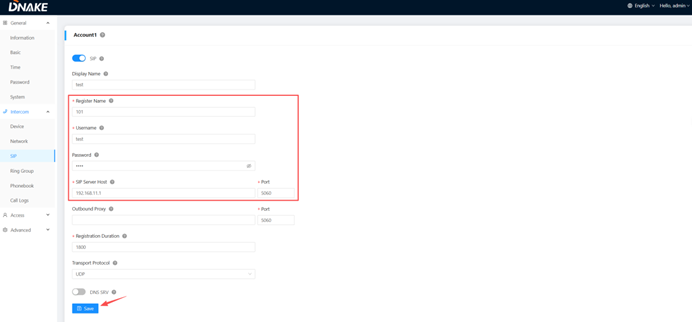
Ensure SIP configuration parameters on Intercom > SIP match the SIP server settings.
Note:
Account 1 is occupied by Cloud Service if Register to Cloud is enabled. Use Account 2 instead.
Account 1 is occupied by Cloud Service if Register to Cloud is enabled. Use Account 2 instead.
5. Check SIP Registration Status
- Web interface: General > Information
- Device: Settings > Version
Confirm SIP account status shows: Registered
6. Network and System Verification
If the issue persists, perform the following checks:
- Ping SIP server IP to confirm network connectivity
- Verify SIP server is running normally (account not locked or expired)
- Ensure LAN firewall does not block SIP ports
- Check if E217 firmware is the latest version (upgrade if needed)
7. Escalation to Technical Support
If all steps are completed and the issue still persists, collect the following information:
- E217 firmware version
- SIP configuration settings
- Phonebook configuration
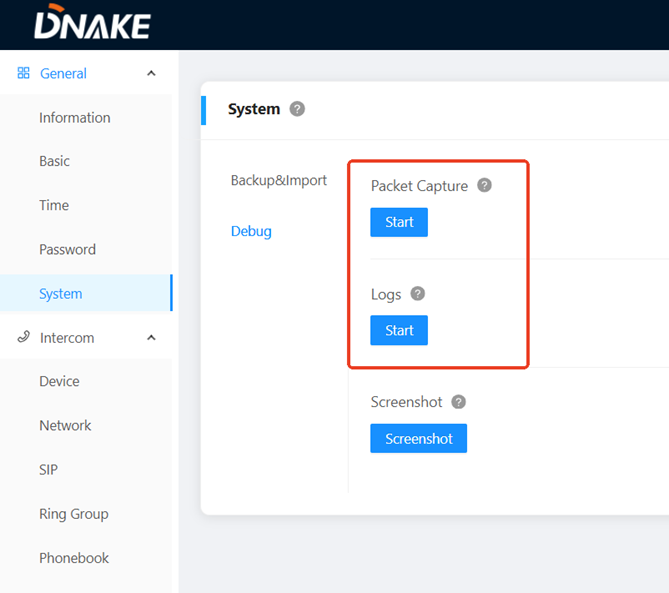
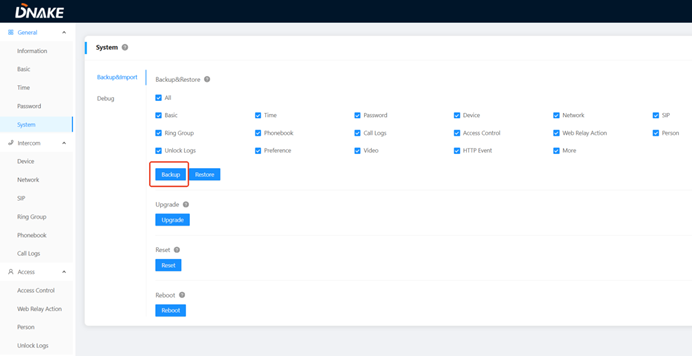
- Logs and network packets (or system backup)
Then contact DNAKE technical support for further analysis.
Was this article helpful?
That’s Great!
Thank you for your feedback
Sorry! We couldn't be helpful
Thank you for your feedback
Feedback sent
We appreciate your effort and will try to fix the article