Turn on Windows Telnet Feature Steps
- Go to Control Panel > Programs > Turn Windows features on or off.
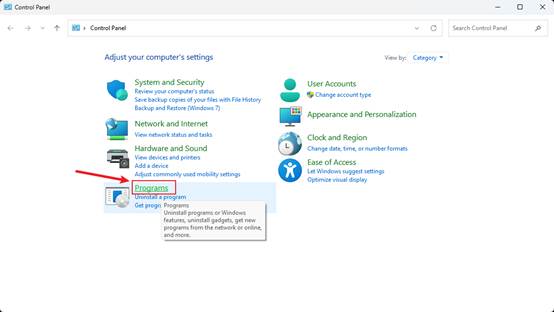
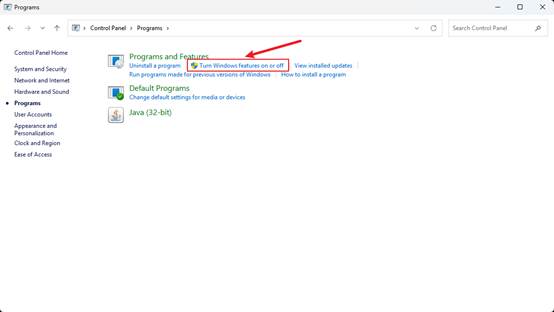
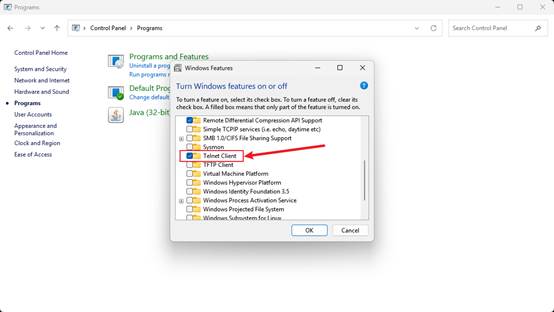
- Enable Telnet client.
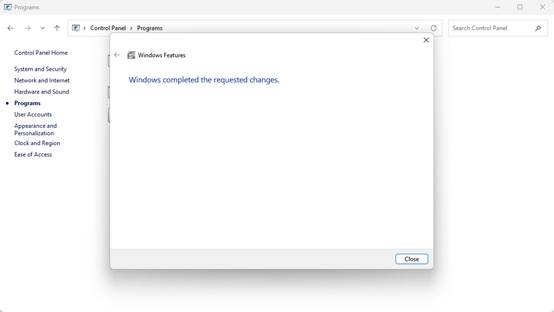
- After saving the settings, the window shown below will pop up. Click Close to complete the operation. (Note: A system reboot is required for the feature to take effect on certain devices.)
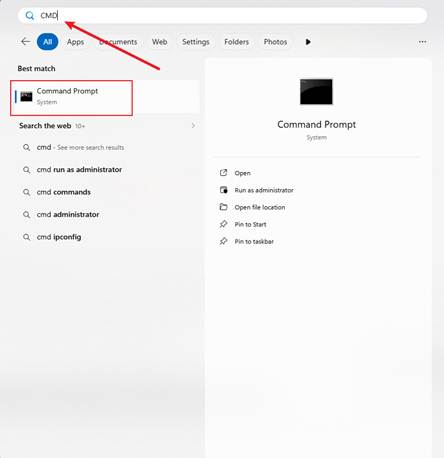
- Go to Start > Enter “cmd” > Command Prompt.
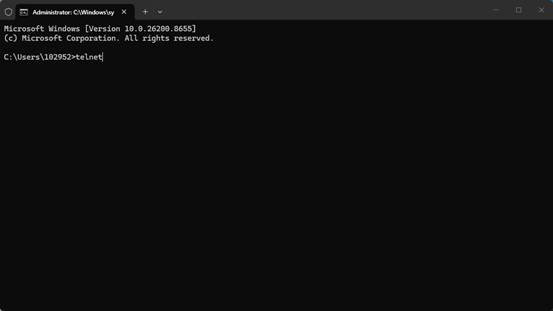
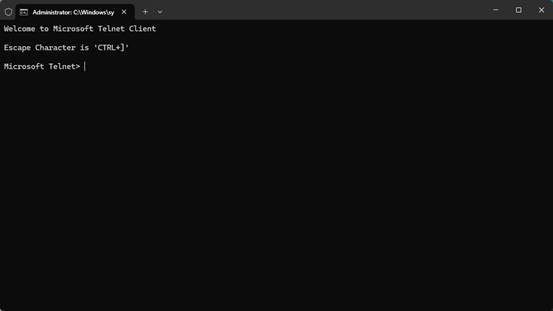
- Enter “telnet” in Command Prompt. If Telnet is enabled successfully, the corresponding page as illustrated will pop up.
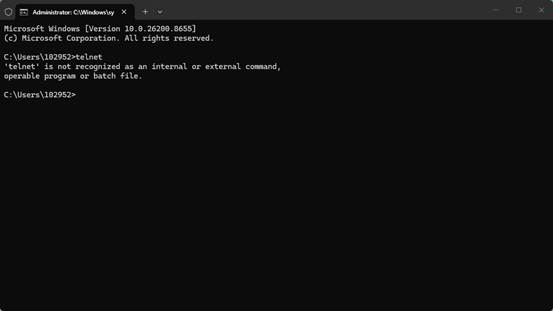
If Telnet fails to enable, the screen output below will be displayed. Please return to check if Telnet Client is enabled.
- If all steps are completed and the issue persists, then please contact DNAKE technical support.
Was this article helpful?
That’s Great!
Thank you for your feedback
Sorry! We couldn't be helpful
Thank you for your feedback
Feedback sent
We appreciate your effort and will try to fix the article