This article provides troubleshooting steps for resolving card reading failures during cloud platform enrollment. Follow the procedures below in sequence to identify configuration, connection, or reader-related issues.
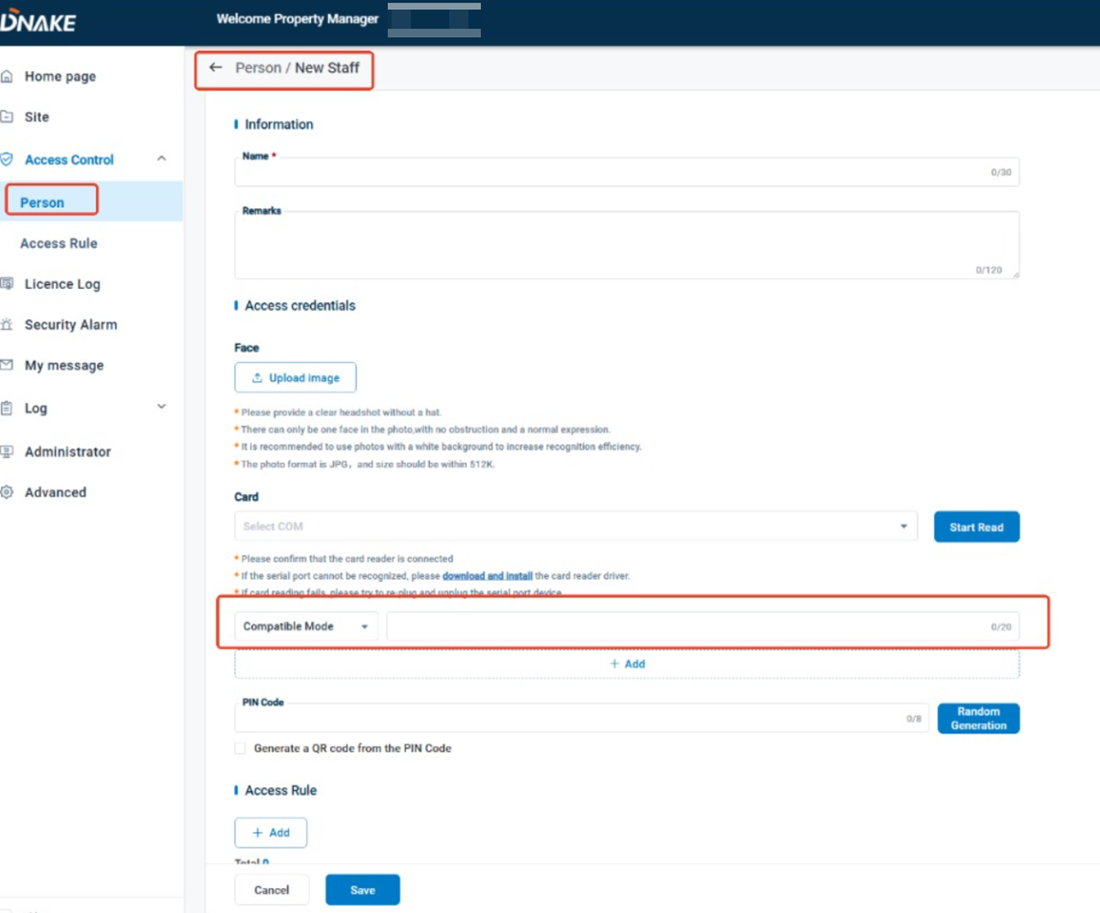
Verify the Correct Card Reading Mode
- Log in to the cloud platform and open the card reading settings page.
- Select the correct reading mode according to the card type.
- Retry card enrollment after changing the mode.
| Card Type | Recommended Mode | Requirement |
|---|---|---|
| IC Card | Compatible Mode | 13.56MHz supported |
| ID Card | Compatible Mode | 125kHz supported |
| Printed Number Card | Full Card No. Mode | Manual number entry required |
ID Card: 125kHz
Confirm the Card Reader Connection Status
- Ensure the USB cable is securely connected to both the reader and the computer.
- Try another USB port or replace the cable to eliminate hardware issues.
- Open Device Manager and verify the reader is detected.
- If the device is recognized but enrollment still fails, continue to the next troubleshooting step.
Confirm the Card Reader Model
- Determine whether the reader is an older model or a newer model.
- Older models support manual baud rate switching, while newer models support automatic adaptation.
| Reader Type | Identification Method | Feature |
|---|---|---|
| Old Model | Button on back side | Manual baud rate switching |
| New Model | No button | Auto-adaptive baud rate |
Switch the Baud Rate (Older Models Only)
- Older readers support baud rate switching through button operations.
- Perform a long press until hearing 1 beep ("bi").
- This activates Read Card Mode.
- Perform a short press until hearing another beep.
- The baud rate will be configured to 9600 bps.
- Return to the cloud platform and retry card enrollment.
Short Press → 1 Beep → 9600 bps Baud Rate
Technical Support
If the issue persists after completing all troubleshooting steps, contact DANKE technical support and provide the device model, reader model, operation records, and screenshots of the platform settings if available.
Card Reading Failure on Cloud Platform
This article provides troubleshooting steps for resolving card reading failures during cloud platform enrollment. Follow the procedures below in sequence to identify configuration, connection, or reader-related issues.
Verify the Correct Card Reading Mode
- Log in to the cloud platform and open the card reading settings page.
- Select the correct reading mode according to the card type.
- Retry card enrollment after changing the mode.
| Card Type | Recommended Mode | Requirement |
|---|---|---|
| IC Card | Compatible Mode | 13.56MHz supported |
| ID Card | Compatible Mode | 125kHz supported |
| Printed Number Card | Full Card No. Mode | Manual number entry required |
ID Card: 125kHz
Confirm the Card Reader Connection Status
- Ensure the USB cable is securely connected to both the reader and the computer.
- Try another USB port or replace the cable to eliminate hardware issues.
- Open Device Manager and verify the reader is detected.
- If the device is recognized but enrollment still fails, continue to the next troubleshooting step.
Confirm the Card Reader Model
- Determine whether the reader is an older model or a newer model.
- Older models support manual baud rate switching, while newer models support automatic adaptation.
| Reader Type | Identification Method | Feature |
|---|---|---|
| Old Model | Button on back side | Manual baud rate switching |
| New Model | No button | Auto-adaptive baud rate |
Switch the Baud Rate (Older Models Only)
- Older readers support baud rate switching through button operations.
- Perform a long press until hearing 1 beep ("bi").
- This activates Read Card Mode.
- Perform a short press until hearing another beep.
- The baud rate will be configured to 9600 bps.
- Return to the cloud platform and retry card enrollment.
Short Press → 1 Beep → 9600 bps Baud Rate
Technical Support
If the issue persists after completing all troubleshooting steps, contact DANKE technical support and provide the device model, reader model, operation records, and screenshots of the platform settings if available.
Was this article helpful?
That’s Great!
Thank you for your feedback
Sorry! We couldn't be helpful
Thank you for your feedback
Feedback sent
We appreciate your effort and will try to fix the article