CATALOG
- DEVICE SETTING
- Display
- Intercom
- Date & Time
- Language
- Version
- More > Ethernet
- More > Room
- More > SIP
- More > Password
- More > Apps
- More > Reset
- WEB SETTING
- General
- General > Information
- General > Basic
- General > Display
- General > Time
- General > Password
- General > System
- Intercom
- Intercom > Device
- Intercom > Network
- Intercom > SIP
- Intercom > Call
- Intercom > Phonebook
- Intercom > Call Log
- Security
- Security > Alarm Log
- Advanced
- Advanced > Video
- Advanced > Cameras
- Advanced > Multicast
- Advanced > More
- SYSTEM DIAGRAM
- DEVICE WIRING
- INSTALLATION
- TROUBLE SHOOTING
- SAFETY INSTRUCTION
REMARK
Please follow the user manual for correct installation and testing. If there is any doubt please call our tech-supporting and customer center.
Our company applies ourselves to reformation and innovation of our products. No extra notice for any change. The illustration shown here is only for reference. If there is any difference, please take the actual product as the standard.
The product and batteries must be handled separately from household waste. When the product reaches the end of service life and needs to be discarded, please contact the local administrative department and put it in the designated collection points in order to avoid the damage to the environment and human health caused by any disposal. We encourage recycling and reusing the material resources.
PRODUCT FEATURE
- 10.1-inch capacitive touch screen
- Android System
- Alarm/Call logs
- Message Sending/Receiving
- Powered by PoE or power adapter (DC12V/2A)
- Support SIP 2.0 protocol, easy integration with other SIP devices
- Support monitoring 16 IP cameras
TECHNICAL PARAMETER
Power Supply: PoE (802.3af) or DC 12V/2A
Standby Power: 3 W
Rated Power: 10 W
Resolution: 1024 x 600
Working Temperature: -10℃ to +55℃
Storage Temperature: -40℃ to +70℃
Working Humidity: 10% to 90% (non-condensing)
PACKAGE CONTENT
 |  |  |  |  |
| 902C-A | Handset | Desktop Bracket | Desktop Stand | Quick Start Guide |
OVERVIEW
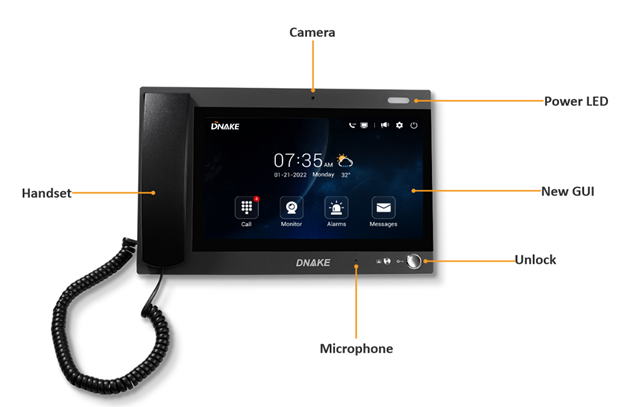
BASIC OPERATION
Call
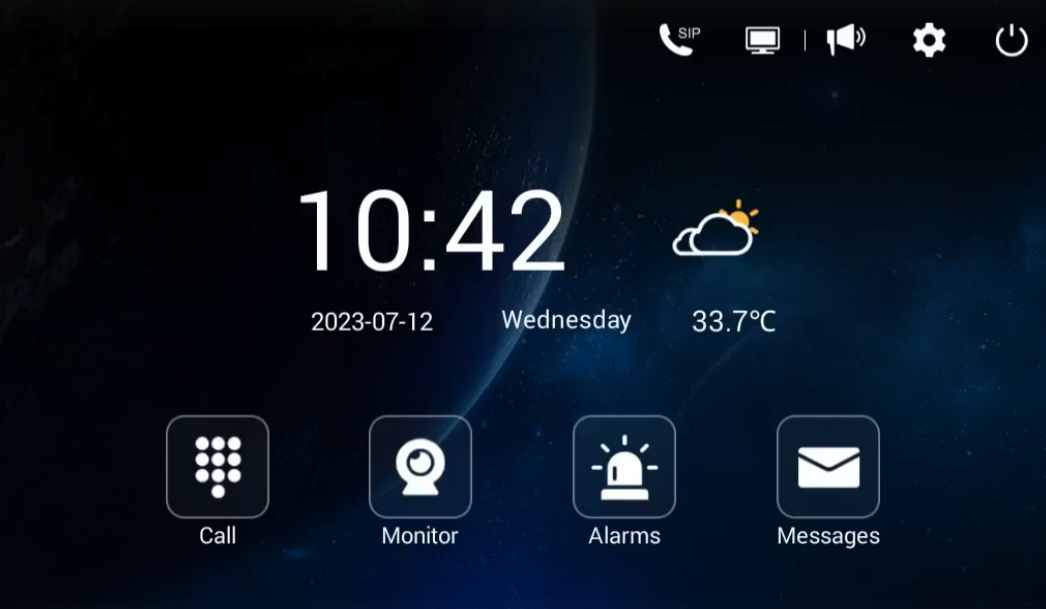
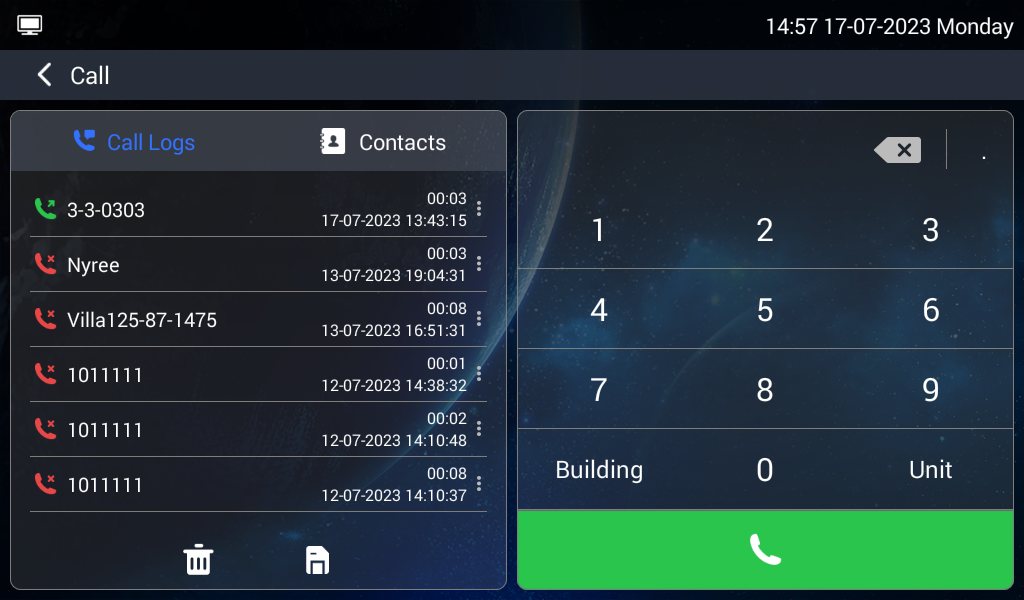
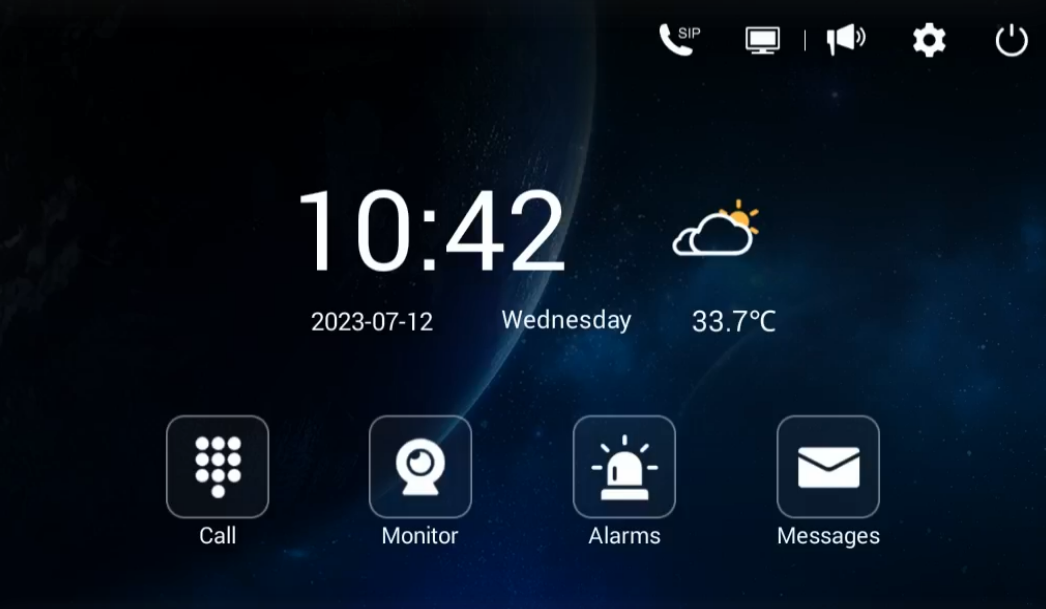
Click Call icon on Master Station’s homepage to call Indoor Monitor. Enter Building number + Building + Unit number + Unit + Room number + dial icon to call Indoor Monitor (such as 1 + Building + 1 + Unit + 1111 + Dial button).
Monitor
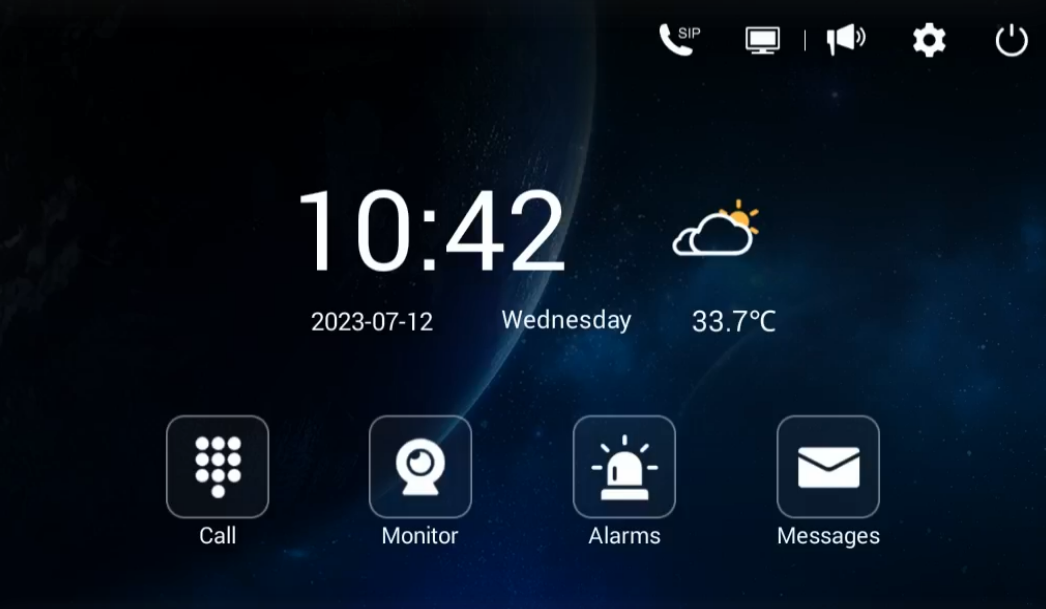
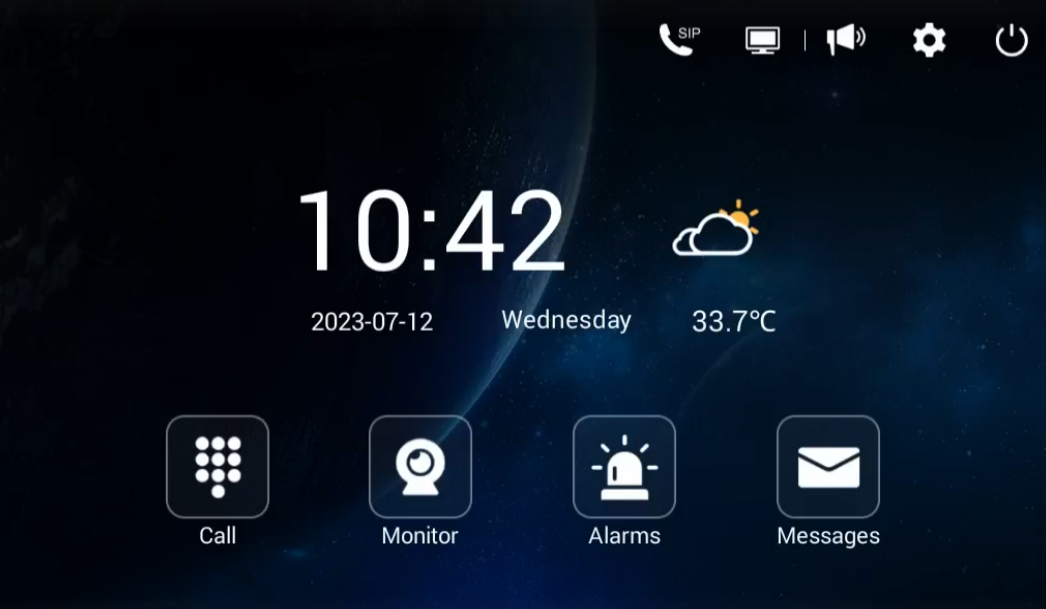
Click Monitor icon on Master Station’s homepage to monitor Door Station, Gate Station and IP camera.
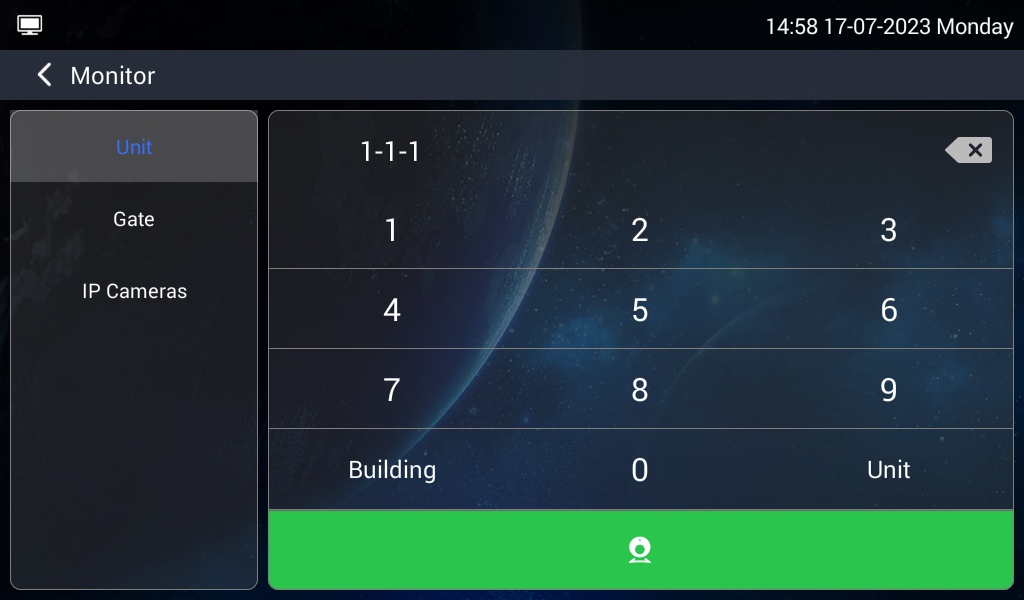
In Unit call page, please press building number, building, unit number, unit and then device no to monitor Door Station. The format is “Building No. + Building + Unit No. +Unit + Device No.” such as 1-1-1.
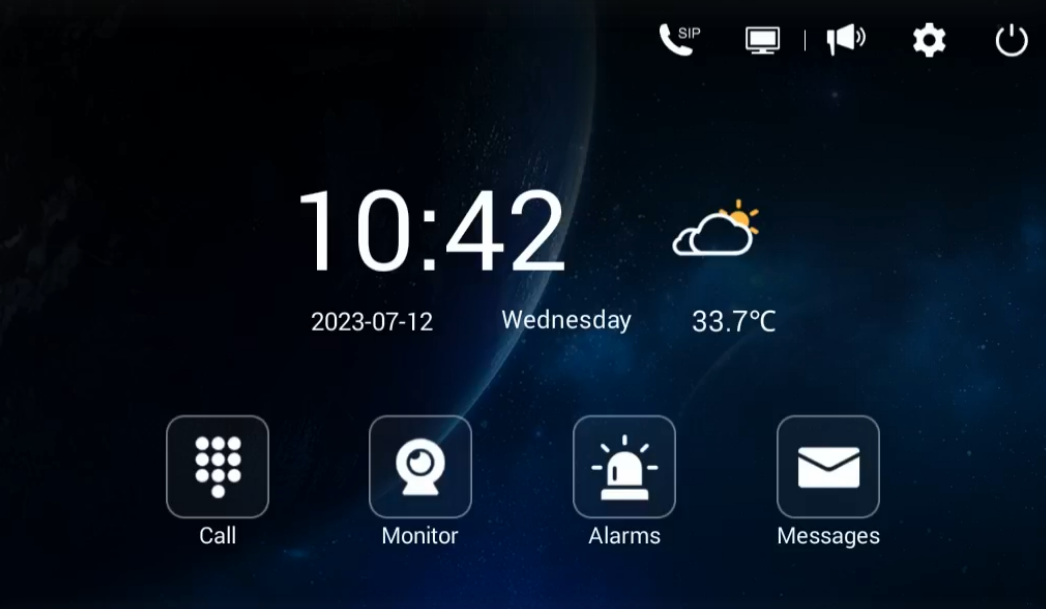
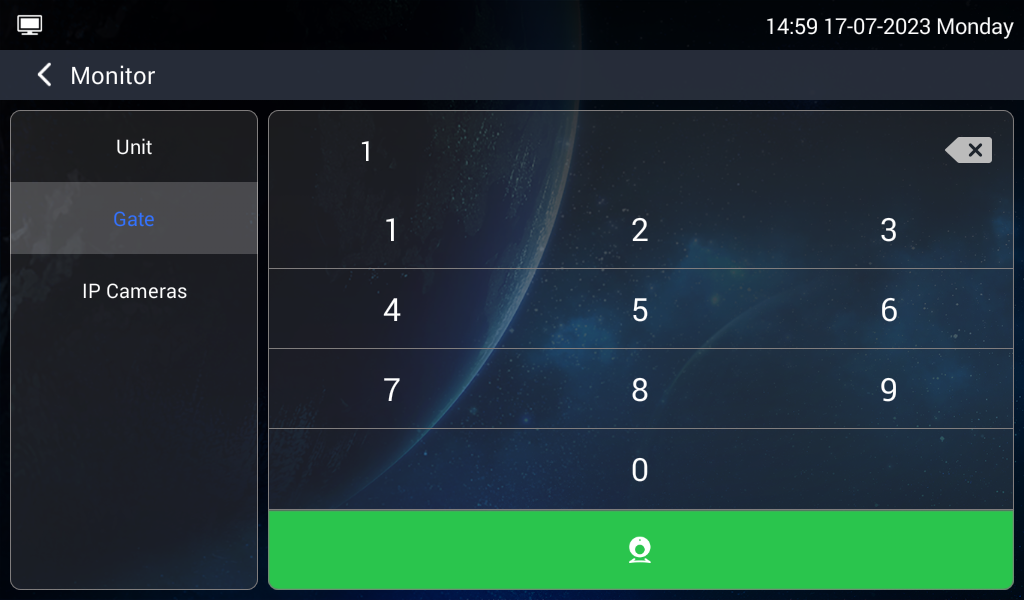
In Gate call page, please press Device No of Gate Station to monitor Gate Station.
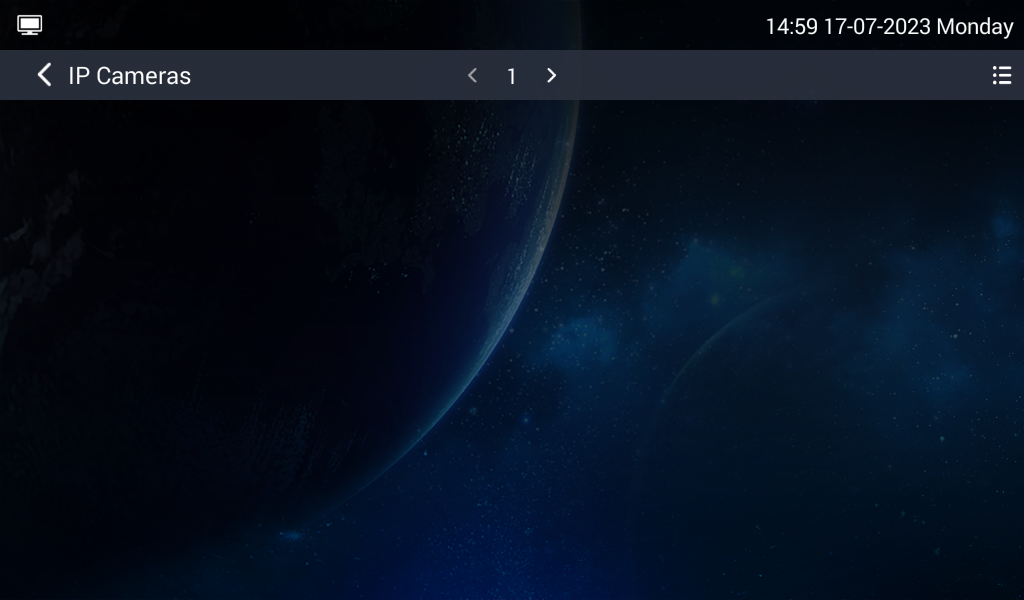
In IP Cameras page, you can click the arrows above to switch to other IP cameras (16 Max). The menu on the right is for adding or deleting IP cameras.
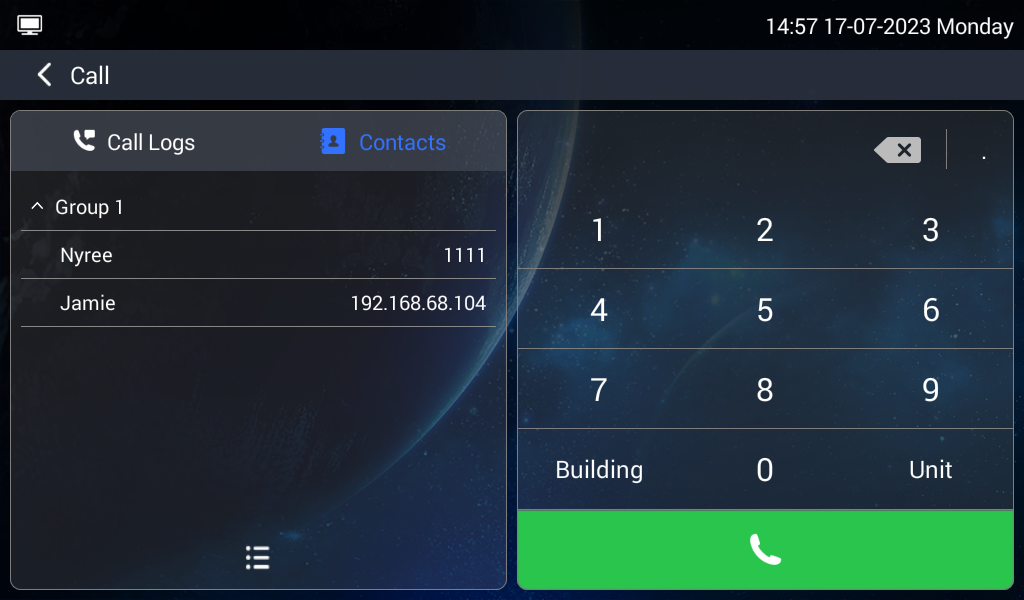
Contacts
Click Call icon on Master Station’s homepage to find Contacts on the left. Unfold Groups and press to call. You can dial any residents in this phonebook.
Call Logs
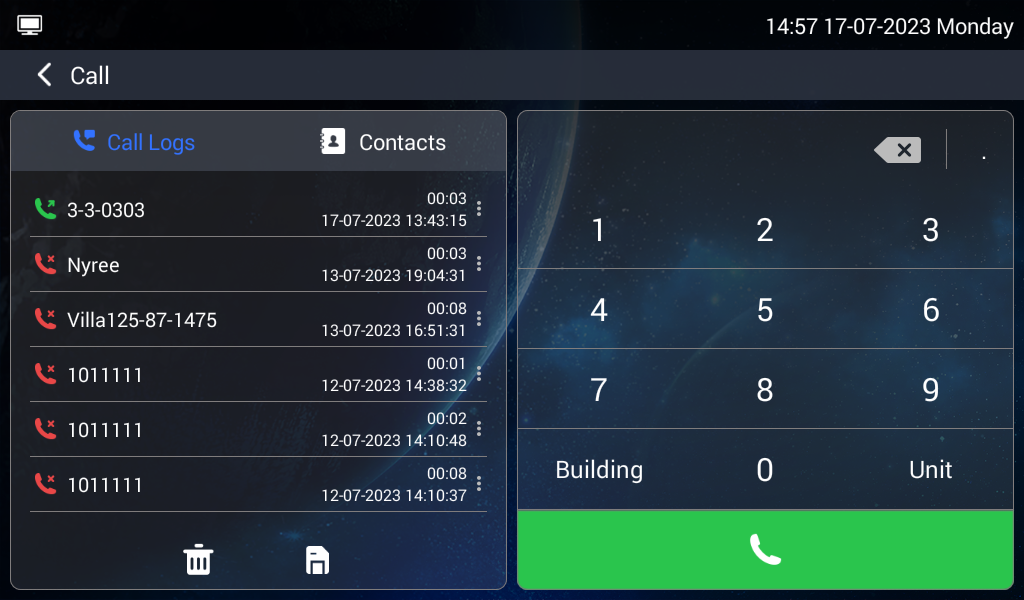
Click Call icon on Master Station’s homepage to find Call Logs on the left. You can press the log and dial button to call back. You can also press the menu behind to check details including screenshot.
Alarms
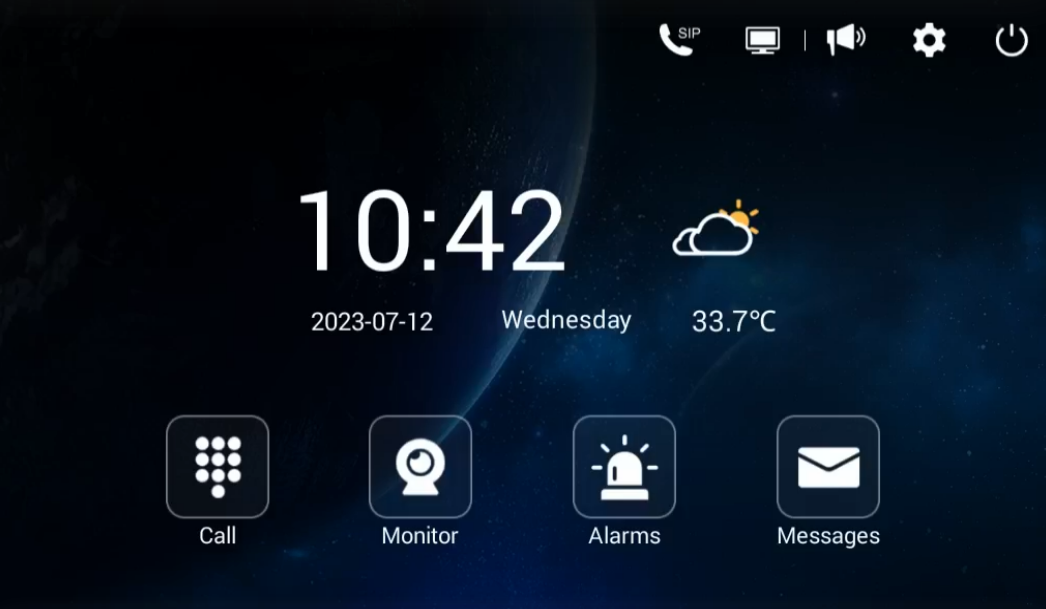
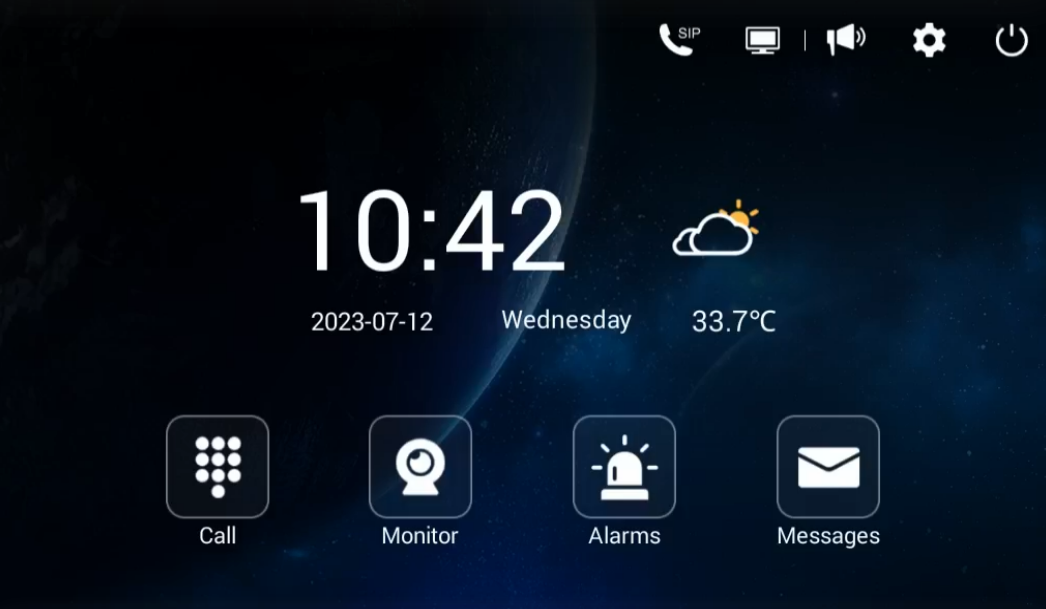
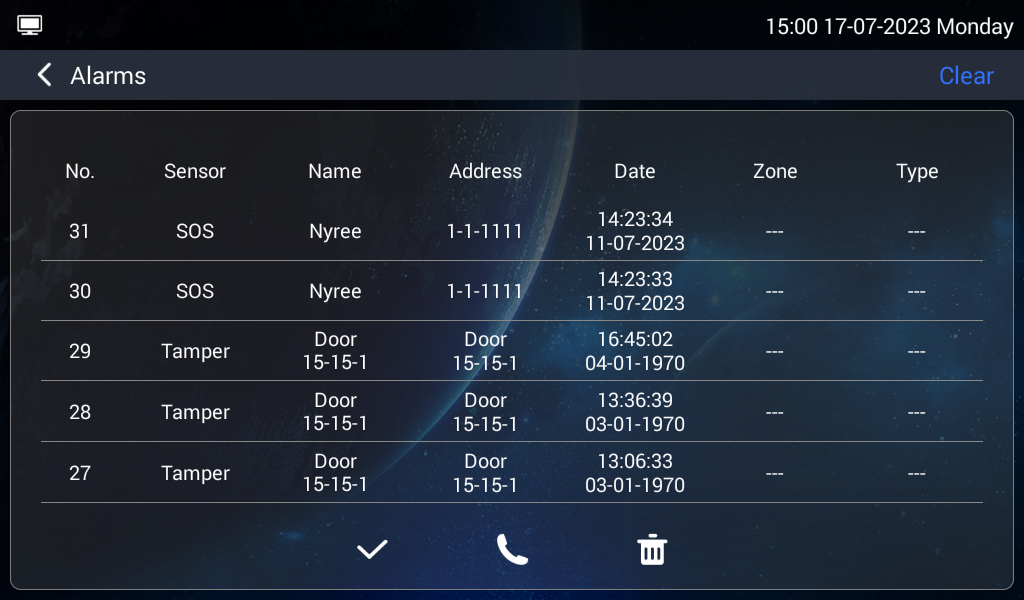
Click Alarms icon on Master Station’s homepage to check alarm logs. Tick icon is for canceling alarm, dial icon is for calling back, and the trash can is used to delete the log. Clear icon on the right upper icon is used for clearing up all logs.
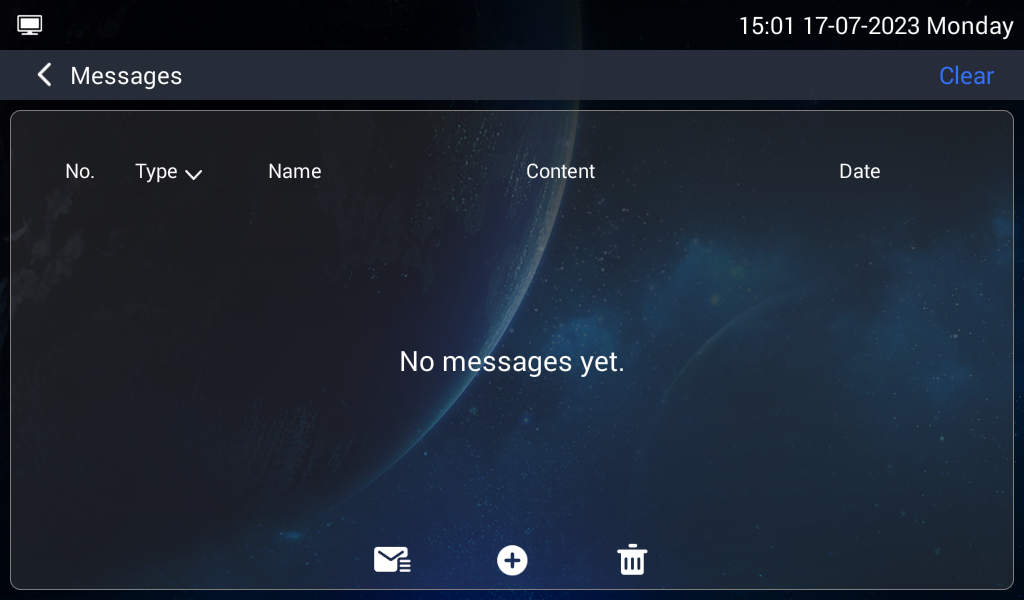
Messages
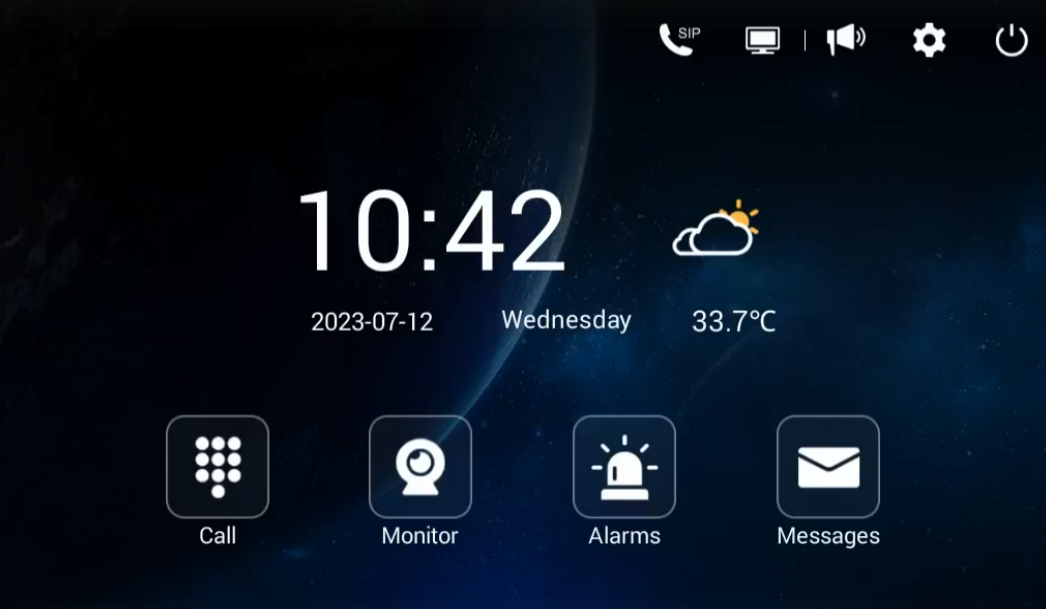
Click Messages icon to check messages from others, edit and send messages to Indoor Monitors.
Broadcast
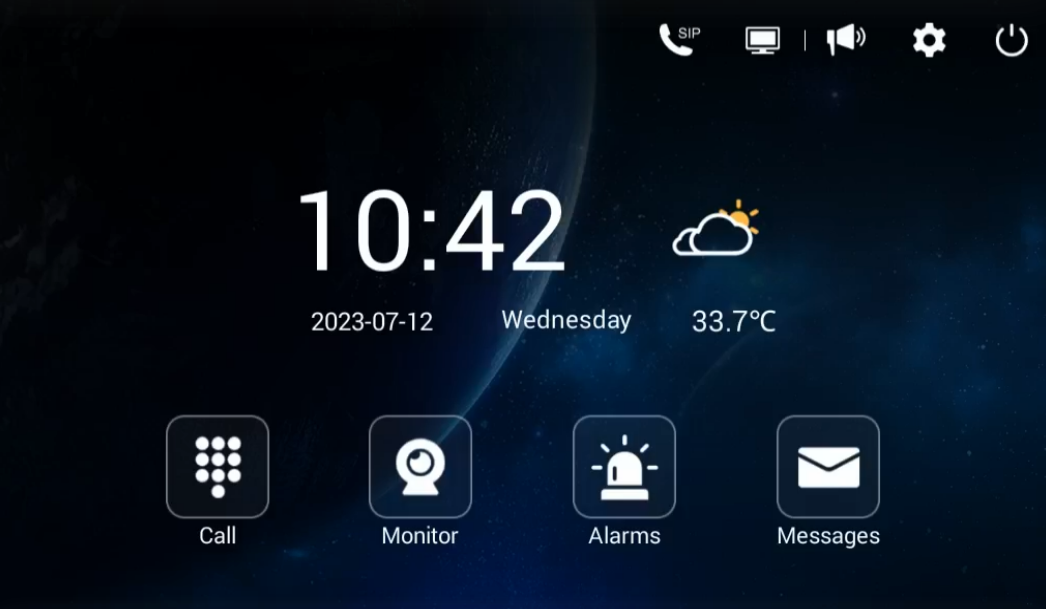
Click the speaker icon on the right upper corner to broadcast to all Door Stations.
Turn off Screen
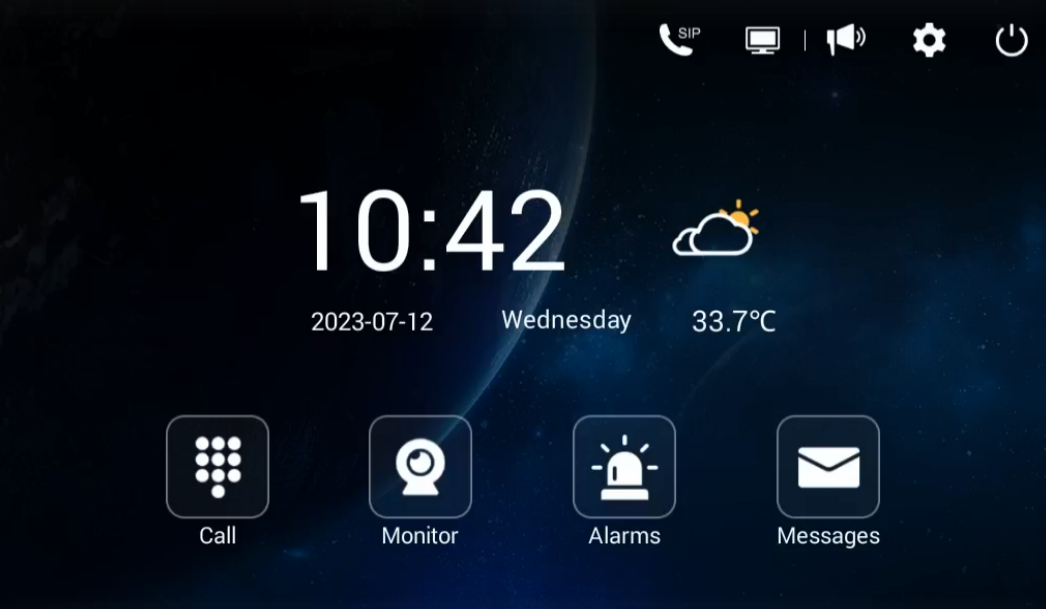
Click the off icon on the right upper corner to turn off the display.
DEVICE SETTING
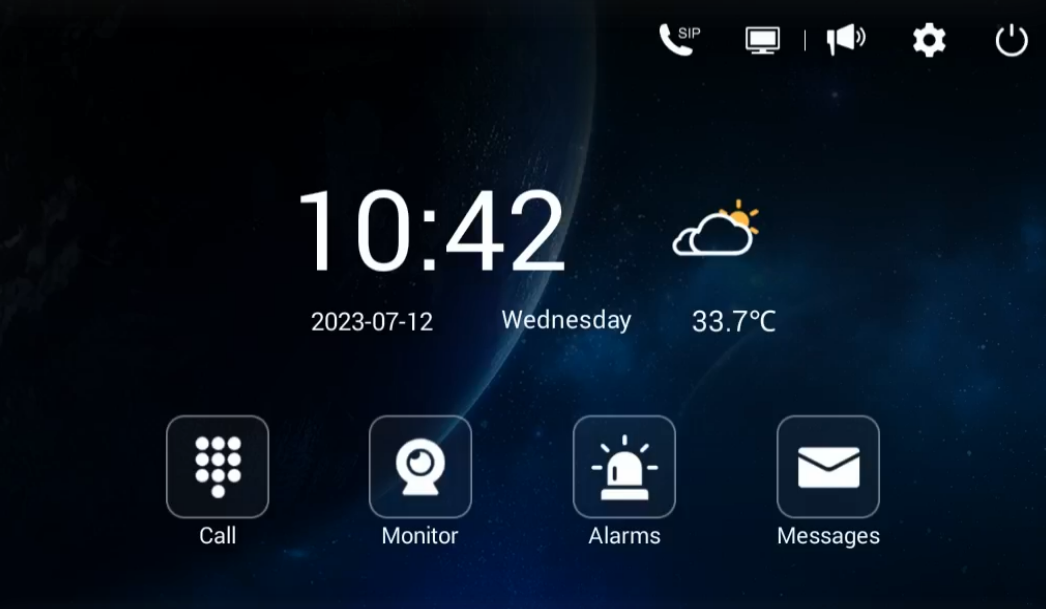
Connect Master Station and other devices to a network switch in the same LAN. Go to Settings to configure the device.
Display
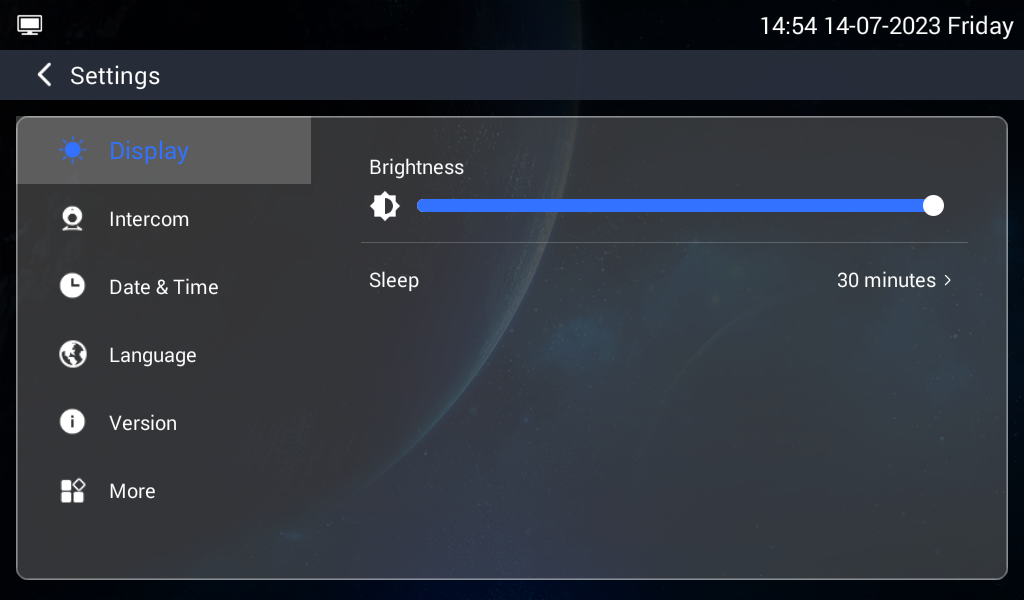
Brightness level:
Screen brightness adjustment;
Sleep:
Screen sleep time (15s, 30s, 1min, 2mins, 5mins, 20mins, 30mins);
Intercom
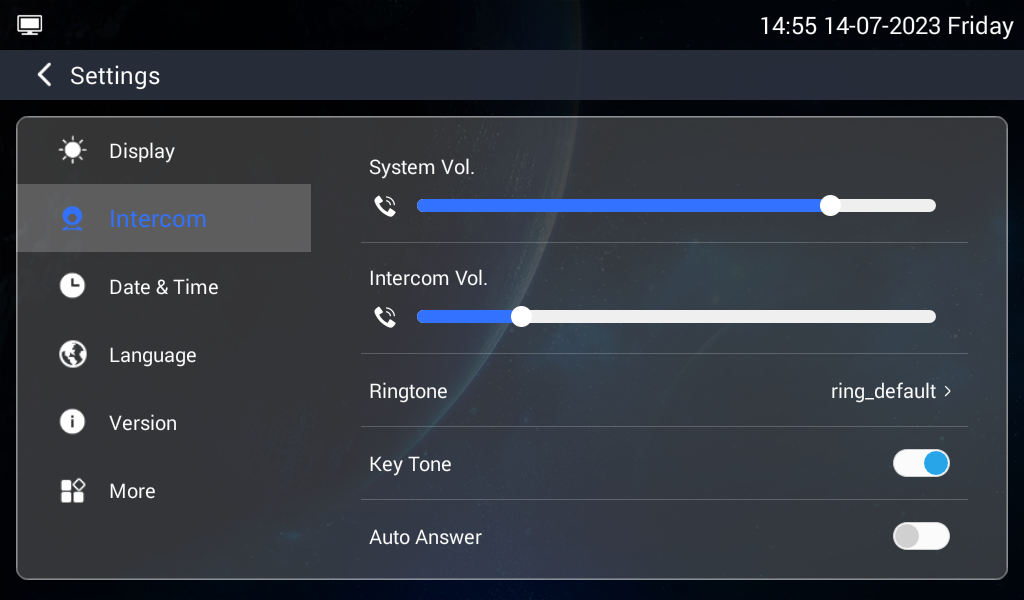
System Vol:
Volume of System can be set from 1 to 6. Volume 6 is the maximum volume (Key tone);
Intercom Vol:
Volume of Intercom can be set from 1 to 6. Volume 6 is the maximum volume (Call volume);
Ringtone:
The ringing sound (Ringtone 01-04);
Key Tone:
The keytone (Enable or disable);
Auto Answer:
Pick up automatically when receiving a call;
Date & Time
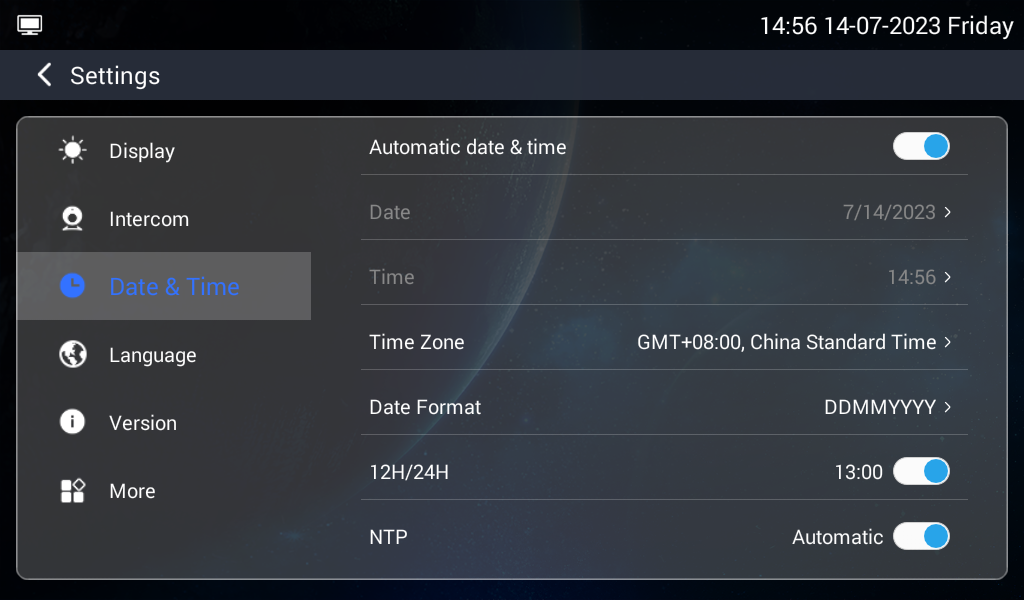
Automatic date & time:
Enable to synchronize computer time;
Time Zone:
A region that observes a uniform standard time;
Date Format:
3 time formats supported (YYYY-MM-DD, DD-MM-YYYY, MM-DD-YYYY);
12H/24H:
Select 12H or 24H format to display on the device;
NTP:
Network Time Protocol (NTP) is a protocol used to synchronize computer time;
Language
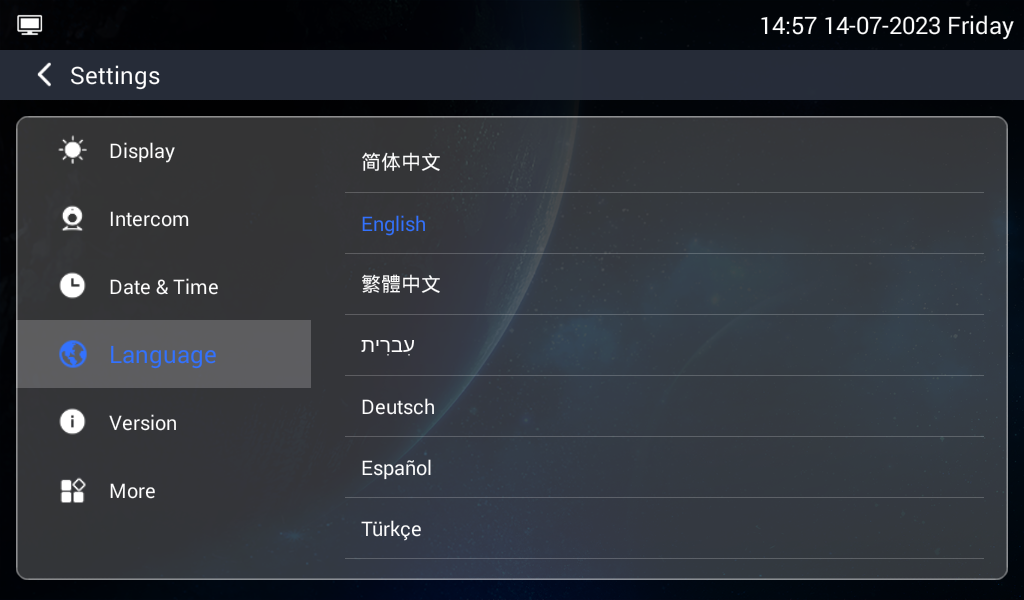
Language:
16 languages supported (简体中文, English, 繁體中文, עִברִית, Deutsch, Español, Türk, Tiếng Việt, Nederlands, Português, Polski, Русский, عربي, Français, Italiano, slovenský);
Version
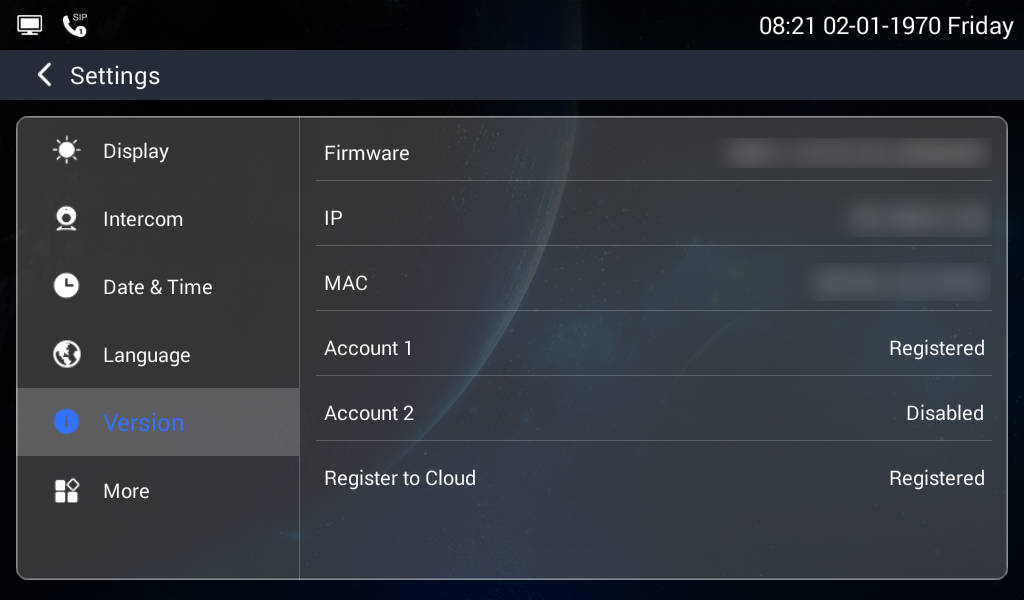
Firmware:
Firmware version of the device;
IP:
Current IP address of the device;
MAC:
MAC address of the device;
Account 1
Indicates the status of SIP Server Account 1; when the cloud platform function is enabled, it is assigned to the cloud platform by default, and when the cloud platform function is disabled, users can configure the SIP server manually.
Account 2
Indicates the status of SIP Server Account 2; when the cloud platform function is enabled and Account 1 is occupied, users can configure a second third-party SIP server.
Register to Cloud
Status of Cloud registration of the device;
More > Ethernet
The device network can be set to either DHCP or a static IP address.
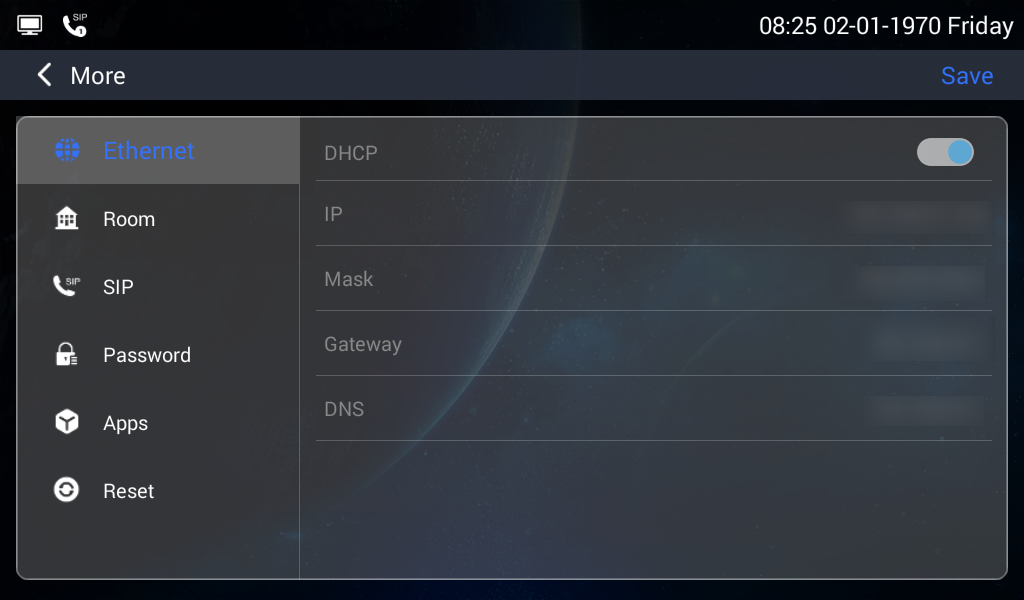
DHCP:
Enable DHCP (Dynamic Host Configuration Protocol) to dynamically distributing network configuration parameters;
IP:
Configure Static IP address to manually distributing network configuration parameters;
Mask:
Subnet mask;
Gateway:
A component that is part of two networks, which use different protocols;
DNS:
Domain Name Server of the device;
More > Room
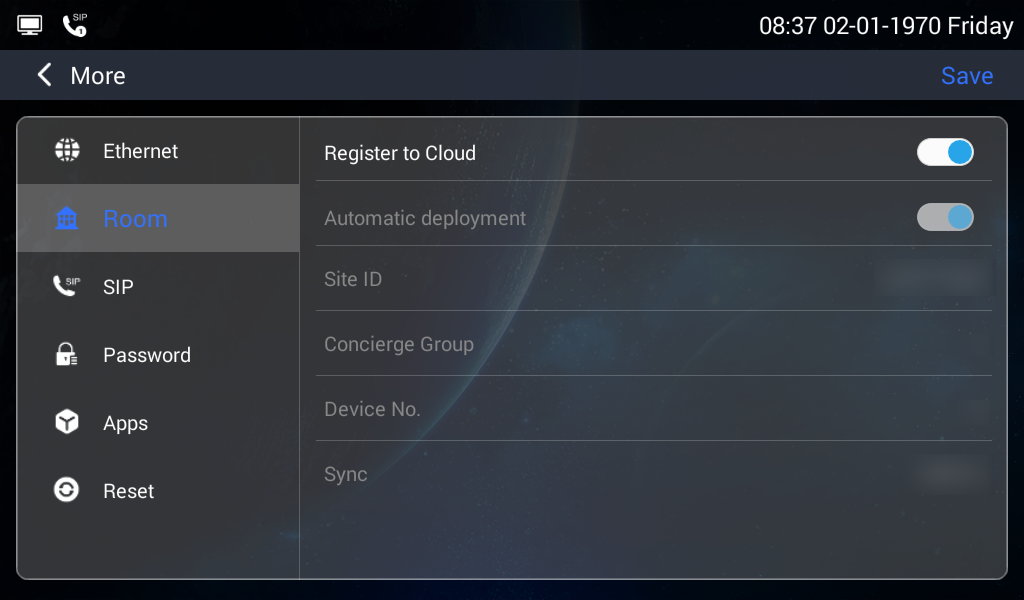
Register to Cloud
Indicates whether the device is registered on the cloud platform.
Automatic Deployment
Toggle switch for enabling or disabling the Auto Deploy function.
Site ID
The Site ID of the project to which the device at.
Concierge Group:
Master Station will ring according to the concierge number. No.1 Master Station will ring first. If it’s not answered, No.2 will ring… (Range: 1-5);
Device No:
Number of the device (Range: 0-9);
Sync:
A number used to synchronize to the cloud;
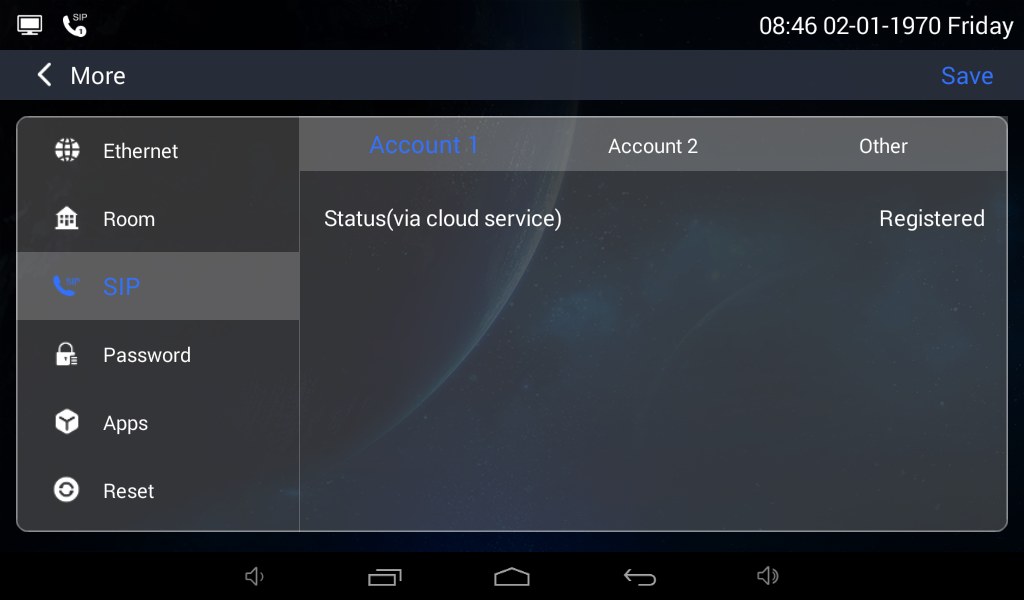
More > SIP
- Account 1
When the device is using the cloud platform service, Account 1 displays the device’s registration status on the cloud platform; if the cloud platform service is not in use, refer to the Account 2 description to add a third-party SIP service.
- Account 2
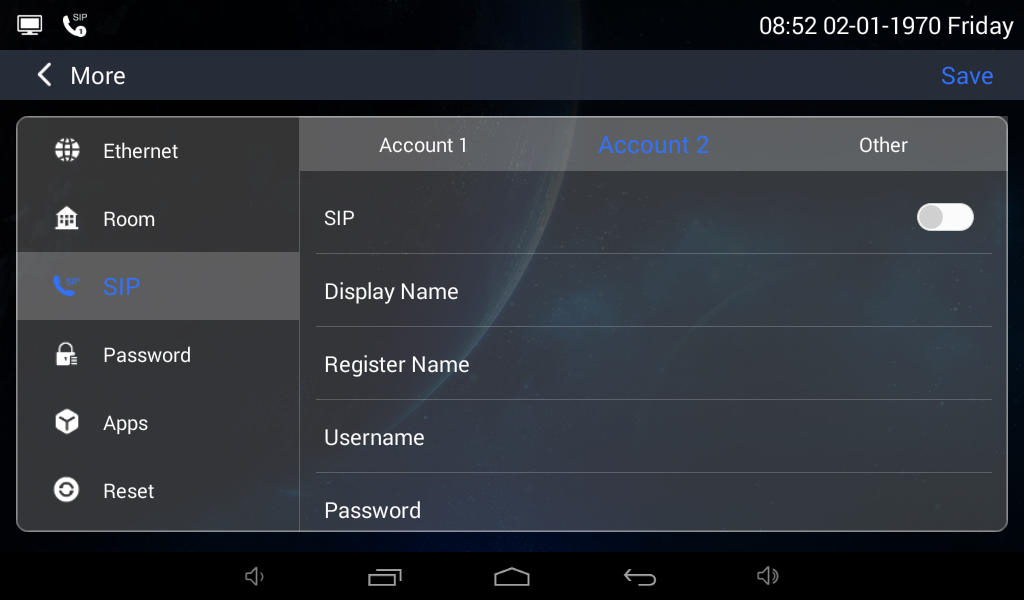
SIP:
Enable to use SIP;
Display Name:
Display name of SIP account;
Register Name:
Register Name of SIP account;
Username:
Username of SIP account;
Password:
Password of SIP account;
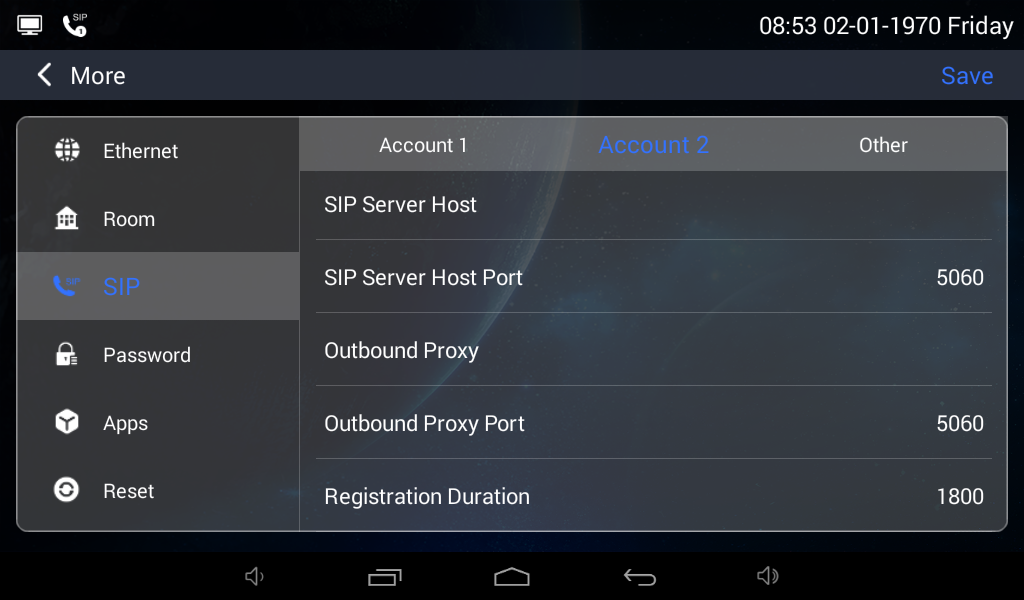
SIP Server Host:
SIP Server domain or IP address;
SIP Server Host Port:
The default port is 5060;
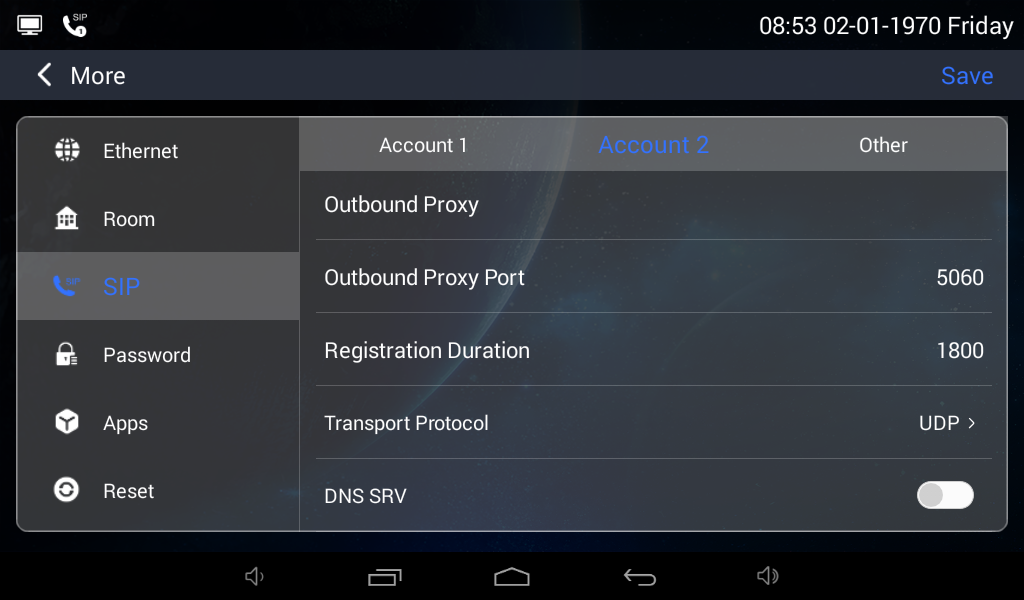
Outbound Proxy:
Outbound Proxy of SIP;
Outbound Proxy Port:
The default port is 5060;
Transport Protocol:
Transfer Protocol (UDP, TCP, TLS);
DNS SRV
Enable or Disable DNS SRV Function
- Other
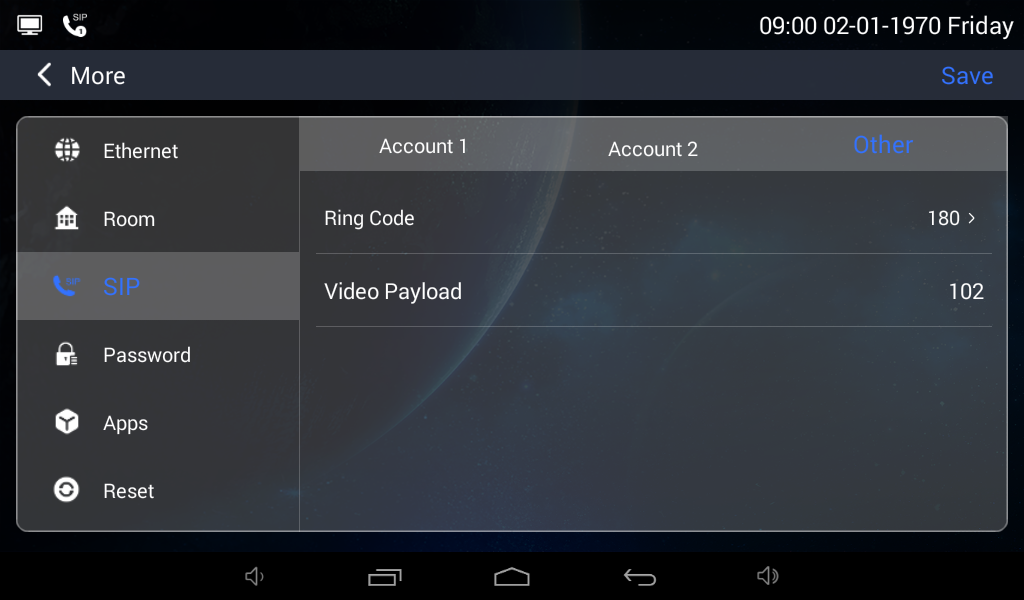
Ring Code:
Ring Code (180,183)
Video Payload:
Video payload range is 96-127;
More > Password
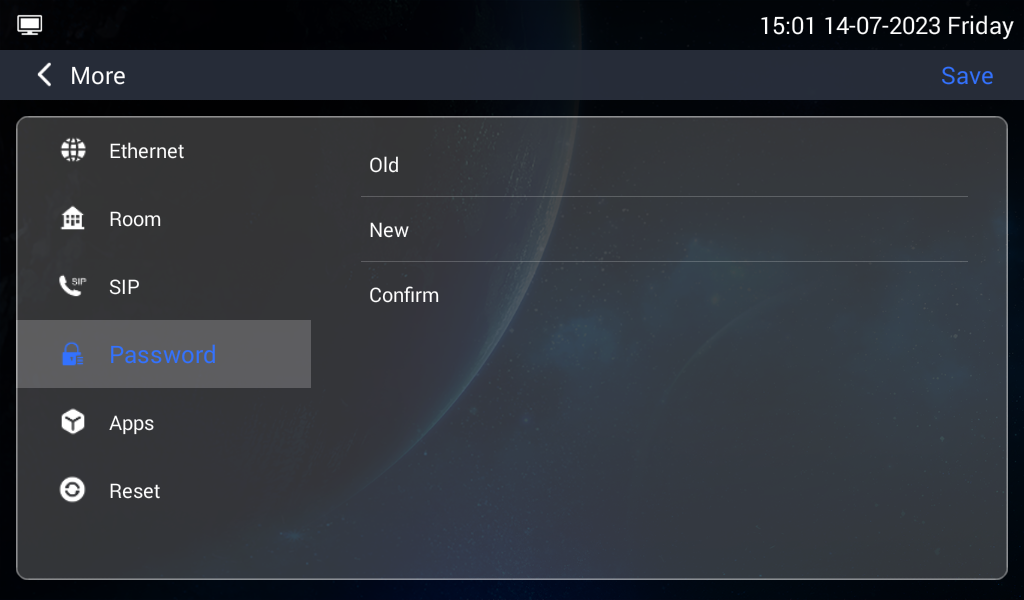
Old:
Current administrator password of the Device (Default 123456);
New:
New administrator password of the Device;
Confirm:
Confirm administrator password of the Device;
More > Apps
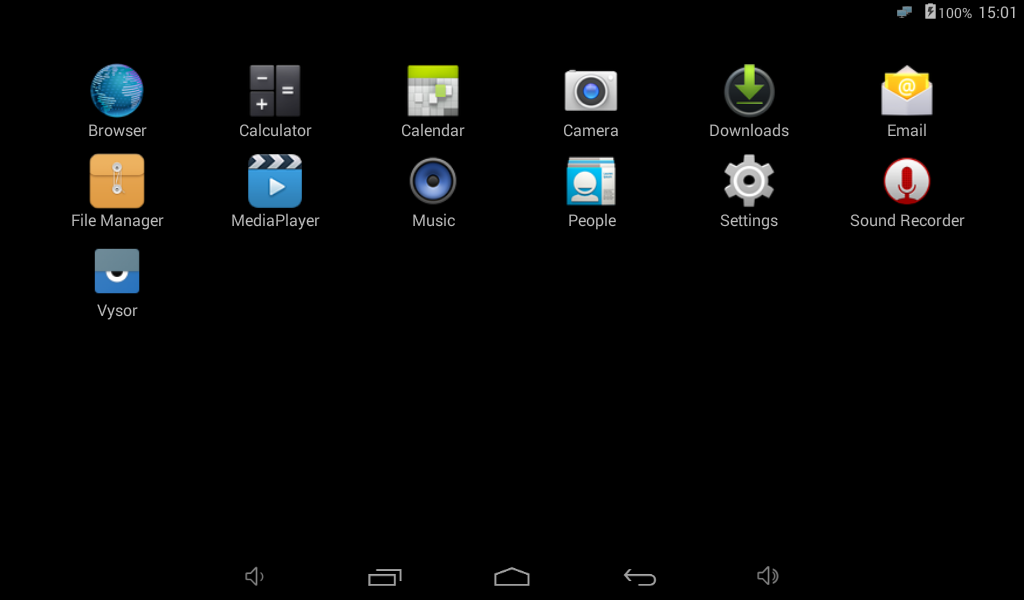
Apps:
3rd party apps can be managed here;
More > Reset
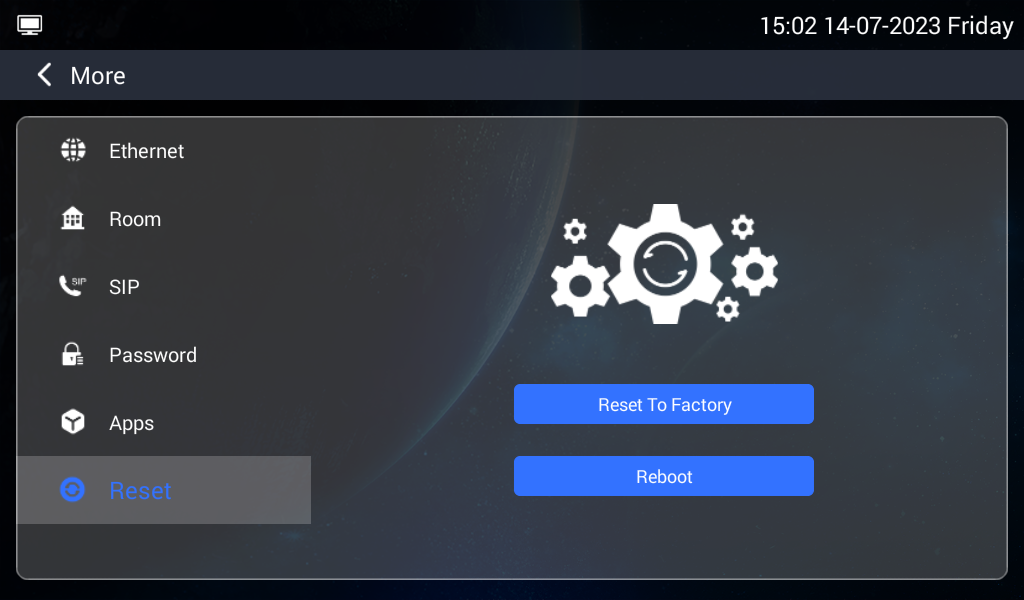
Reset to Factory:
Reset to factory settings;
Reboot:
Reboot the device;
WEB SETTING
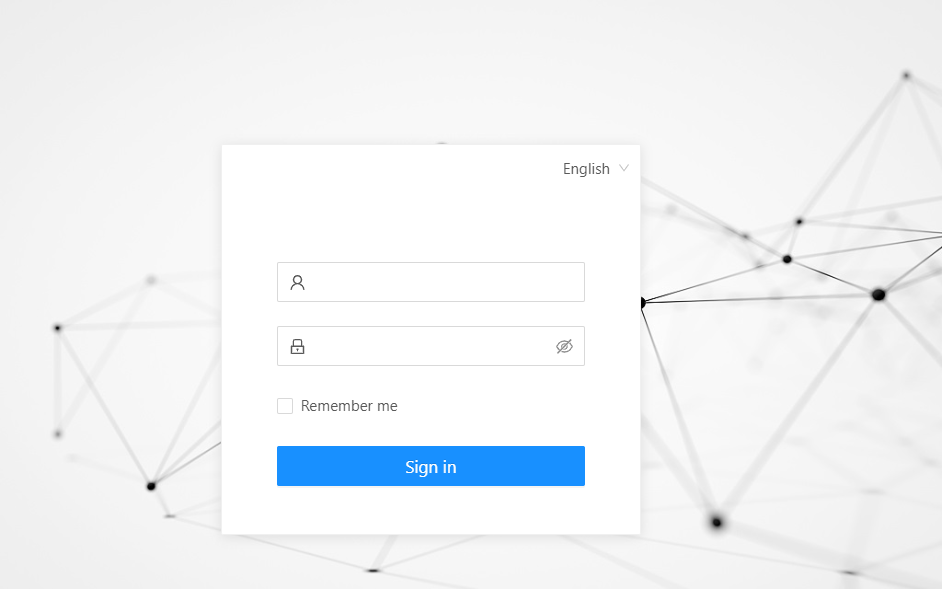
Connect Master Station and PC to a network switch in the same LAN. You can enter the IP address of Master Station in the web browser search bar and log in with the default account (admin) and password (123456). This is where you can configure the device.
For getting the IP address, you can search by DNAKE Remote Upgrade Tool which is installed in the same LAN with the devices.
General
General > Information
When you first log in to the web interface, you can find basic information displayed in this dashboard.
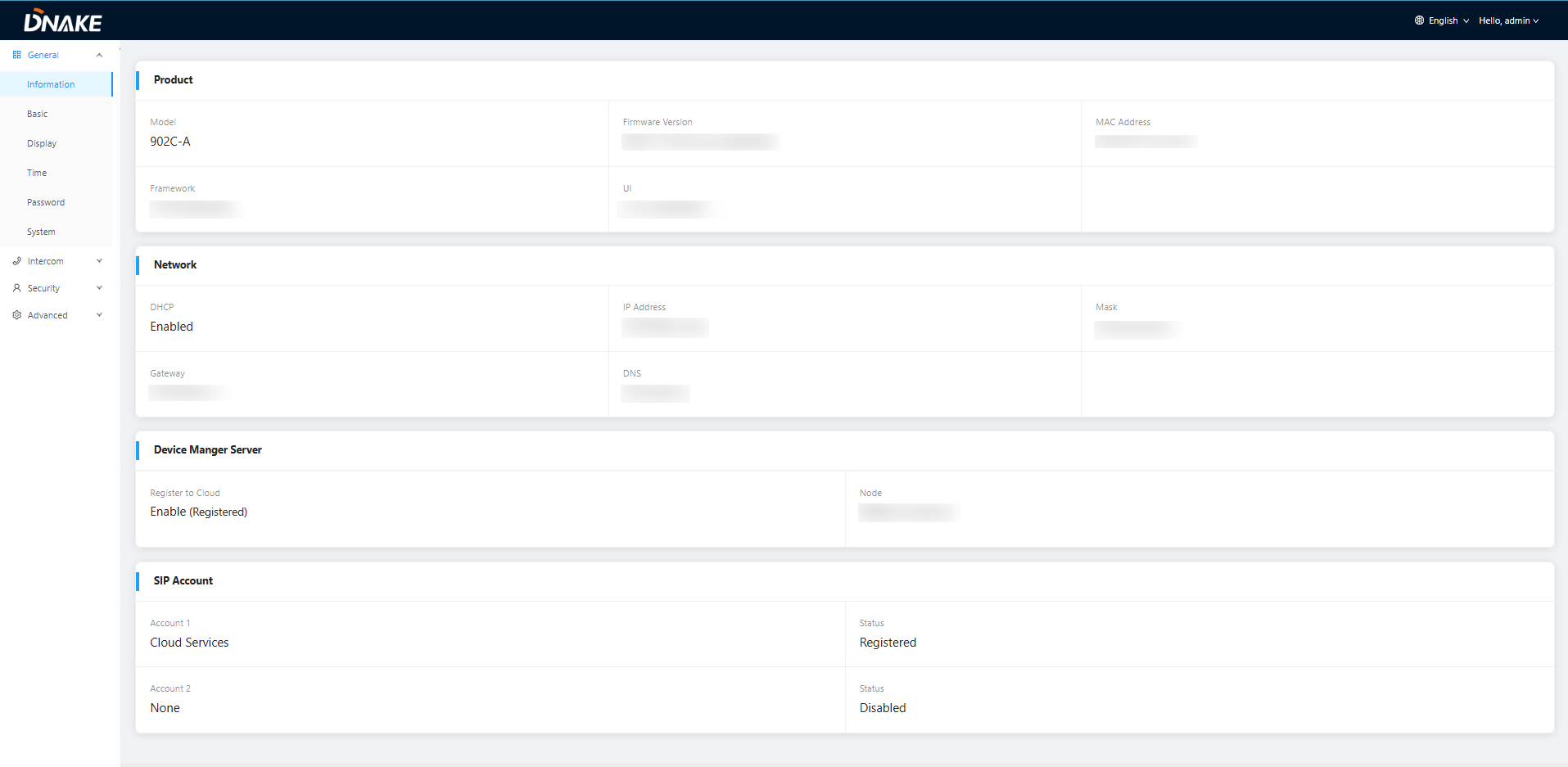
Product
Model:
Model of the device;
Firmware Version:
Firmware version of the device;
MAC Address:
MAC address of the device;
Framework:
Framework of the device;
UI:
UI version of the device;
Network
DHCP:
Status of DHCP;
IP Address:
Current IP address of the device;
Mask:
Subnet mask of the device;
Gateway:
Gateway of the device;
DNS:
Domain Name Server of the device;
Device Manger Server
Register to Cloud
Device cloud registration status
Node
Node information of the management server to which the device is connected
SIP Account
Account:
SIP account of the device;
Status:
Status of SIP registration of the device;
General > Basic
Some basic settings of the device can be configured in this column.
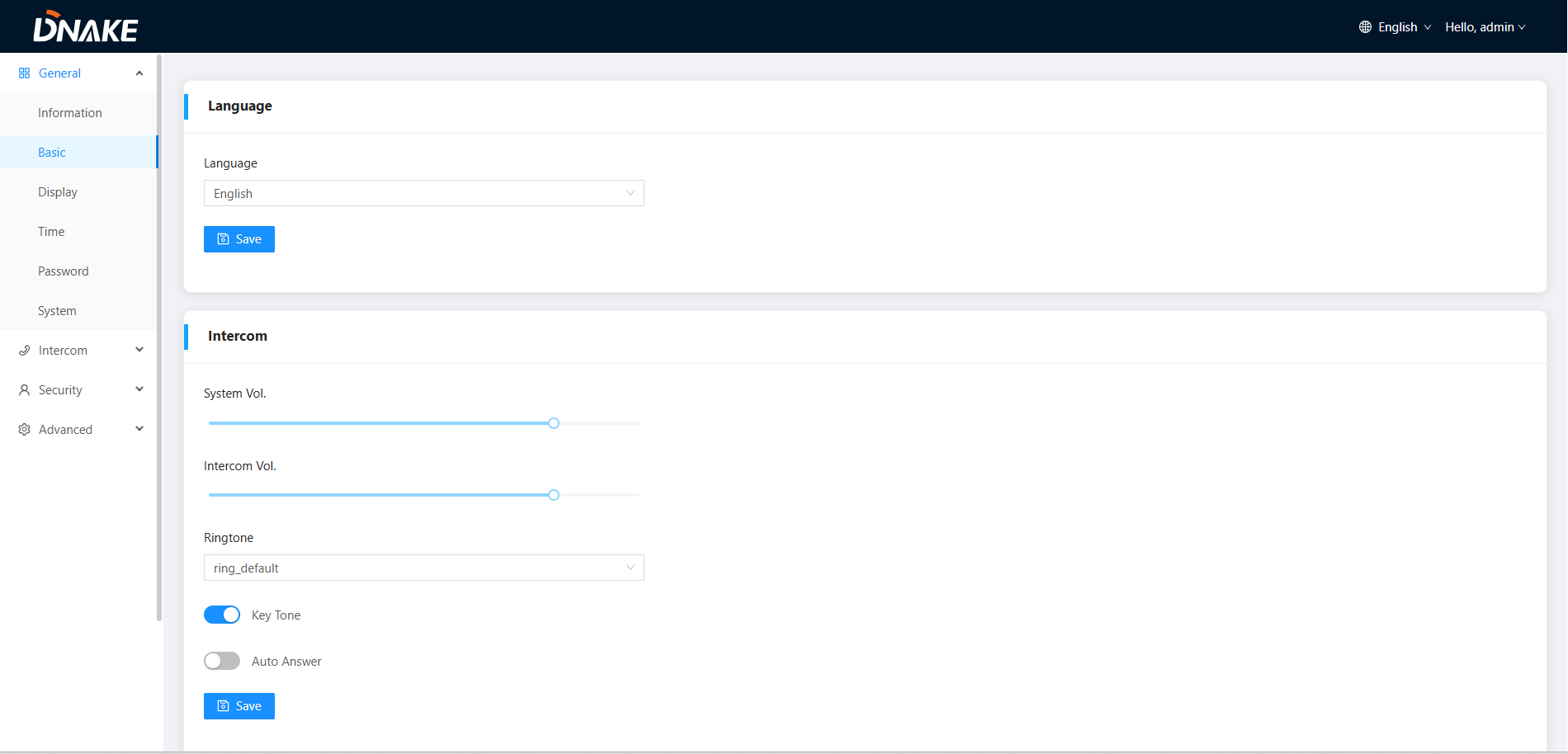
Language
Language:
16 languages supported (简体中文, English, 繁體中文, עִברִית, Deutsch, Español, Türkçe, Tiếng Việt, Nederlands, Português, Polski, Русский, عربي, Français, Italiano, slovenský);
Intercom
System Vol:
Volume of System can be set from 1 to 16. Volume 16 is the maximum volume (Key tone);
Intercom Vol:
Volume of Intercom can be set from 1 to 6. Volume 6 is the maximum volume (Call volume);
Ringtone:
The ringing sound (Can be choose from 9 available ringtones);
Key Tone:
The key tone (Enable or disable);
Auto Answer:
Pick up the phone automatically when receiving a call;
General > Display
Configured device display settings.
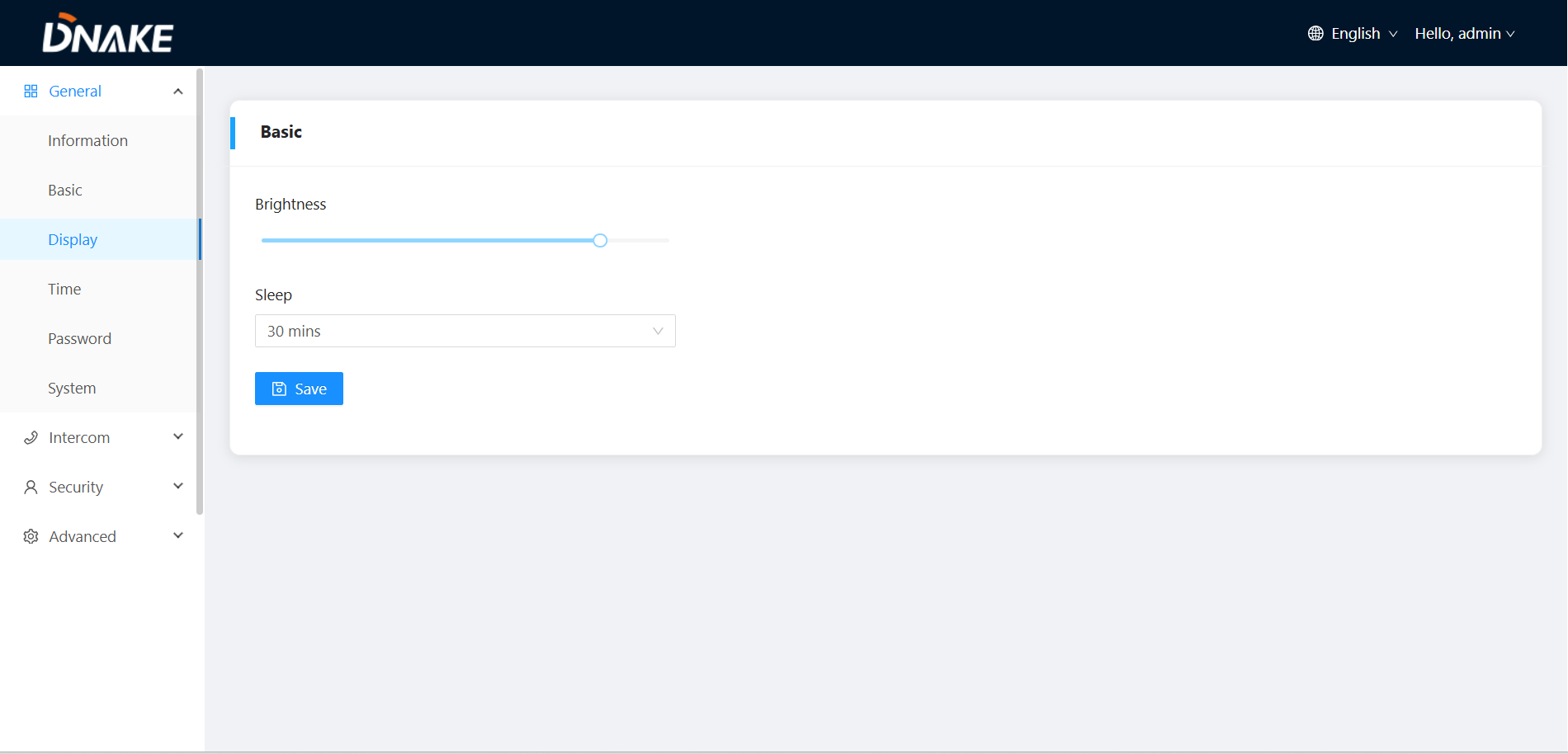
Basic
Brightness
Screen brightness adjustment, can be set from 1-100;
Sleep
The time when the device enters sleep mode (15s, 30s, 1min, 2mins, 5mins, 20mins, 30mins),
General > Time
Time of the device can be configured.
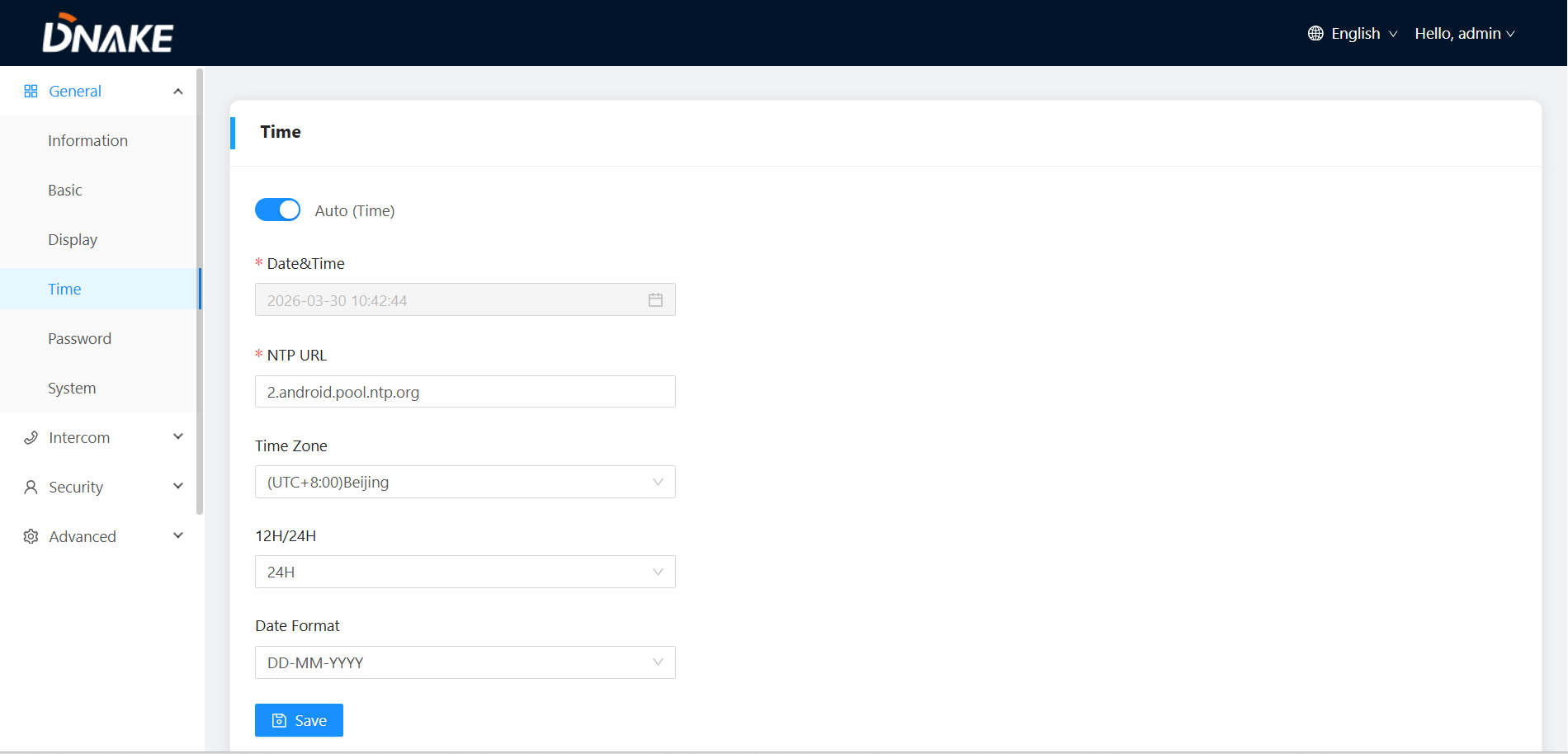
Time
Auto (Time):
Enable to synchronize computer time;
Date & Time:
Date and time can be set manually;
NTP URL:
Network Time Protocol (NTP) is a protocol used to synchronize NTP time;
Time Zone:
A region that observes a uniform standard time;
12H/24H:
Select 12H or 24H format to display on the device;
Date Format:
3 time formats supported (YYYY-MM-DD, DD-MM-YYYY, MM-DD-YYYY);
General > Password
The System password is for the administrator to log in settings on the device while the Web password is for the administrator to log in settings on the web. The default password for both of them is 123456.
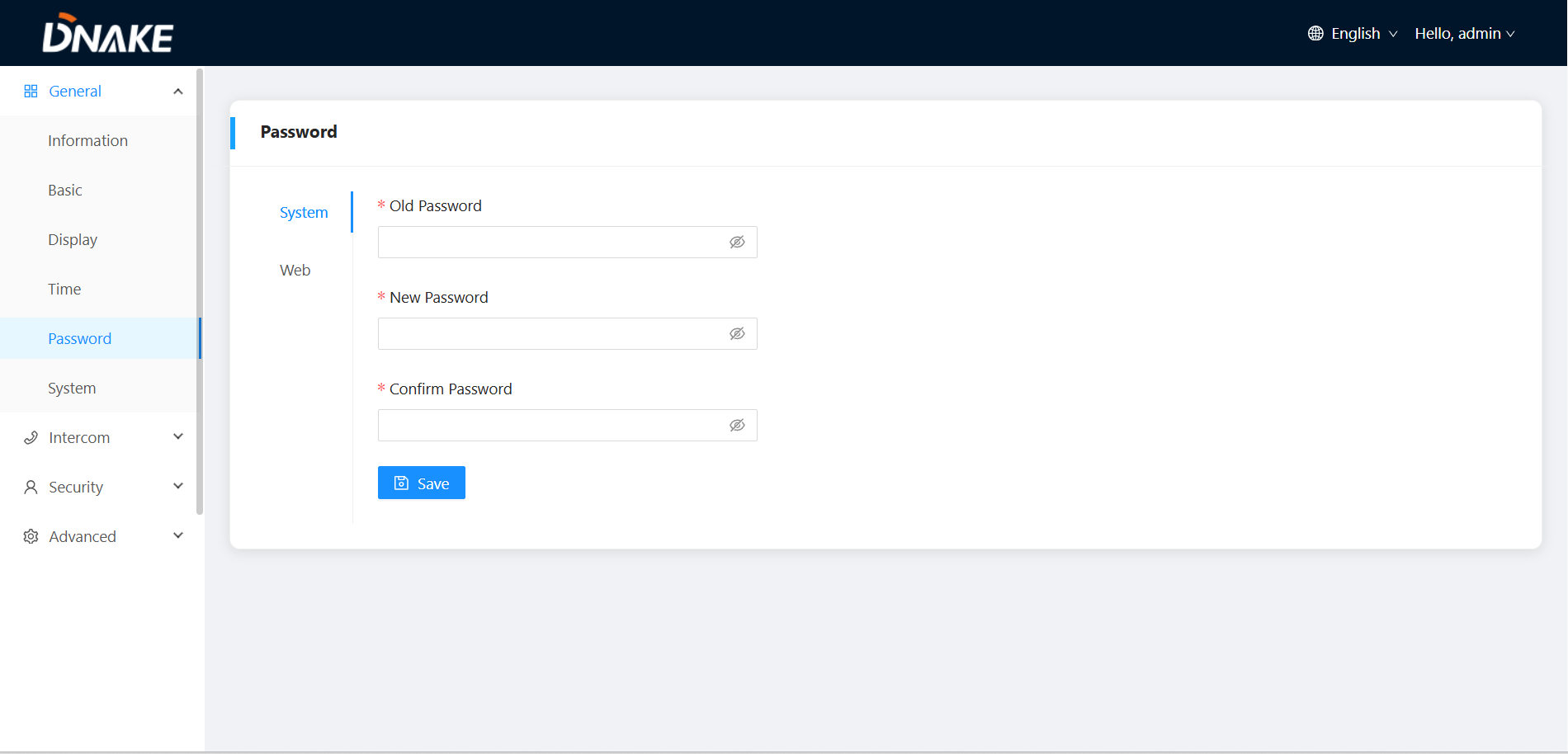
Password
System Old Password:
Current administrator password of the Device (Default 123456);
System New Password:
New administrator password of the Device;
System Confirm Password:
Confirm administrator password of the Device;
Web Old Password:
Current administrator password of the web (Default 123456);
Web New Password:
New administrator password of the web;
Web Confirm Password:
Confirm administrator password of the web;
General > System
The system column is designed for factory default and device reboot.
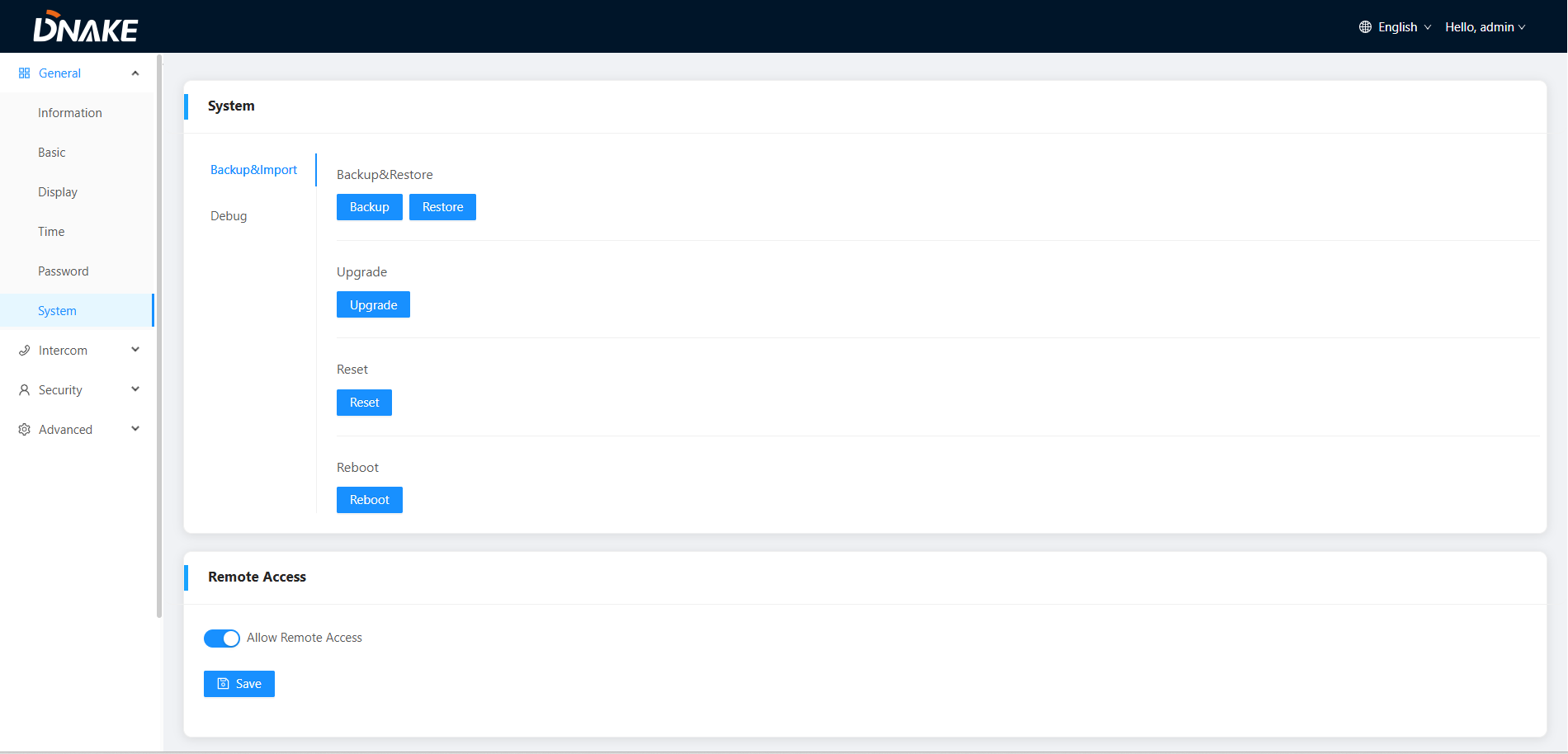
System
Backup & Restore
Back up or restore system configuration and files
Upgrade
Upload upgrade .img format file to update the firmware version of the device
Reset:
Reset to factory settings;
Reboot:
Reboot the device;
Remote Access
Remote Access
The permissions for external remote access to the device Web UI
Intercom
Intercom > Device
Numbers here are basic settings for making a call to Master Station.
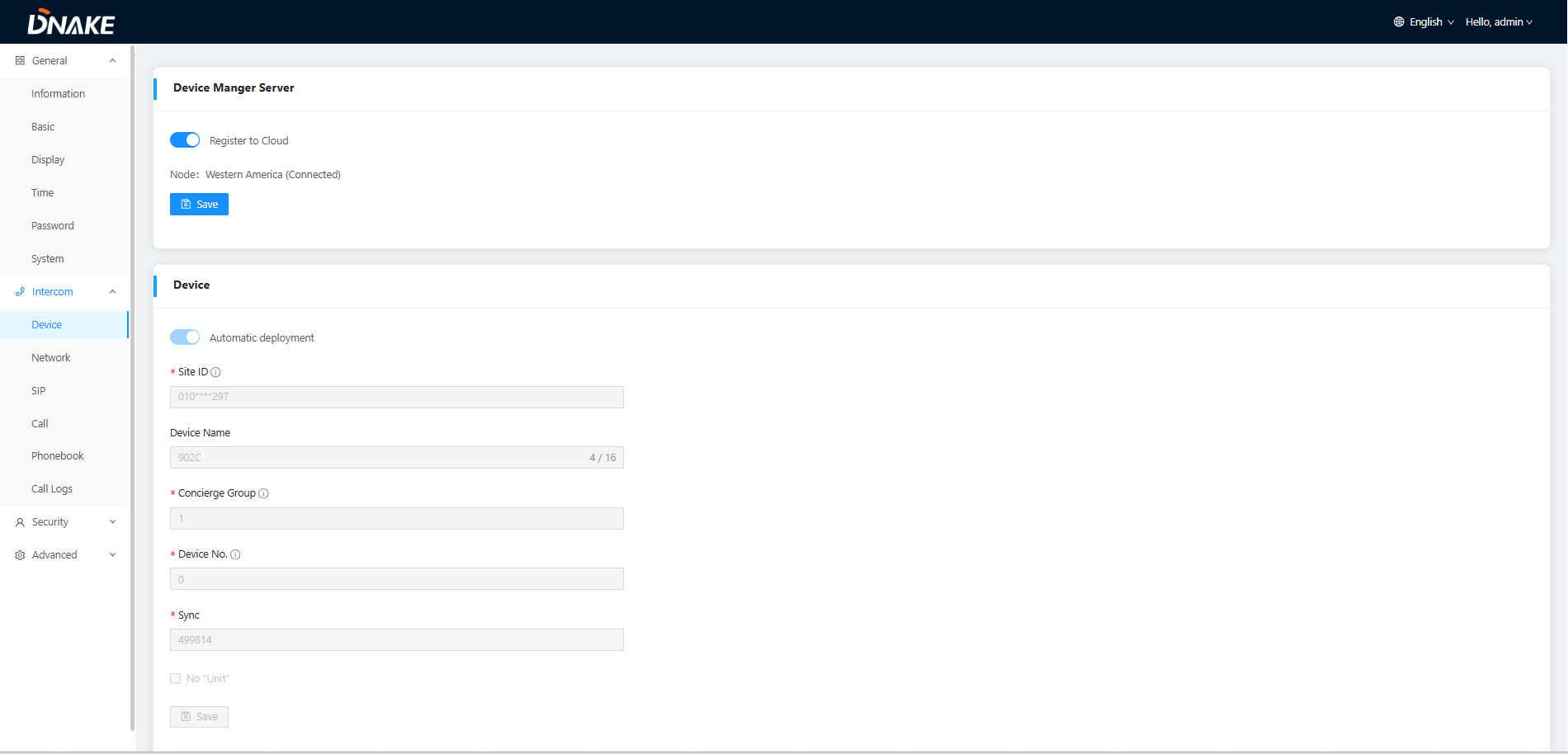
Device Manger Server
Device Manager Server
Configure the device to register to the cloud server
Device
Automatic Deployment
Configure whether the device is allowed to automatically connect to the cloud platform and obtain configuration
Site ID
Configure the device to automatically connect to the specified site of the cloud platform
Device Name
The name of device
Building:
Number of the building (Range: 1-999);
Unit:
Number of the unit (Range: 0-99);
Room:
Number of the apartment (Range: 0-9899);
Device No:
Number of the device (Range: 0-9);
Sync:
A number used to synchronize to other Indoor Monitors;
Intercom > Network
The device network can be set to either DHCP or a static IP address.
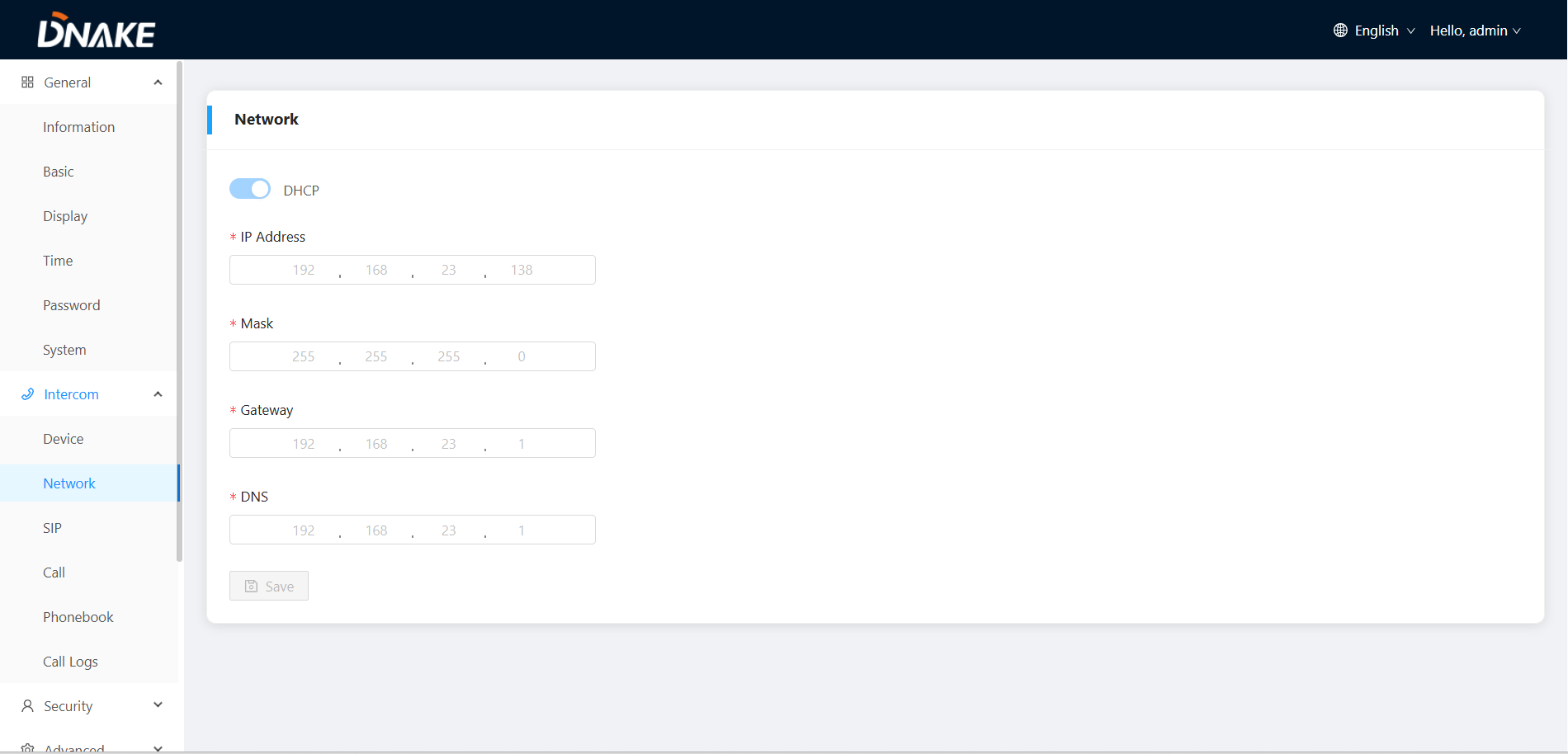
Network
DHCP:
Enable DHCP (Dynamic Host Configuration Protocol) to dynamically distribute network configuration parameters;
IP Address:
Configure Static IP address to manually distribute network configuration parameters;
Mask:
Subnet mask;
Gateway:
A component that is part of two networks, which use different protocols;
DNS:
Domain Name Server of the device;
Intercom > SIP
The SIP column concerns SIP registration, Display Name, Register Name, Username, Password, SIP Server Host, Outbound Proxy, Transport Protocol, Video Payload, etc.
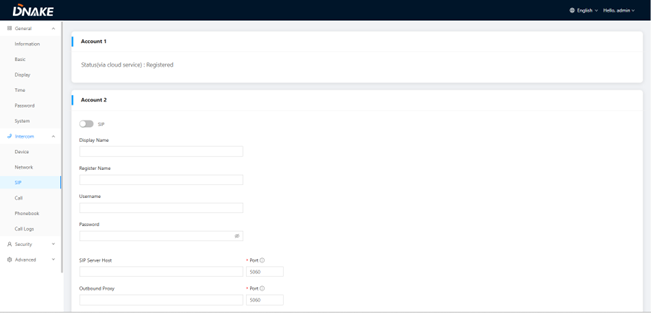
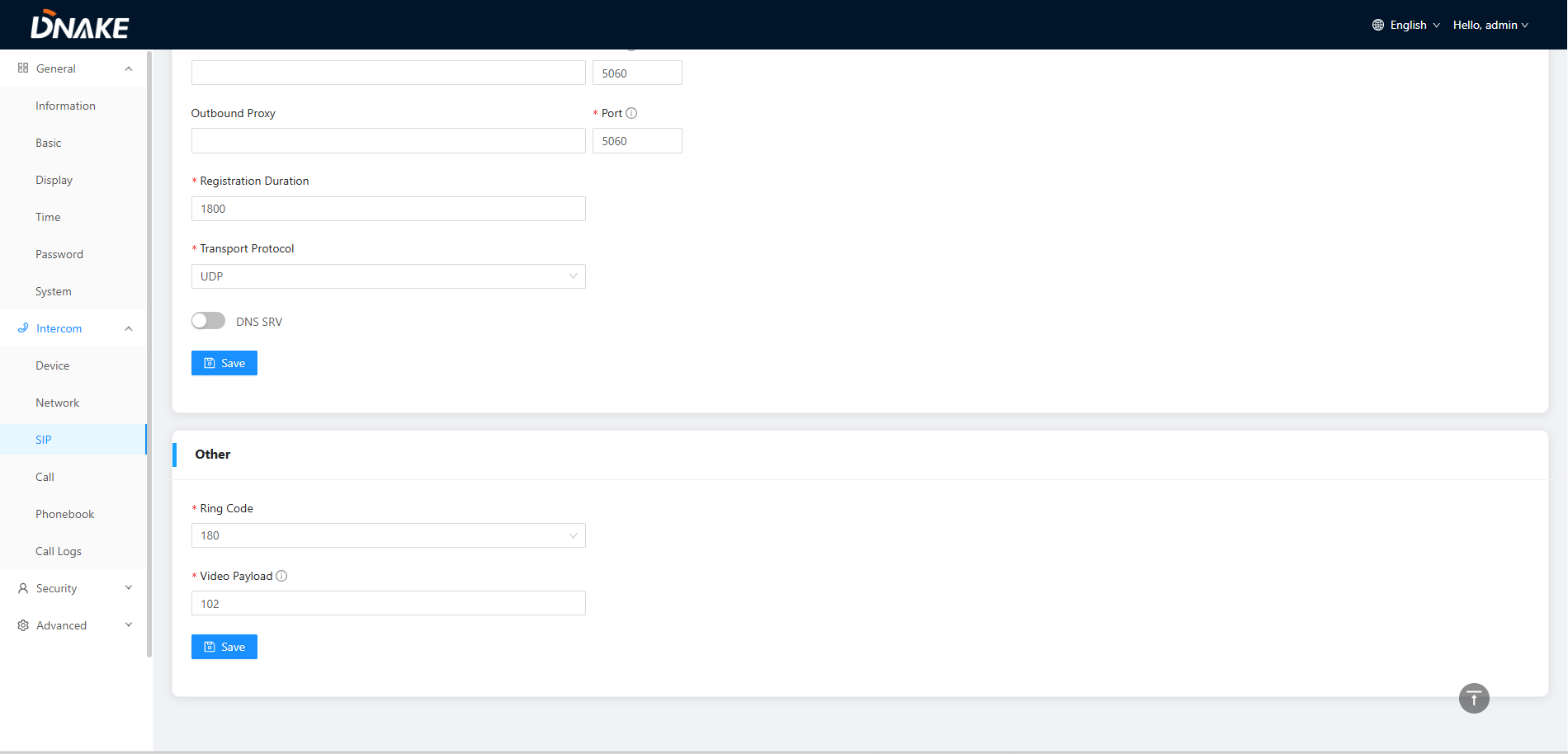
Account
SIP:
Enable to use SIP;
Display Name:
Display name of SIP account;
Register Name:
Register Name of SIP account;
Username:
Username of SIP account;
Password:
Password of SIP account;
SIP Server Host:
Directly fill in SIP server’s address e.g., 192.168.68.90;
The default port is 5060;
Outbound Proxy:
Outbound Proxy server; the default port is 5060;
Registration Duration
Configure the registration duration when the device registers with the SIP server.
Transport Protocol:
Transport Protocol (UDP, TCP, TLS);
Other
Ring Code:
Ring code. Without SDP or with (180 or 183);
Video Payload:
Video payload range is 96-127;
Intercom > Call
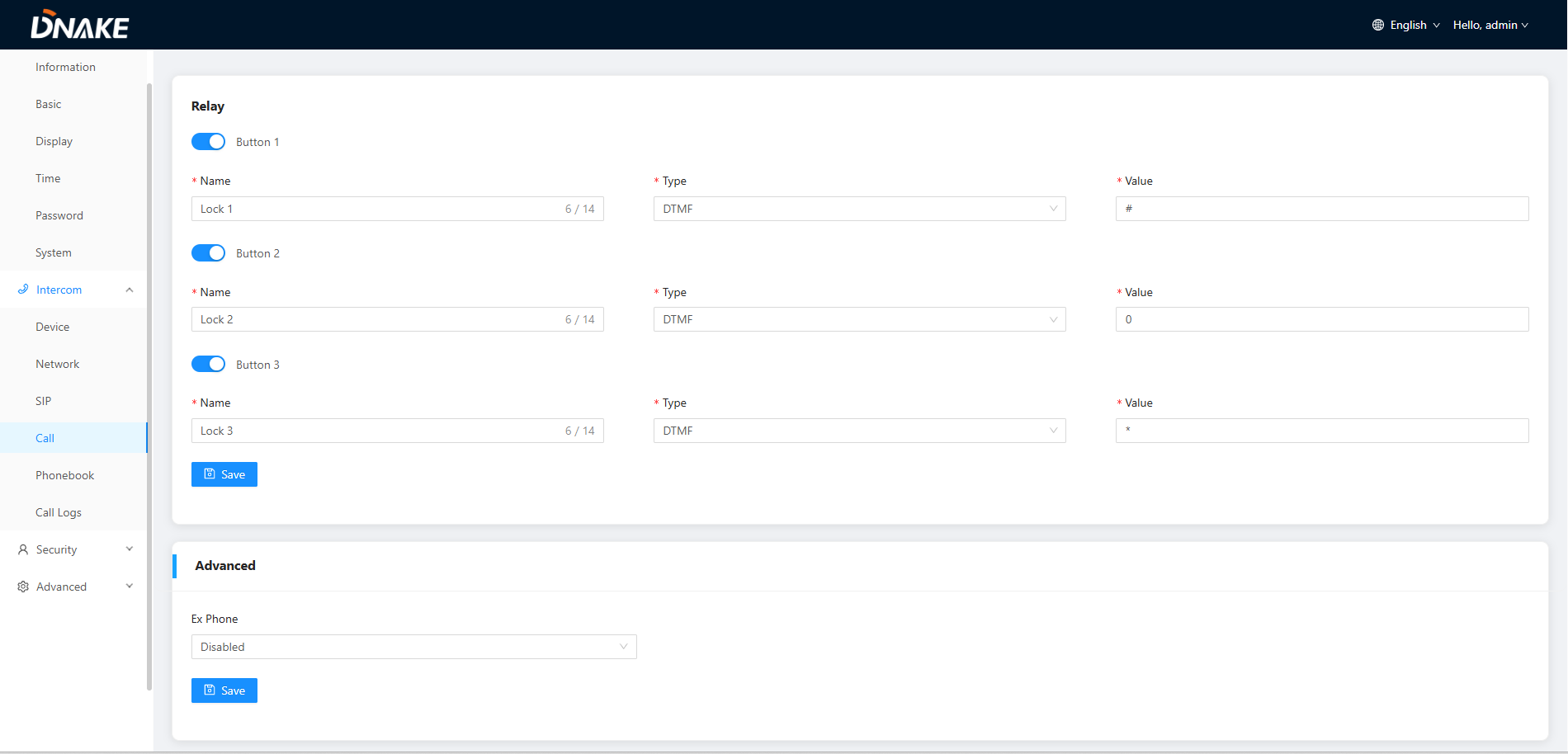
Relay
Name:
Customize name for unlock button;
Type:
Type 1-3: 3 types of unlock way are optional (Local Relay/DTMF/HTTP)
HTTP——the format is http://192.168.3.119/cgi-bin/webapi.cgi?api=unlock&index
=2&username=admin&password
=E10ADC3949BA59ABBE56E057F20F883E;
Note:
- "192.168.3.119" is the IP address of Door Station;
- The number "2" after "index=" is the number for relay. (Relay 1 is 0; relay 2 is 1; relay 3 is 2);
- "admin" here should be changed to your admin account;
- "Password" is Password of admin;
- "E10ADC3949BA59ABBE56E057F20F883E" here is MD5 (Message-Digest Algorithm) encrypted. Users need to use account password to encrypt and change it.
DTMF——Dual-tone multi-frequency signaling, Relay1: #, Relay2:0, relay3: *;
Value
The user to send DTMF value when clicking the unlock button in the device call page
Advanced
Ex Phone:
Extend to more Indoor Monitors by filling in sip: IP address (6 Max) such as sip:192.168.68.90 (6 Max);
Intercom > Phonebook
This is where you can add IPC. All contacts on Indoor Monitor can be edited here.
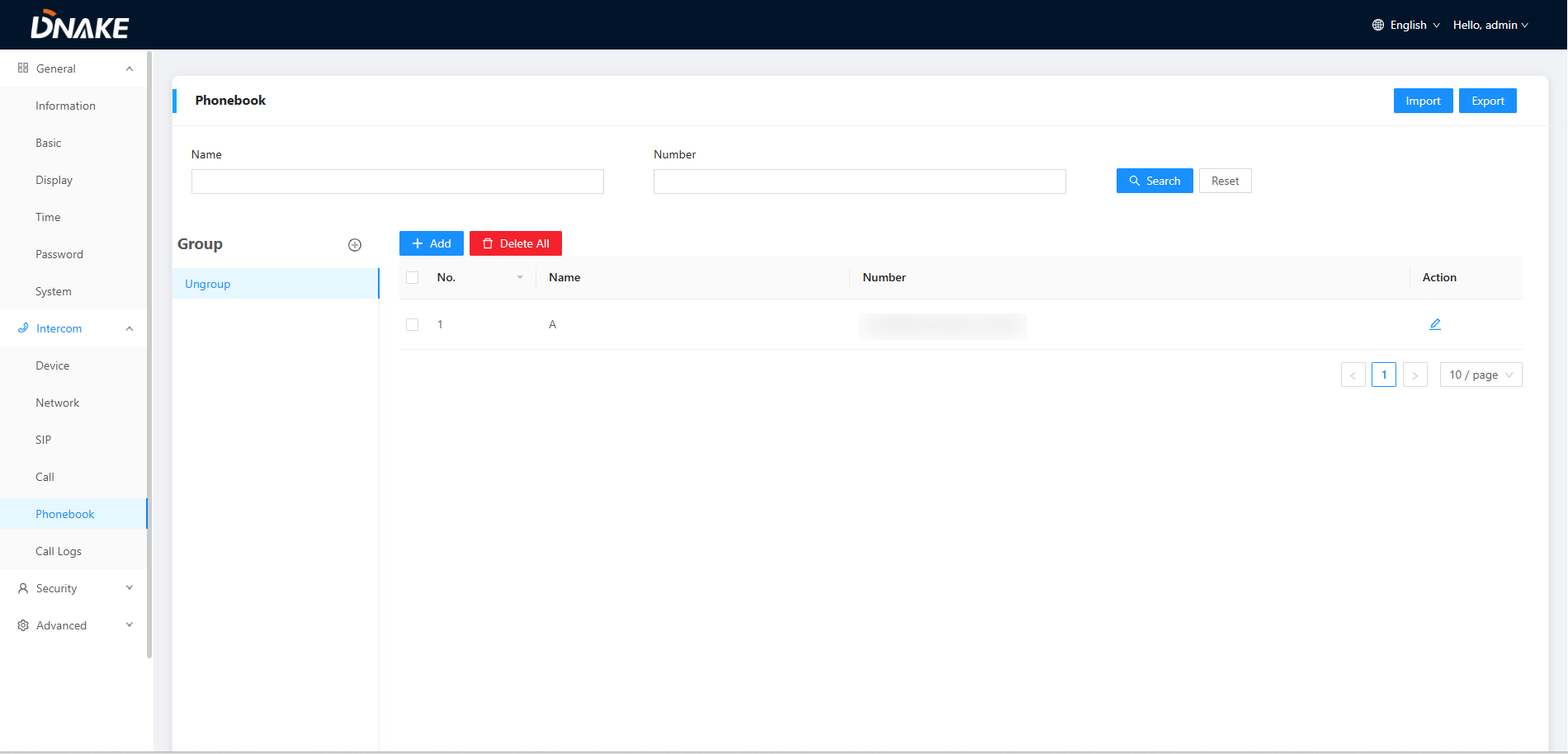
Search:
Fill in text inputs to search;
Reset:
Click reset to clear words in text inputs;
Add:
Click to add more contacts;
Delete All:
Delete all data on the chart;
Import:
Import all data to the chart;
Export:
Export all data on the chart;
Intercom > Call Log
All call logs can be checked here.
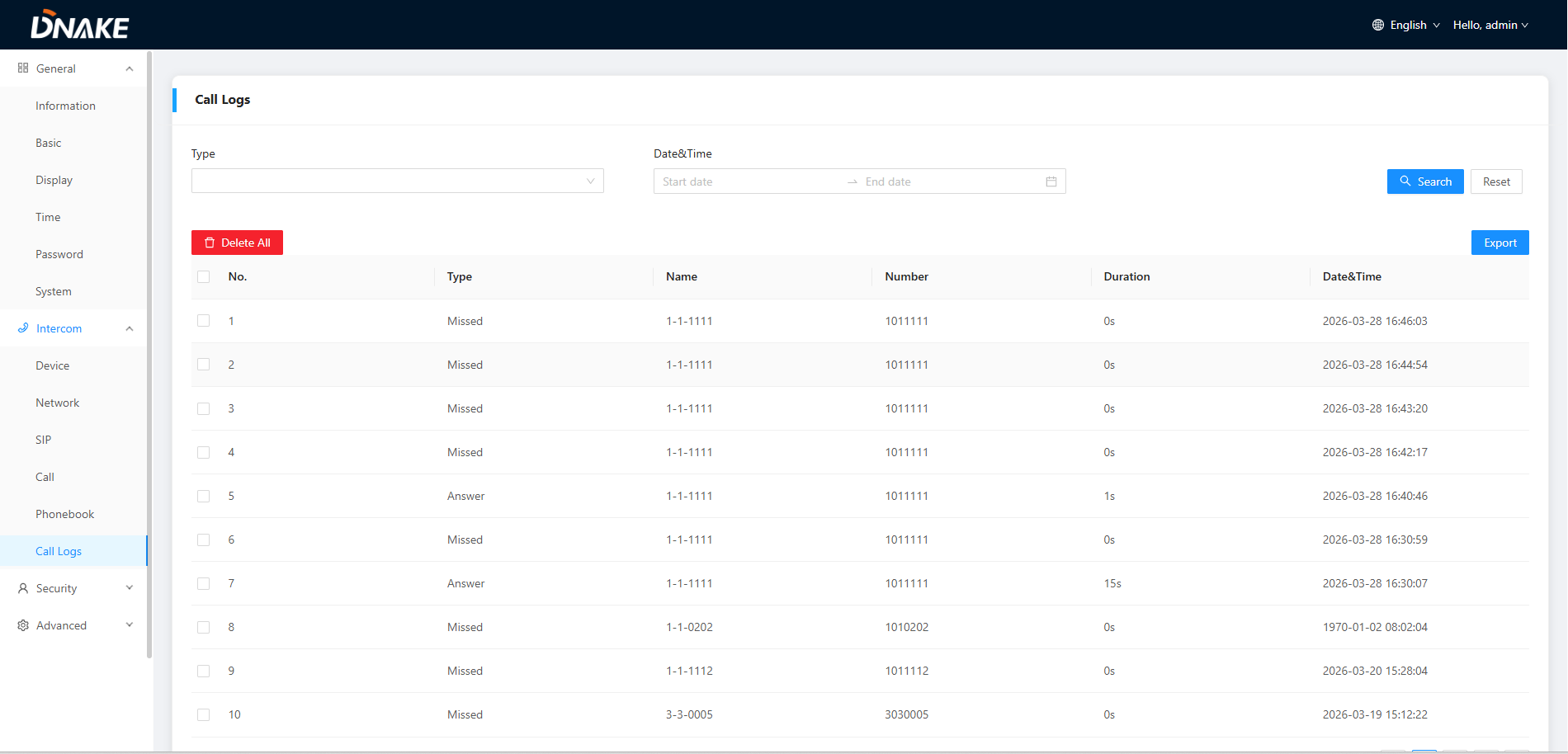
Search:
Fill in text inputs to search;
Reset:
Click reset to clear words in text inputs;
Delete All:
Delete all data on the chart;
Export:
Export all data on the chart;
Security
Security > Alarm Log
In this section, you can view all alarm logs.
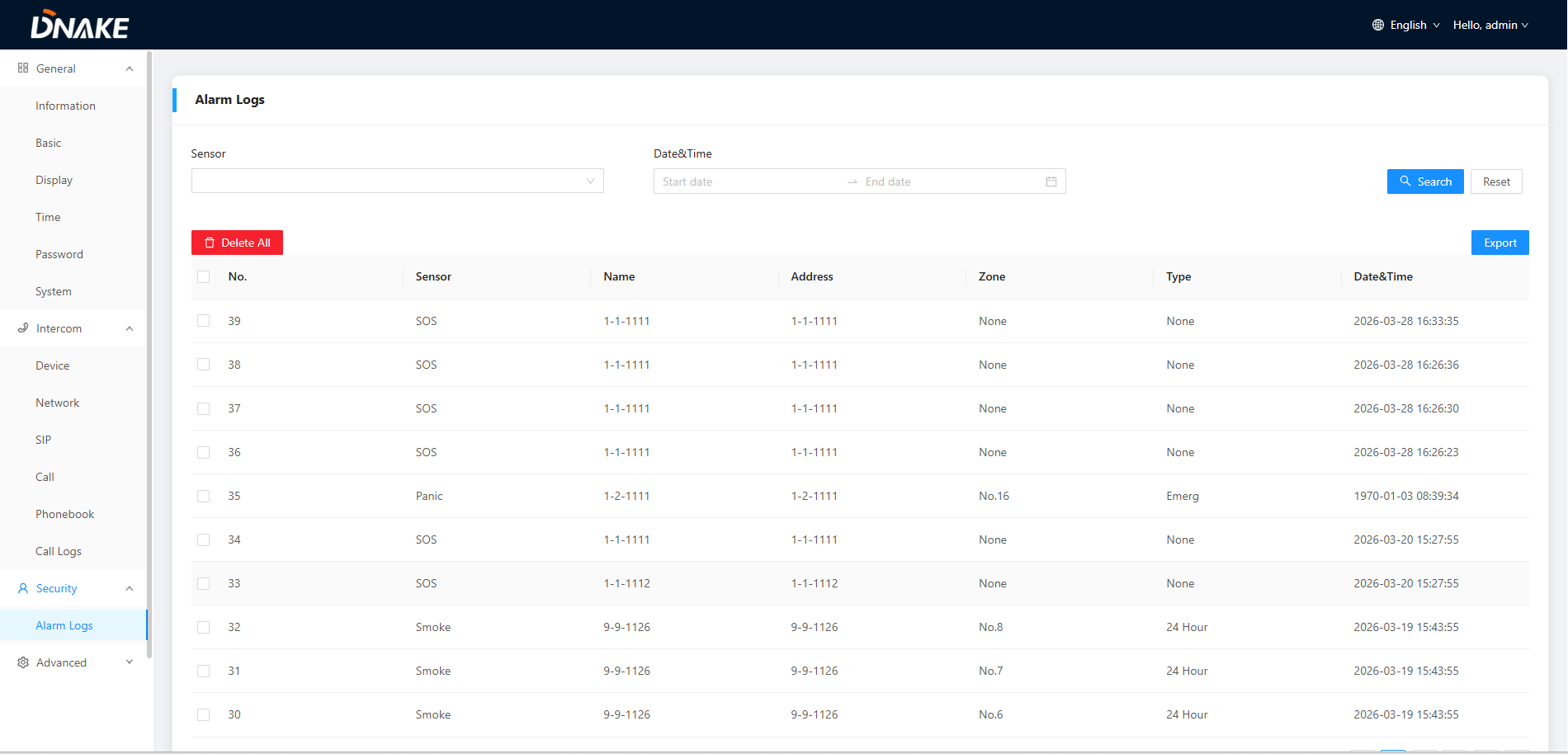
Search:
Fill in text inputs to search;
Reset:
Click reset to clear words in text inputs;
Delete All:
Delete all data on the chart;
Export:
Export all data on the chart;
Advanced
Advanced > Video
In this section, you can enable or disable the RTSP Feed function.
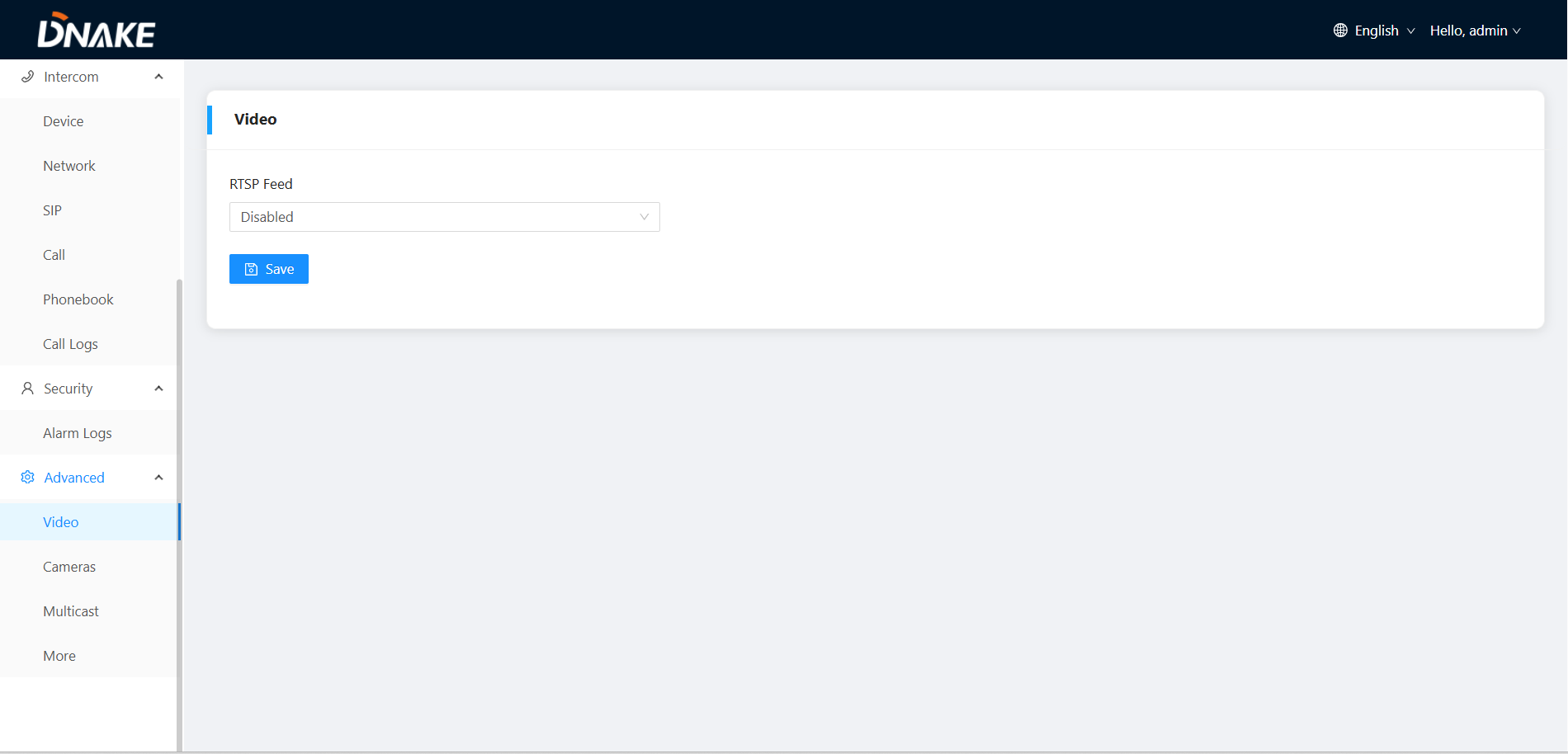
Advanced > Cameras
In this section, you can add IP cameras, with support for up to 16 IP camera channels.
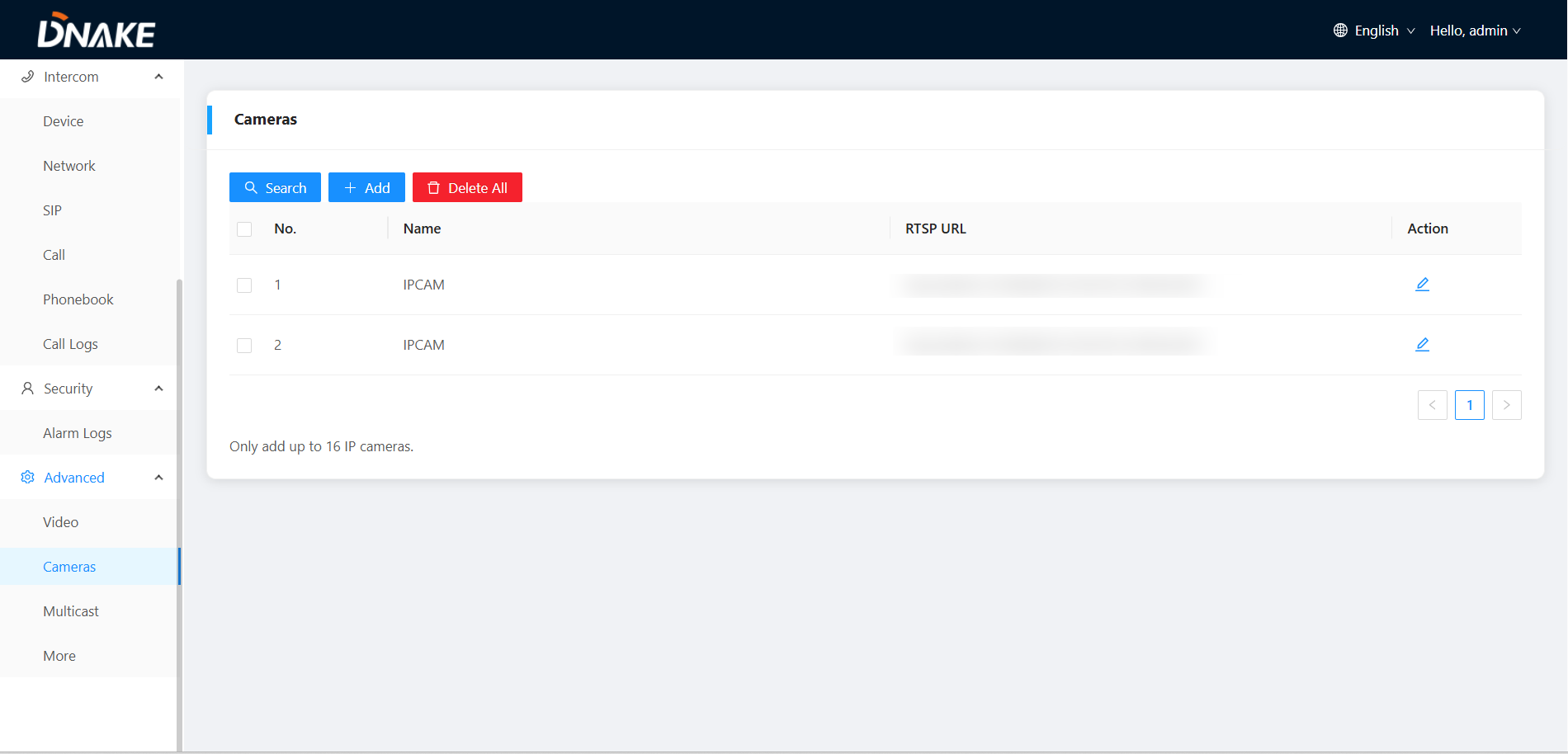
Search:
Fill in text inputs to search;
Add
Click to add IP Cameras, Enter the IP camera name and the camera’s RTSP URL, then click OK to complete the addition.
Delete All:
Delete all IP Cameras;
Action
Edit the name and RTSP URL of an existing IP camera.
Advanced > Multicast
In this section, you can configure the Multicast function.
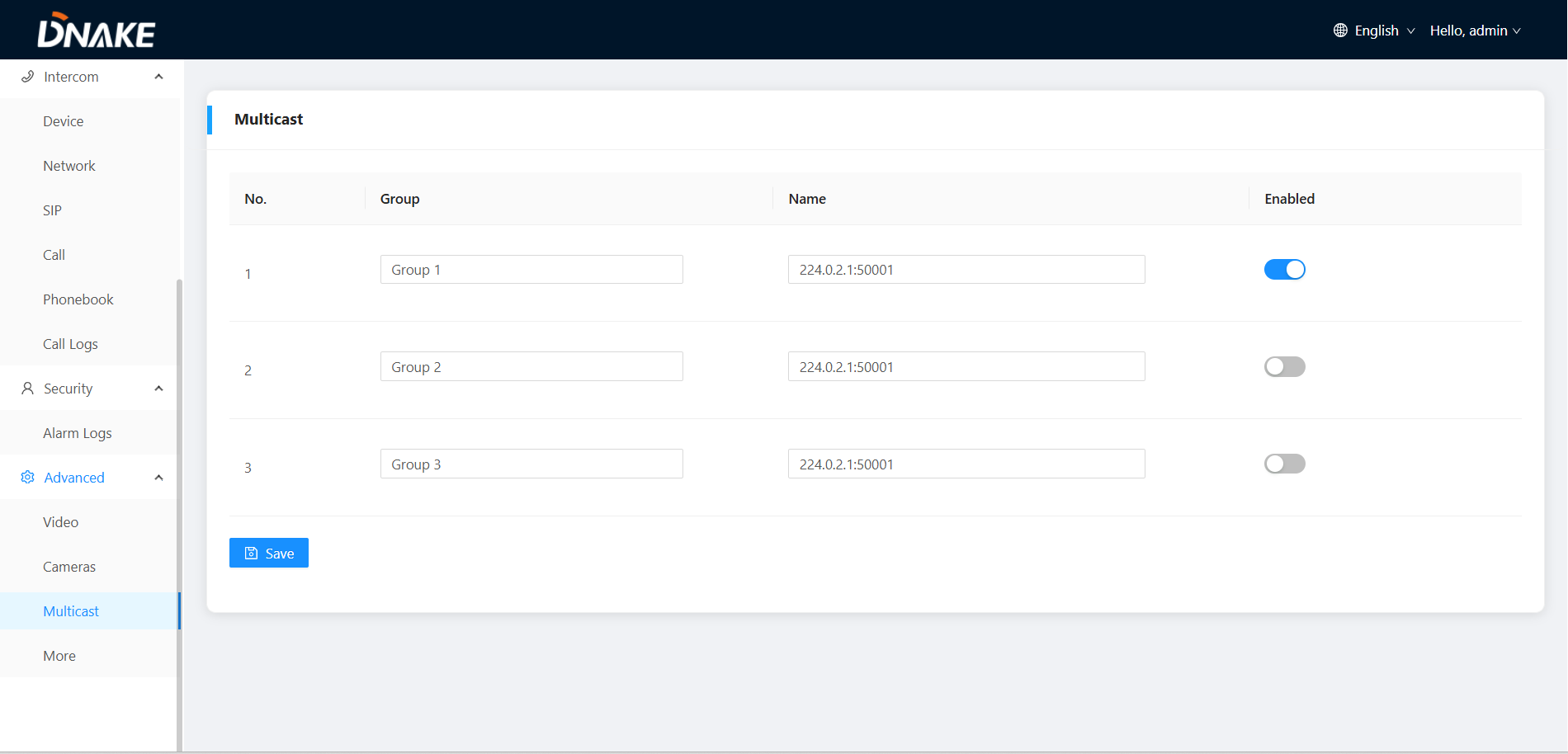
Group
Configure the name of group.
Name
Configure the name of the listening address.
Enabled
Enable or disable the Multicast function for this group.
Advanced > More
In this section, you can configure the advertise and ONU Penetration function 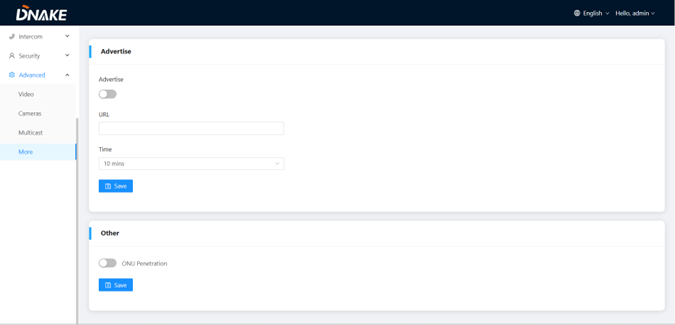
Advertise | Enable or disable the advertise function. |
URL | Configure the URL address of advertise. |
Time: | The time of advertise will display (5 mins, 10 mins, 20 mins, 30 mins) |
ONU Penetration: | Enable or disable ONU Penetration function; |
SYSTEM DIAGRAM
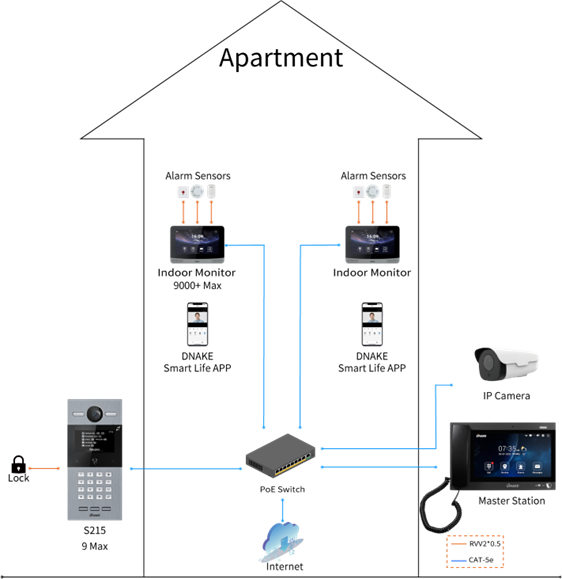
DEVICE WIRING
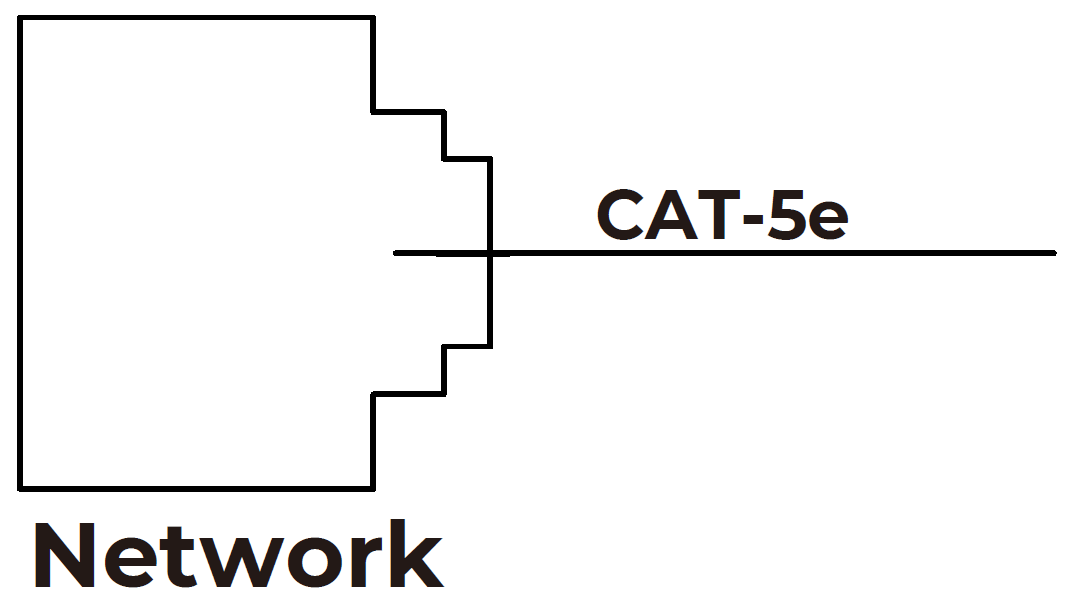
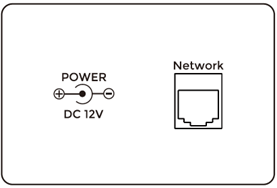 Network (PoE)
Standard RJ45 interface is used to be connected to the Master Station, Indoor Monitor and/or other network equipment.
PSE shall comply with IEEE 802.3af (PoE) and its output power not less than 15.4W and its output voltage not be less than 50V.
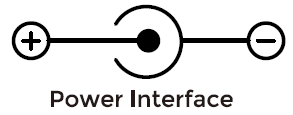
Power
The power interface of Master Station connects to 12V DC power.
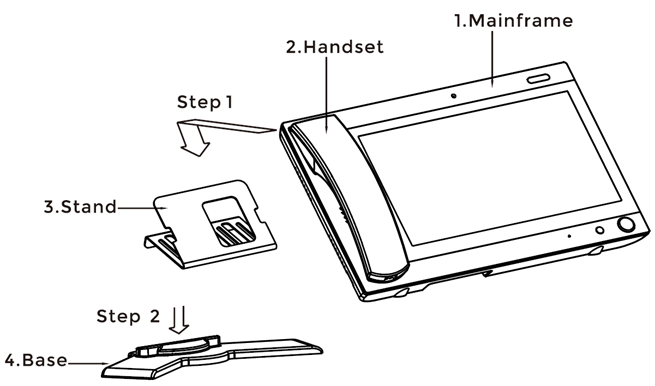
INSTALLATION
TROUBLE SHOOTING
The Indoor Monitor cannot start up or power off automatically.
- Check whether it has power-failure, and power it on again
The Indoor Monitor display screen is too dim.
- Check whether the brightness and contrast settings of screen are correct.
No sound during the communication.
- Check whether the Indoor Monitor is set as mute mode, or the volume is set to the lowest.
The Indoor Monitor cannot monitor the Door Station.
- Other user is using the system, so you can use it once he/she finished the operation.
Multimedia files cannot be played normally.
- Check whether the system supports the file format. Please refer to the multimedia setting for details.
No response when clicking Indoor Monitor display screen.
- Press "Unlock" button for 5s, or slowly slide horizontally or vertically on the LCD to make touchscreen calibration. It needs to be calibrated.
Touchscreen responses slowly or cannot make calibration.
- Take down any protective paster, since it may affect identification
- and input for device;
- Ensure the finger is dry and clean when clicking touchscreen;
- Restart the device to clear any temporary software error.
The temperature of device is too high.
- Long-term use leads to high temperature. It’s normal and will not affect the device’s use life and performance.
SAFETY INSTRUCTION
In order to protect you and others from harm or your device from damage, please read the following information before using the device.
- Do not install the device in the following places:
- Do not install the device in high-temperature and moist environment or the area close to magnetic field, such as the electric generator, transformer or magnet.
- Do not place the device near the heating products such as electric heater or the fluid container.
- Do not place the device in the sun or near the heat source, which might cause discoloration or deformation of the device.
- Do not install the device in an unstable position to avoid the property losses or personal injury caused by the falling of device.
Guard against electric shock, fire and explosion:
- Do not use damaged power cord, plug or loose outlet.
- Do not touch the power cord with wet hand or unplug the power cord by pulling.
- Do not bend or damage the power cord.
- Do not touch the device with wet hand.
- Do not make the power supply slip or cause the impact.
- Do not use the power supply without the manufacturer's approval.
- Do not have the liquids such as water go into the device.
Clean Device Surface
- Clean the device surfaces with soft cloth dipped in some water, and then rub the surface with dry cloth.
Other Tips
- In order to prevent damage to the paint layer or the case, please do not expose the device to chemical products, such as the diluent, gasoline, alcohol, insect-resist agents, opacifying agent and insecticide.
- Do not knock on the device with hard objects.
- Do not press the screen surface. Overexertion might cause flopover or damage to the device.
- Please be careful when standing up from the area under the device.
- Do not disassemble, repair or modify the device at your own discretion.
- The arbitrary modification is not covered under warranty. When any repair required, please contact the customer service center.
- If there is abnormal sound, smell or fume in the device, please unplug the power cord immediately and contact the customer service center.
- When the device isn’t used for a long time, the adaptor and memory card can be removed and placed in dry environment.
When moving, please hand over the manual to new tenant for proper usage of the device.
Was this article helpful?
That’s Great!
Thank you for your feedback
Sorry! We couldn't be helpful
Thank you for your feedback
Feedback sent
We appreciate your effort and will try to fix the article