CATALOG
- 1.Introduction
- 2.Installation and Login
- 3.Personal Center
- 4.Home Page
- 5.Site
- 6.Model
- 7. Update
- 8. Security Alarm
- 9. Log
1.Introduction
1.1 Introduction
CMS 2.0 is an upgraded version based on CMS 1.0, featuring a redesigned user interface. It serves as a local device management platform for users of DNAKE Intercom products. The system mainly includes five modules: Home Page, Site, Update, Security Alarm, and Log.
1.2 Support Device
The current CMS is compatible with the following DNAKE device models: S617/S615, S414, H618, E217, and C112.
2.Installation and Login
2.1 Install CMS
1. System Requirements
- Server/PC: 64-bit CPU with at least 2 cores at 2.0 GHz or higher, memory ≥ 4 GB, storage ≥ 50 GB
- Operating System: Windows 10 or Windows 11
2. Install CMS
- Step 1: Please contact us to get the latest CMS software.
- Step 2: Run CMS as administrator.
Notes: When installing the program for the first time or after a PC restart, the backend service requires some time to start. Opening the frontend during this period may take 1–2 minutes to load.
During an overwrite installation, the client software must be closed before proceeding.
2.2 Configure Computer Firewall
1. It’s suggested to shut down all firewalls and antivirus software in the computer to run CMS. Otherwise, the devices added to CMS may stay offline. If you are worried about the safety of your computer, you can configure Microsoft firewall as the way below so you can keep firewall running.
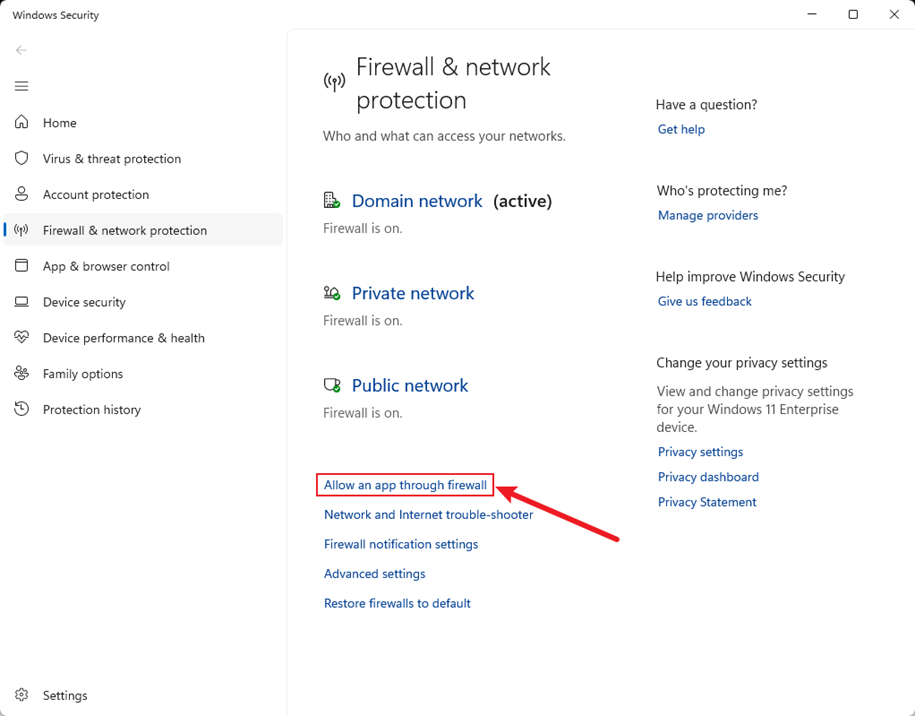
- Step 1:Go to the firewall settings page on your computer (ensure the firewall is enabled).
- Step 2: Click Allow an app through the firewall.
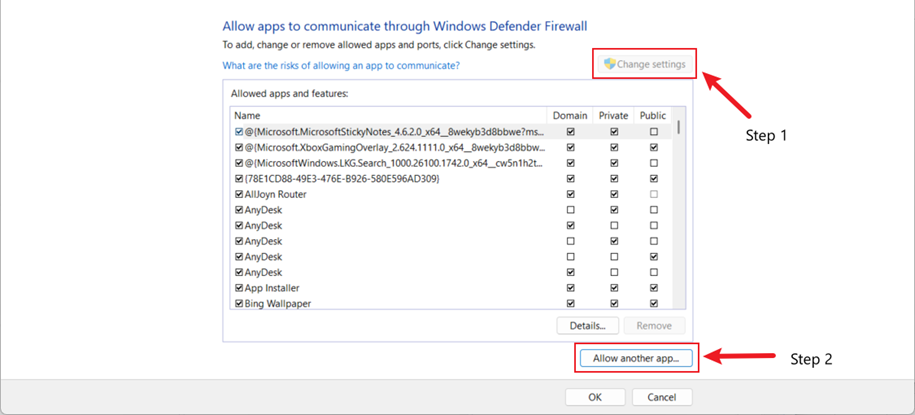
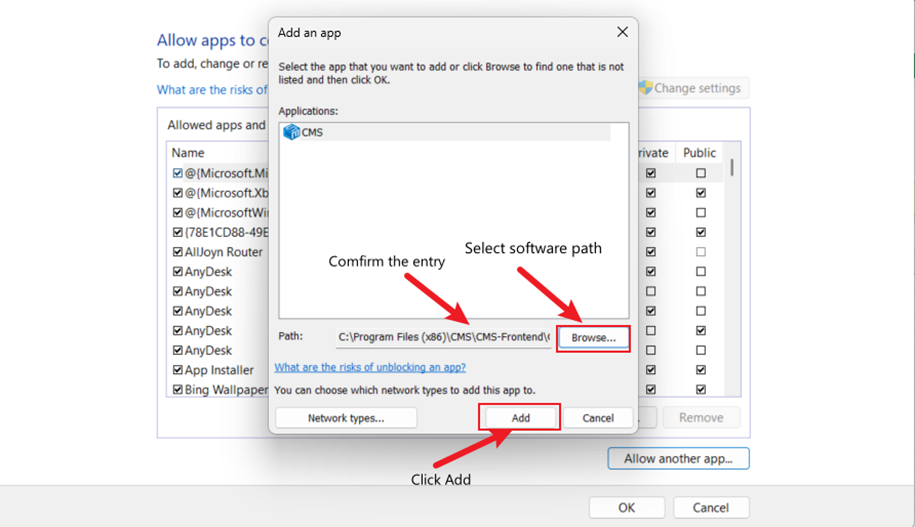
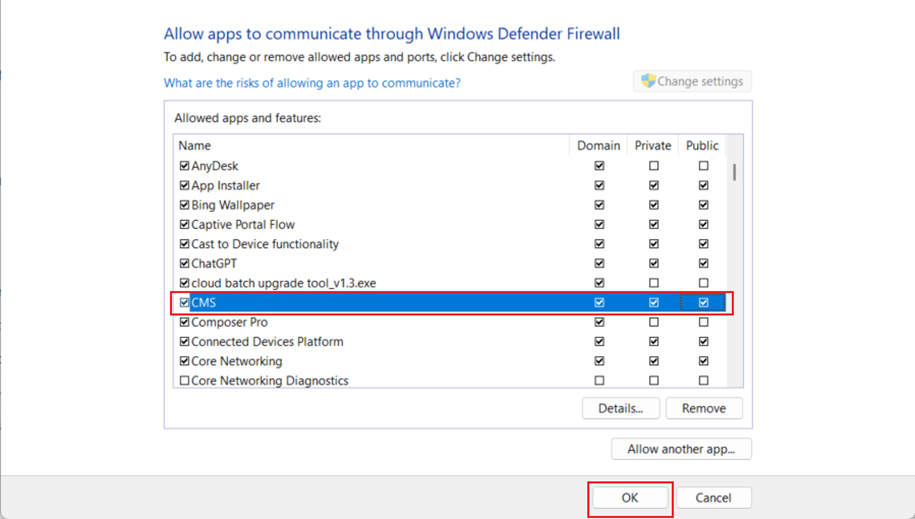
- Step 3: Click Change settings, then select Allow another app, and add the CMS application.
- Step 4: Click to enter the Advanced Settings page, then add an Inbound Rule
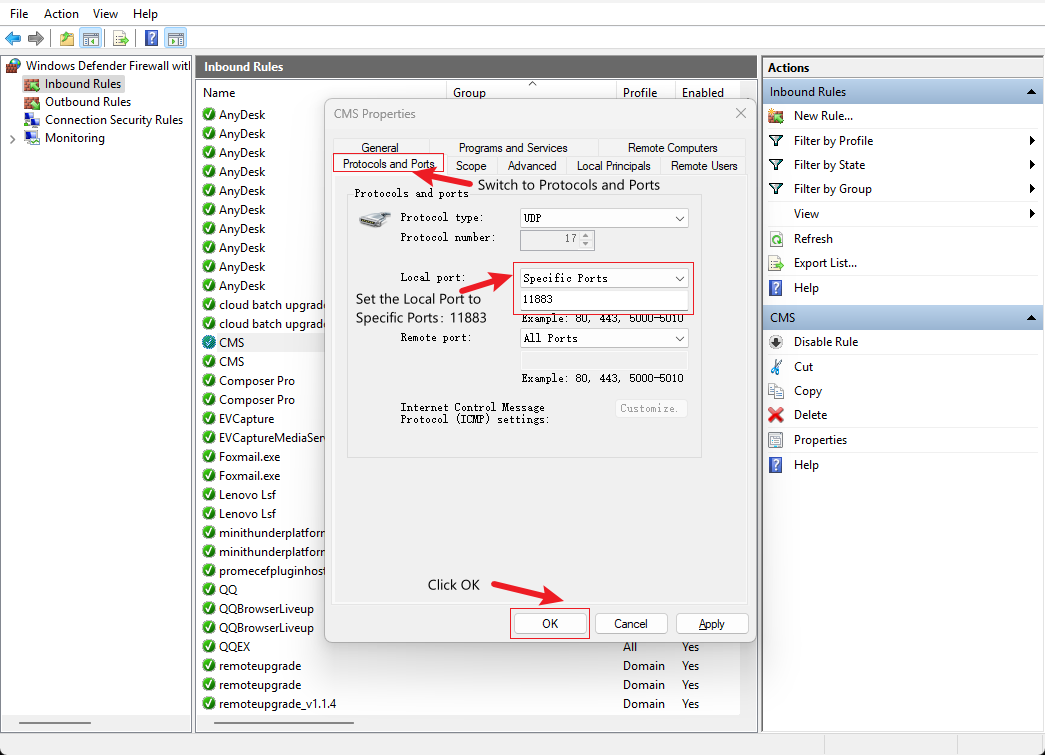
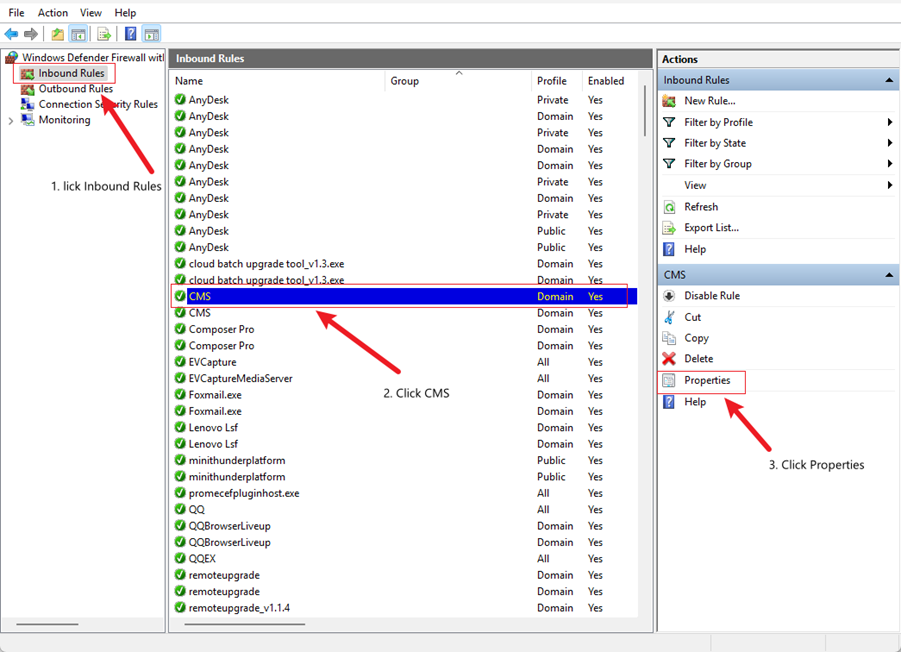
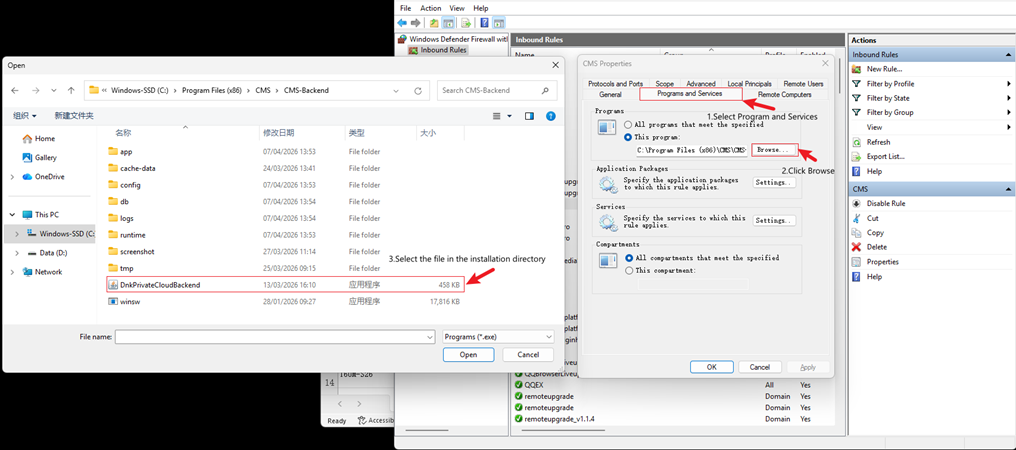
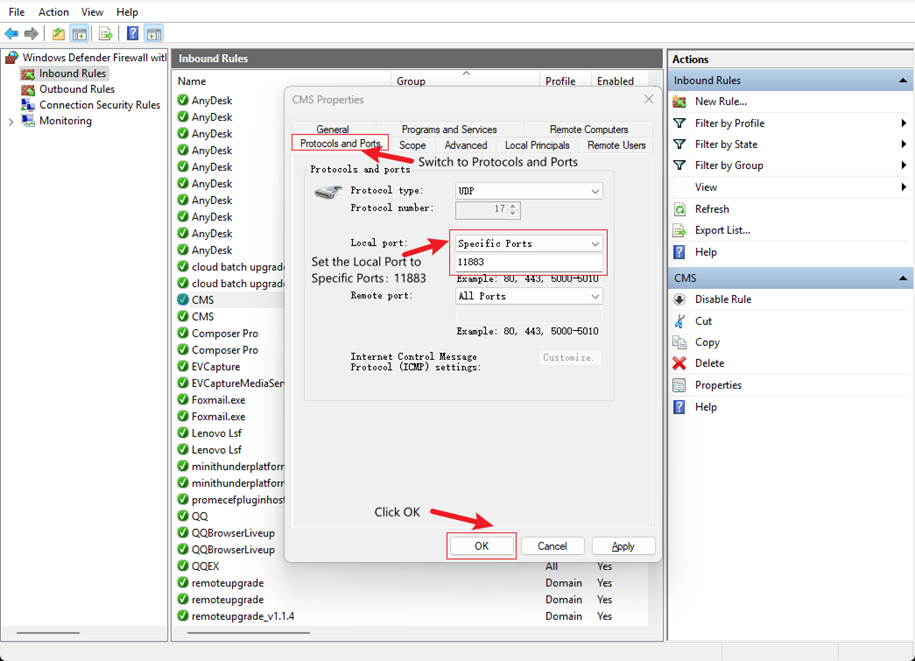
- Step 5: Close the firewall settings page, then you can add devices in the CMS software.
2.3 Login
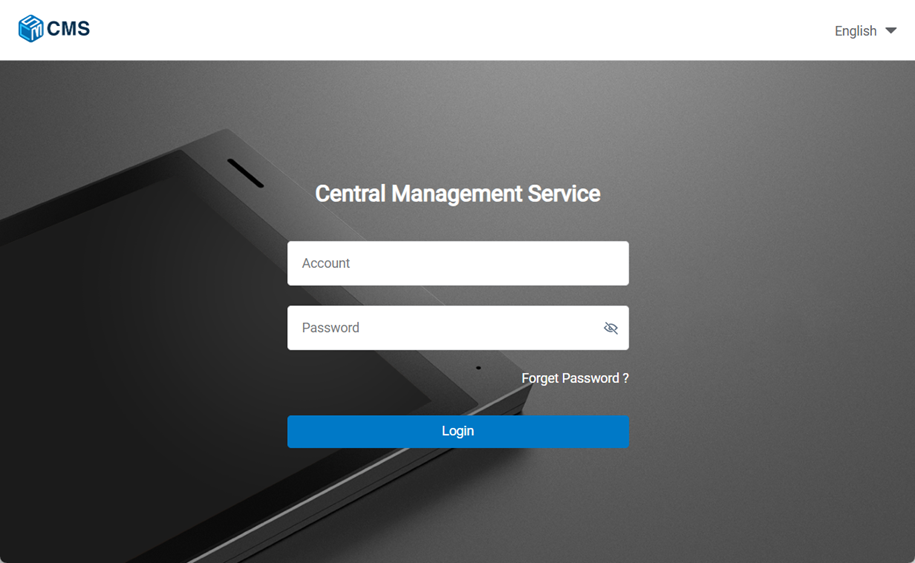
After downloading and installing the CMS, double-click  to run CMS. The default account is admin and password is admin. Click to log in CMS.
2.4 Create Site
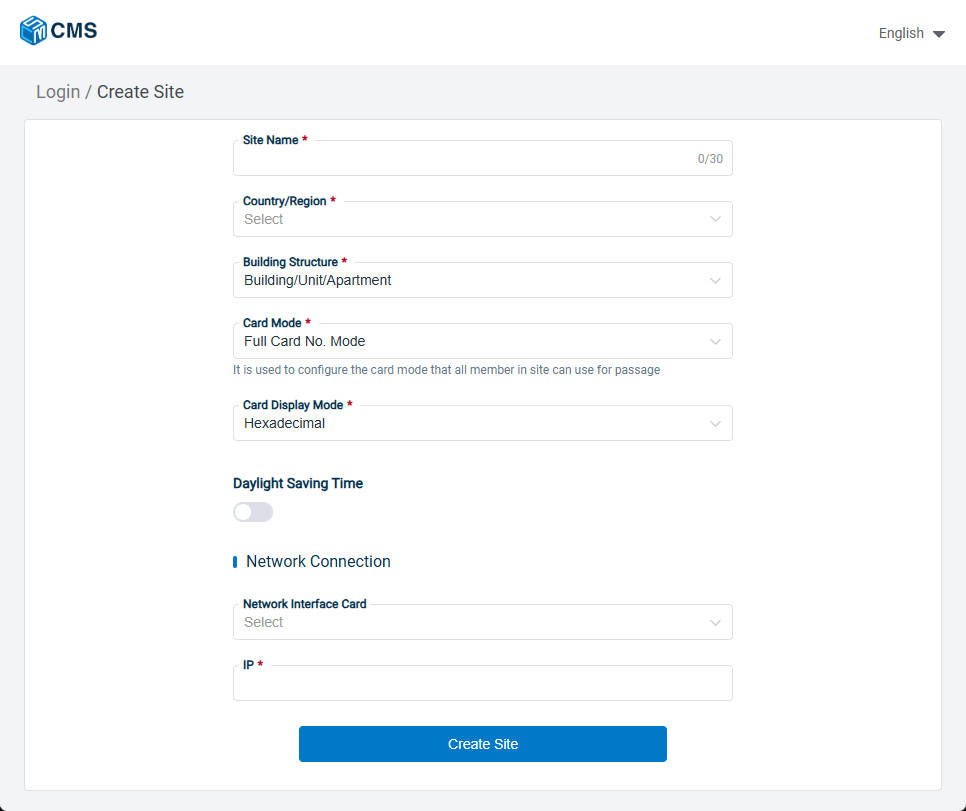
1. Here are the steps to Create Site
- Step 1: Enter the Site Name, select the country or region where the site is located, choose the Building Structure (either Building/Unit/Apartment or Building/Apartment), and finally select the Card Mode (Compatible Mode or Full Card No. Mode) and Card Display Mode (Decimal or Hexadecimal). You can also enable or disable Daylight Saving Time on this page.
- Step 2: Add the network address for the site; first select the network interface, and the IP address will be obtained automatically.
- Step 3 : Take a screenshot or note down the Secret Key to save it, then click Confirm save and Log in now to login.
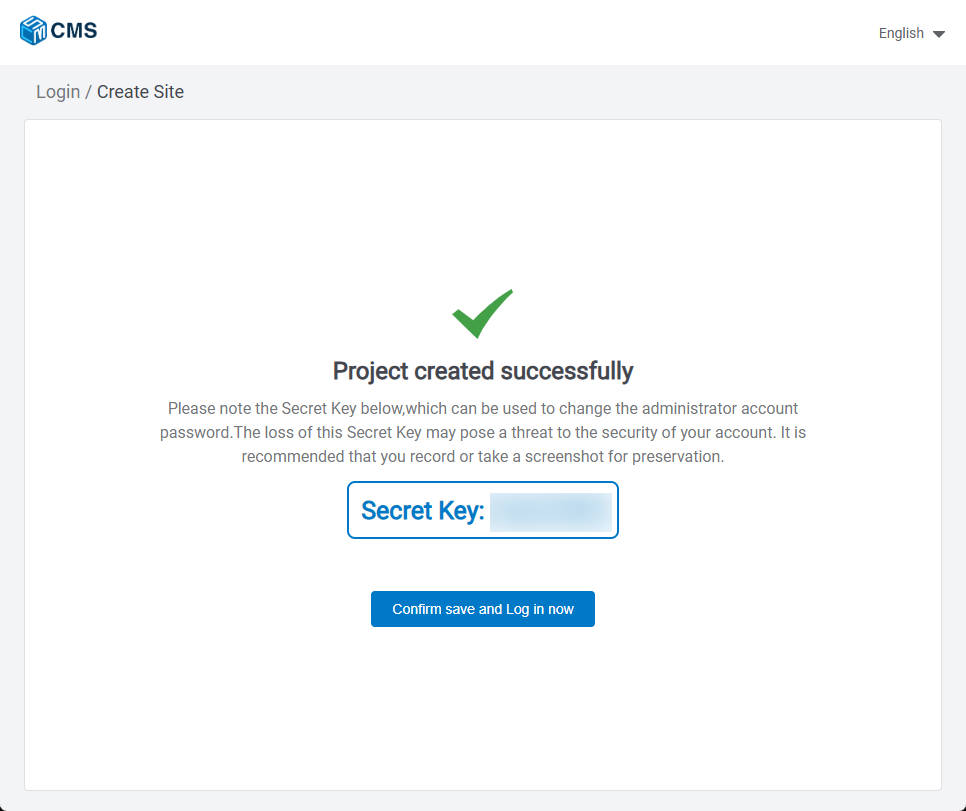
Notes: Please note the Secret Key, which can be used to change the administrator account password. The loss of this Secret Key may pose a threat to the security of your account.
2.5 Logout and Forget Password
2.5.1 Logout
Click your personal account on the right upper corner and log out.
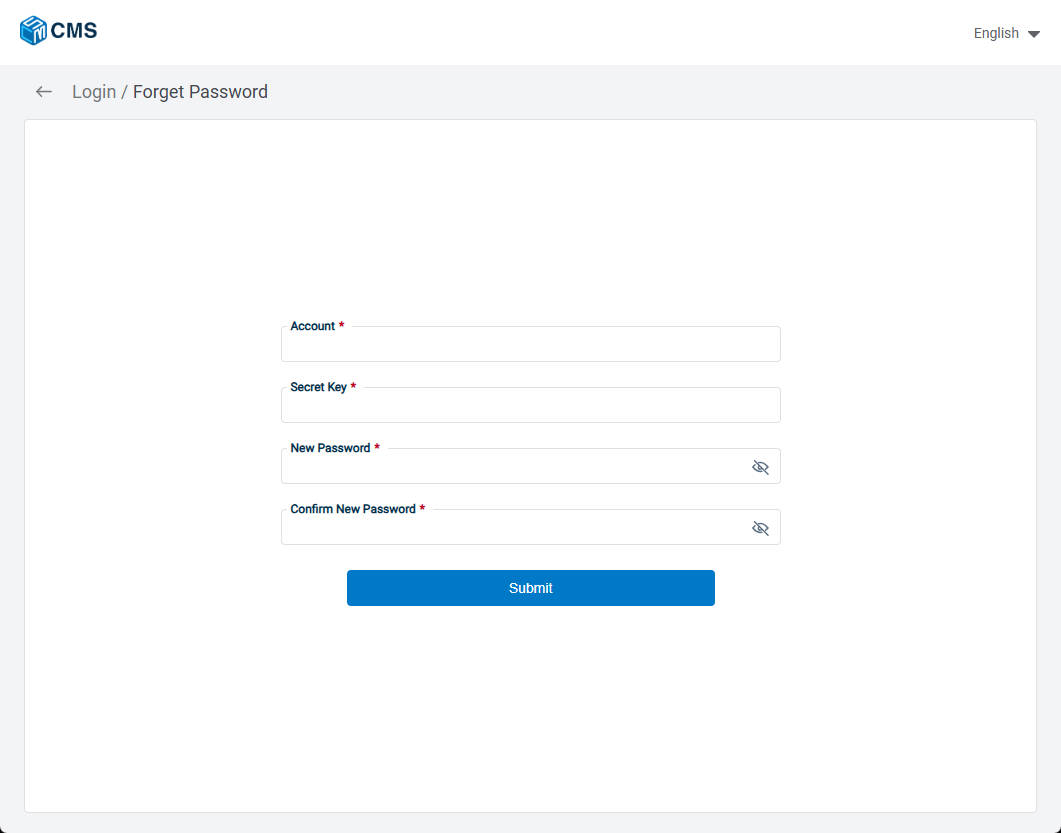
2.5.2 Forget Password
1. Recover your password
- Step 1: Click Forget Password?
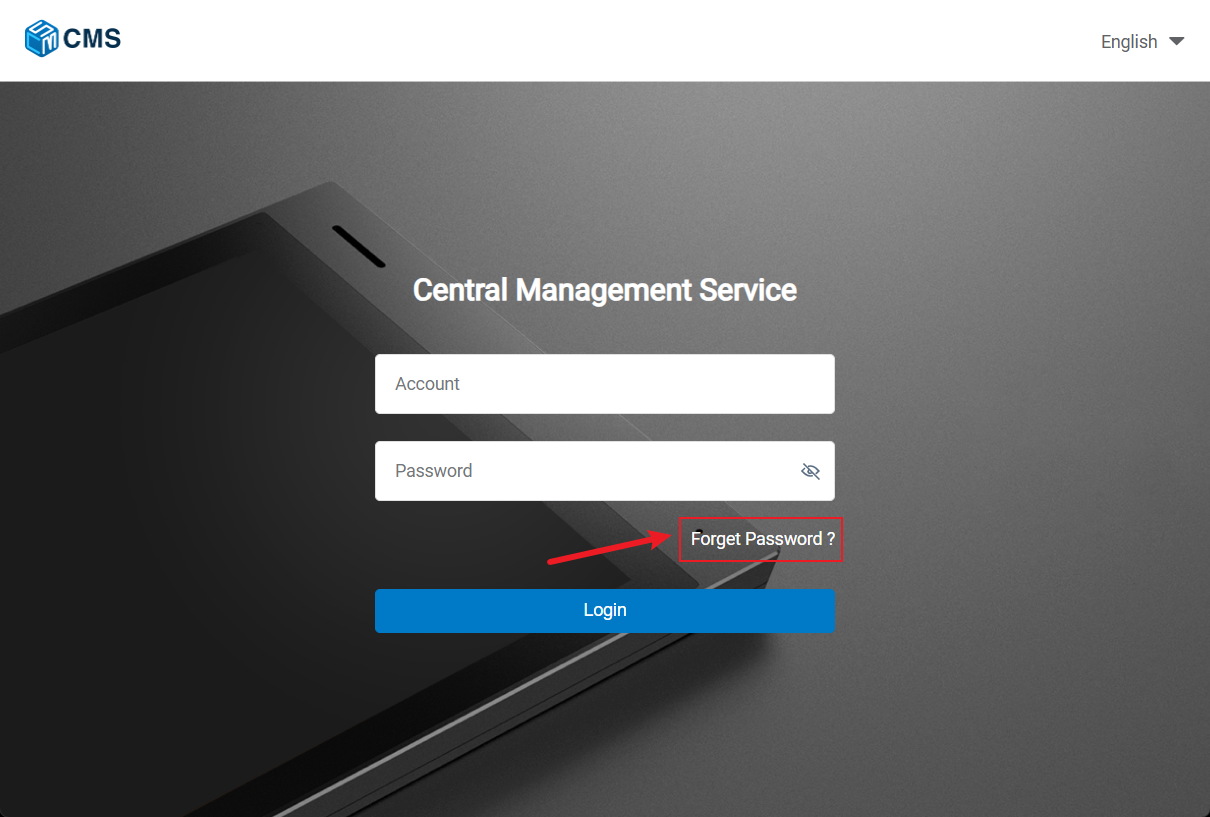
- Step 2: Enter the account name and secret key, then input a new password and confirm it again to complete the password change..
3.Personal Center
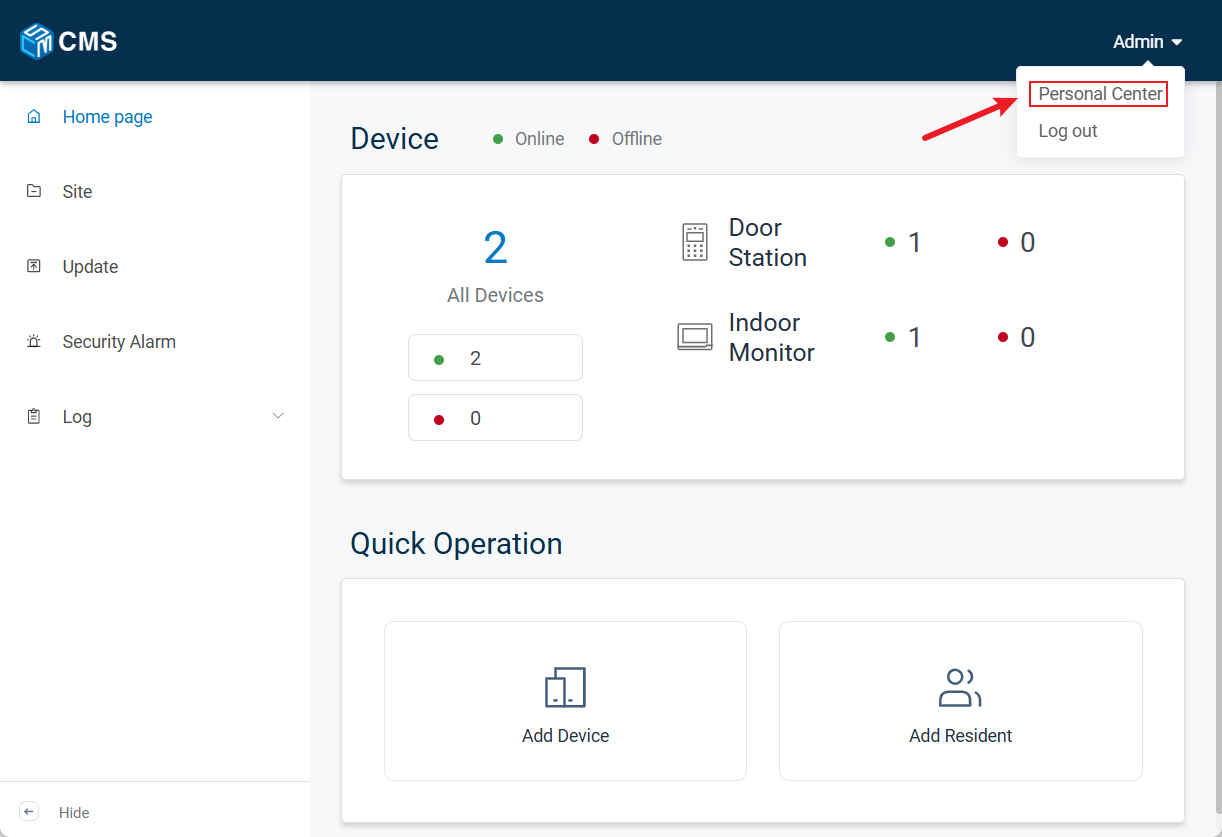
3.1 Accessing the Personal Center
After logging in successfully, click the username in the upper-right corner, then select Personal Center to access the Personal Center page.
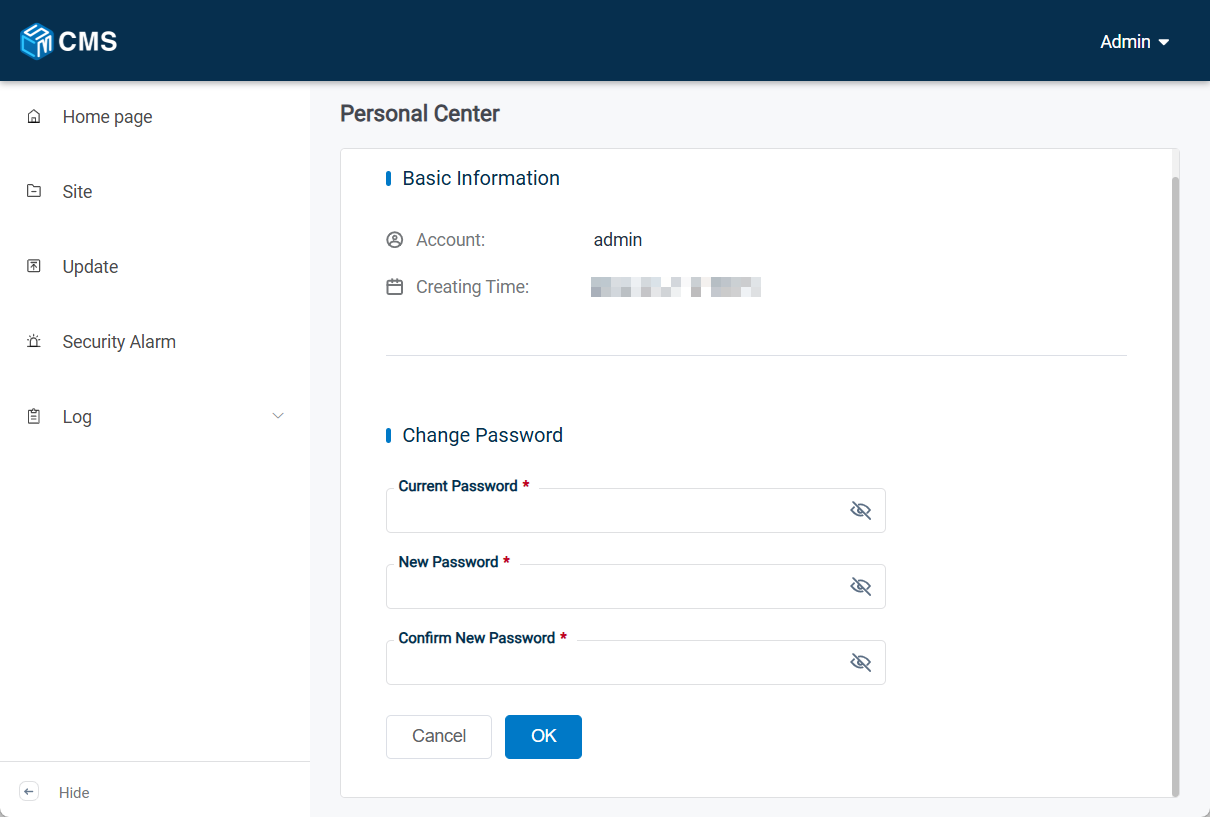
3.2 Basic Information and Change Password
In this section, you can view basic information, such as the account name and creation time, and you can also change the password.
4.Home Page
4.1 Device
This section shows the status (online or offline) of all the devices registered to CMS. 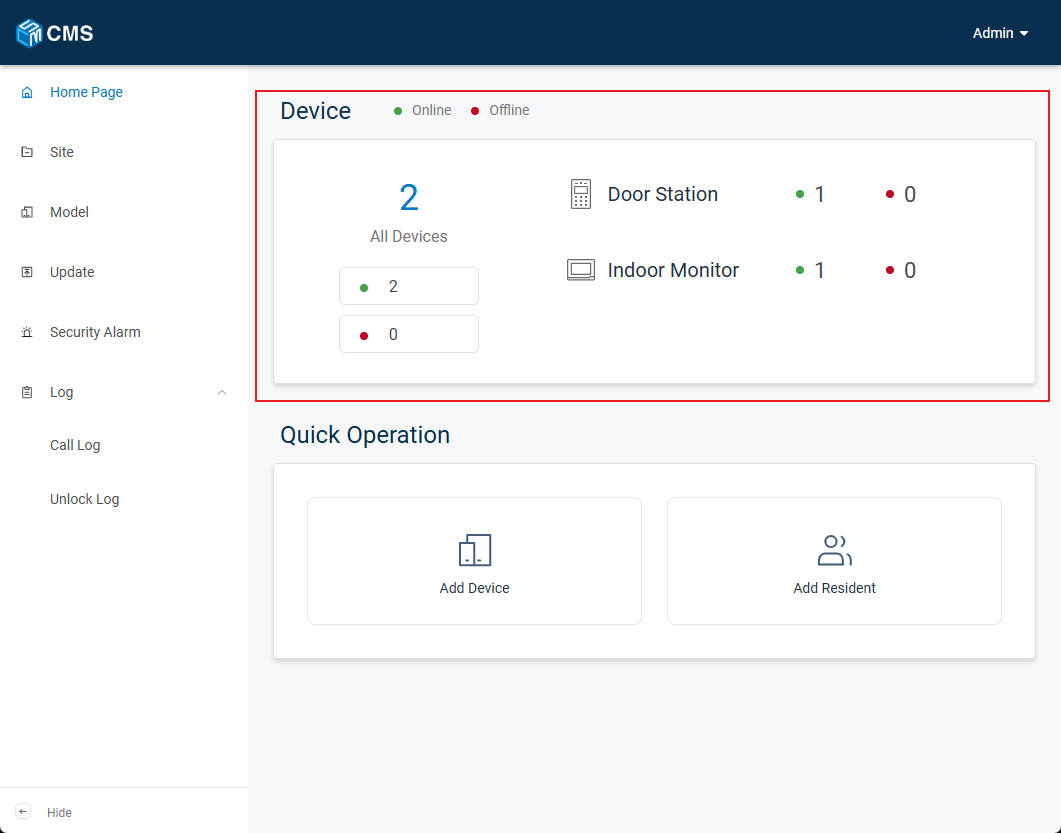
4.2 Quick Operation
In this section, you can quickly add devices and residents.
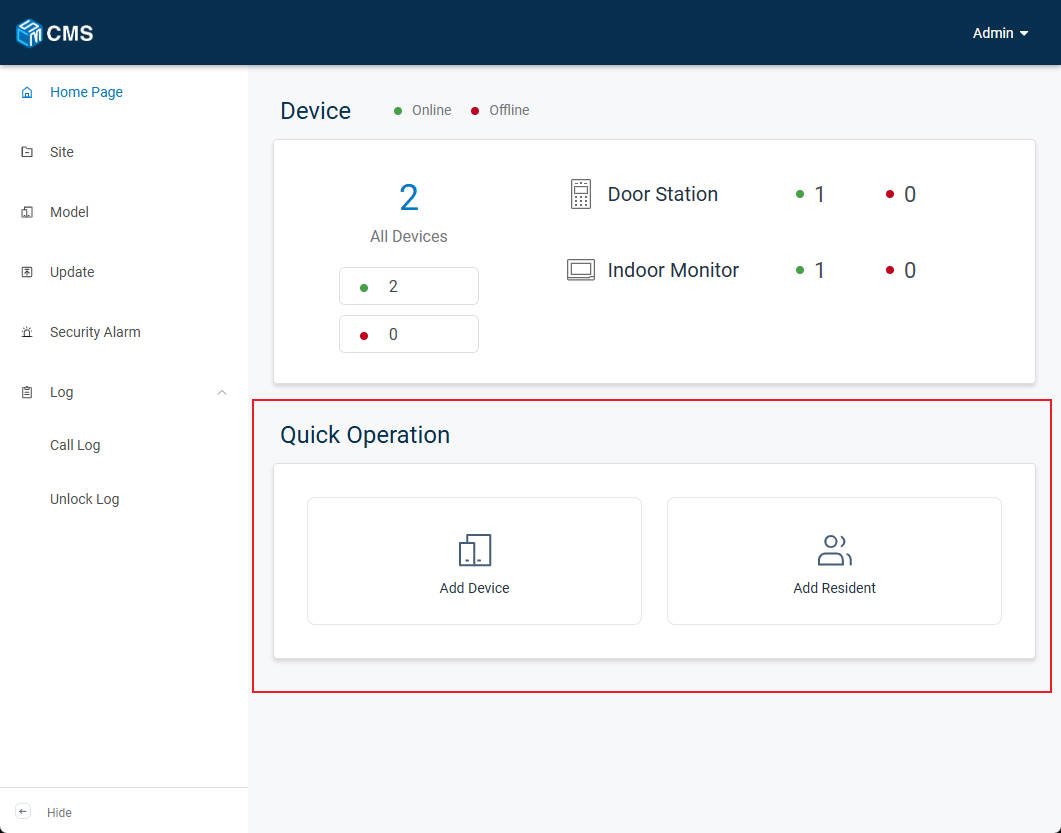
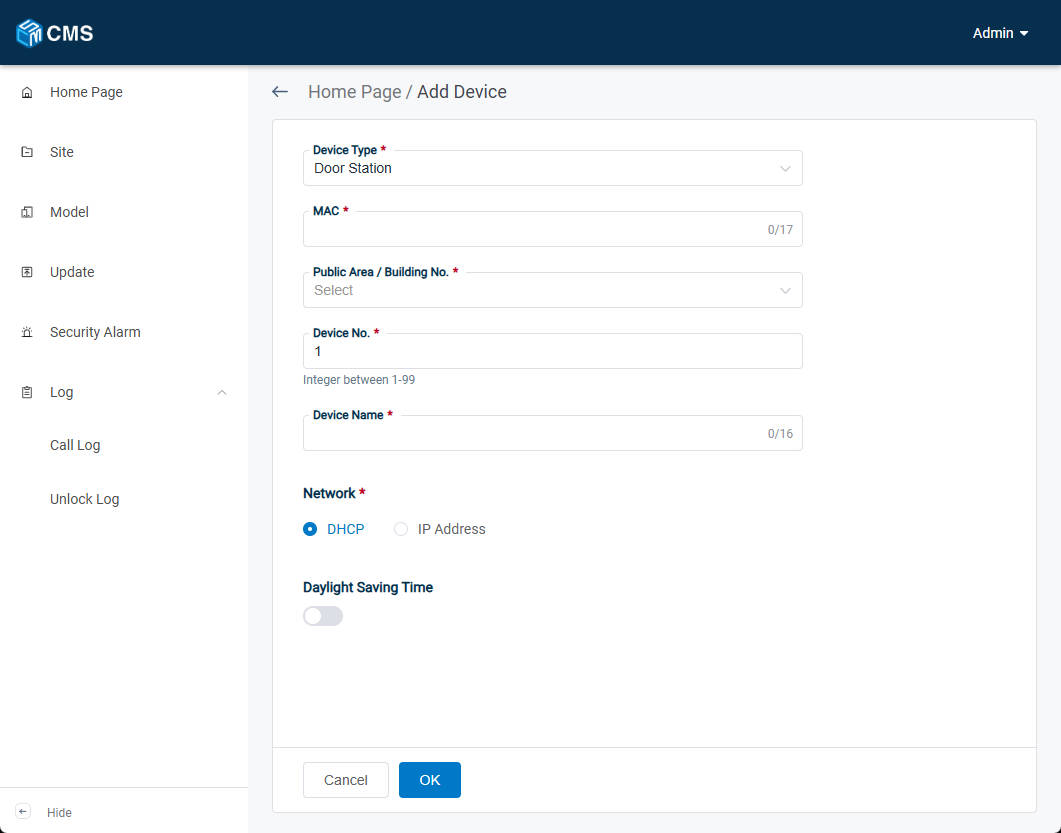
4.2.1 Add Device
Select the site and fill in device’s information. Device Type, MAC address, device number and device name should be filled in or chosen according to your device and needs. All of the other settings will be synced to your device.
4.2.2 Add Resident
Click Add Resident, select the apartment number, and enter the name. Optional settings include card and PIN assignment.
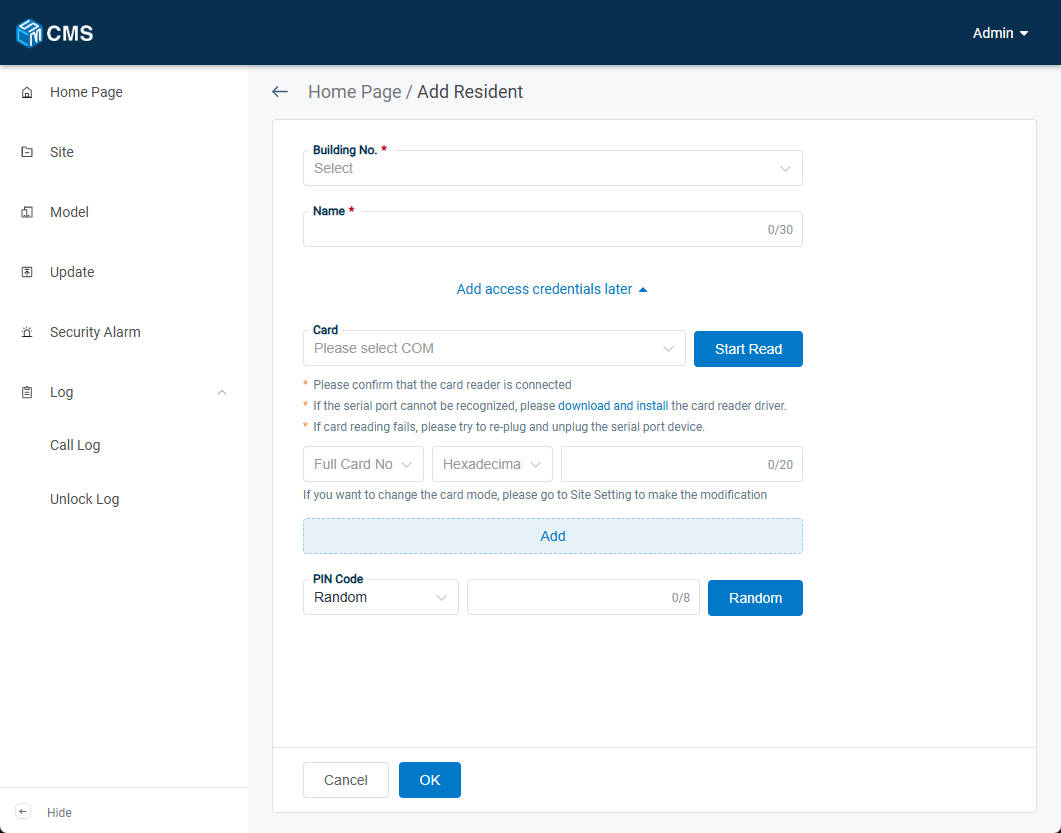
Noted: If the devices in the apartment support Facial Recognition, you can upload facial data in this section.
5.Site
5.1 Edit Site
1: After clicking the Site page in the left sidebar, click the Edit button next to the site name.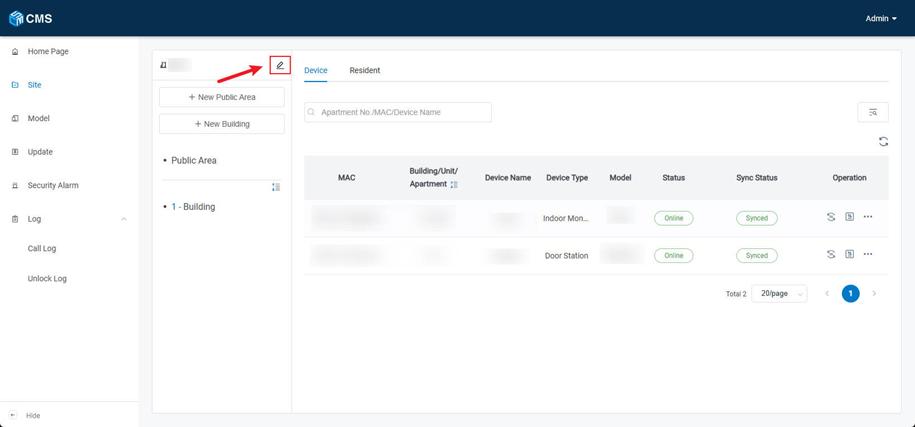
2: On this page, you can view Site Information, such as Site ID, Country/Region, and Building Structure, and modify the Site Name, Card Mode, and Card Display Mode, as well as enable or disable Daylight Saving Time.
3: You can also modify the network settings, such as the Network Interface Card and IP address.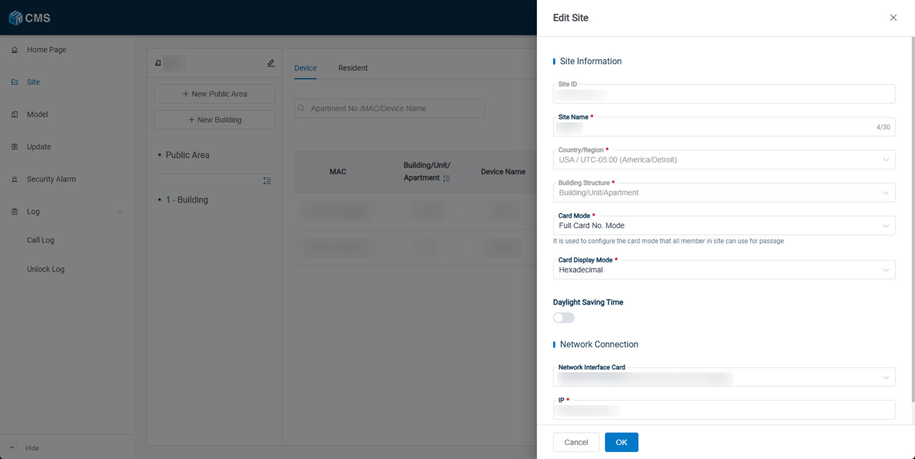
5.2 Public Area Management
5.2.1 Add Public Area
1. Click Add New Public Area to add a new public area to the Site.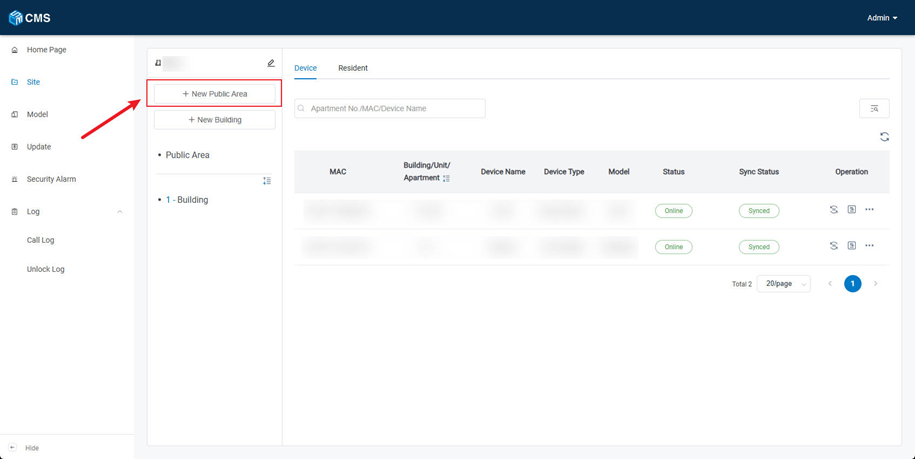
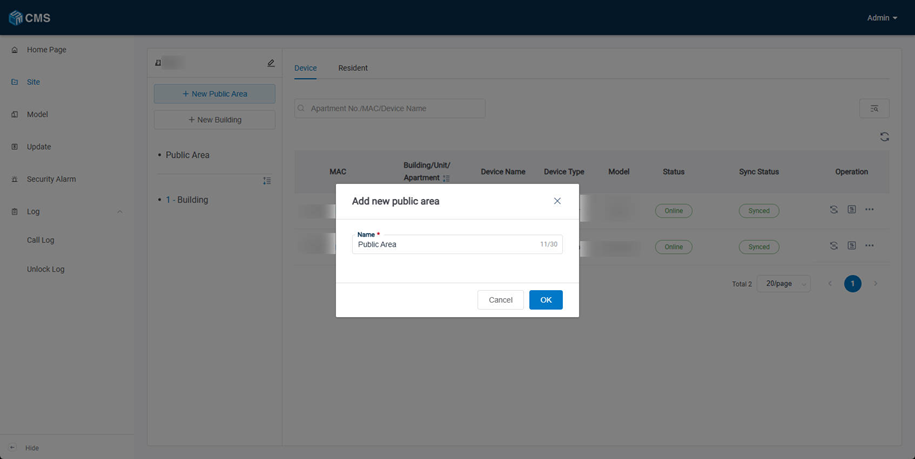
5.2.2 Edit Public Area
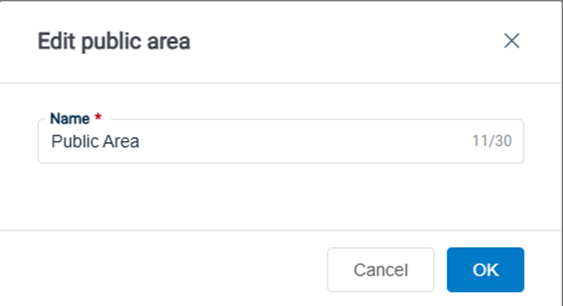
1. Click the Edit button next to the public area name to modify the public area name.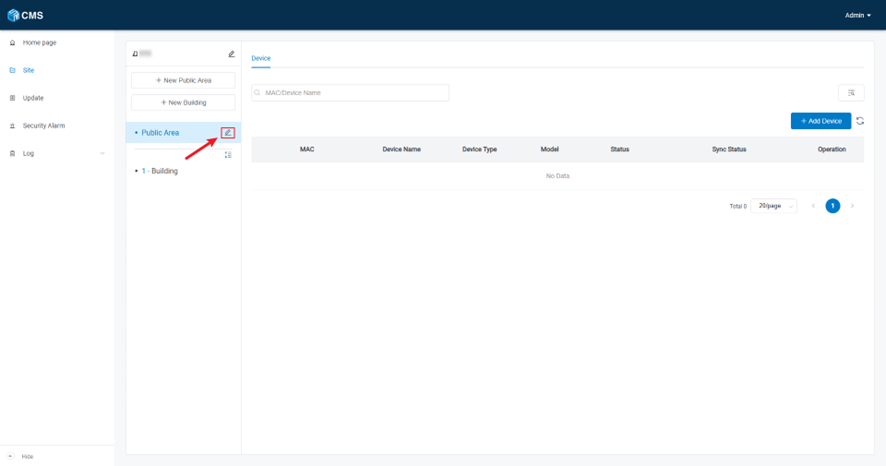
5.2.3 Add Device in Batch
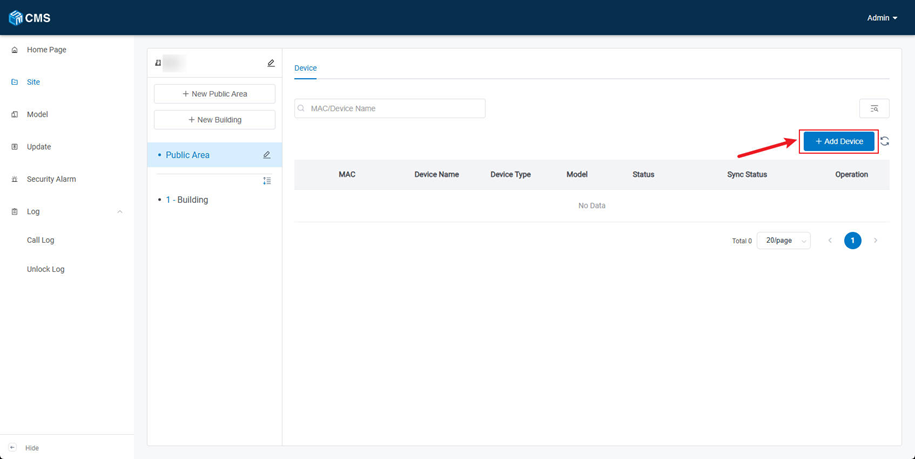
- Step 1: Click the Add Device button on the right to add a device.
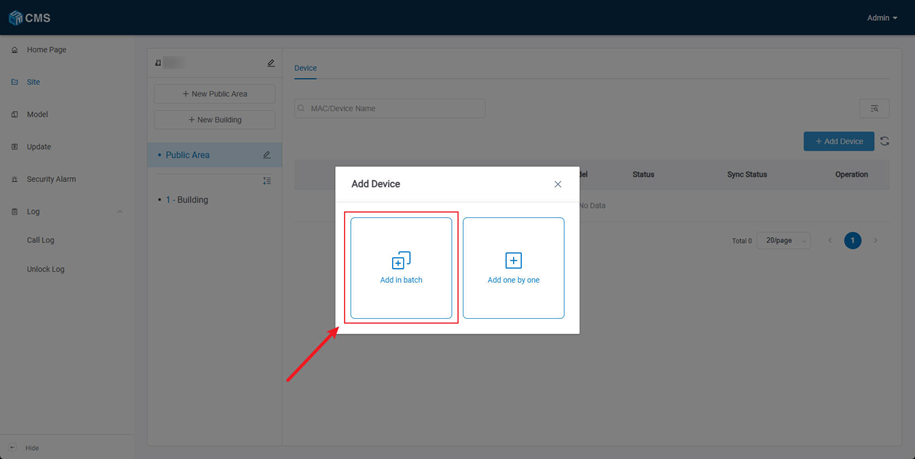
- Step 2: Click Add in Batch
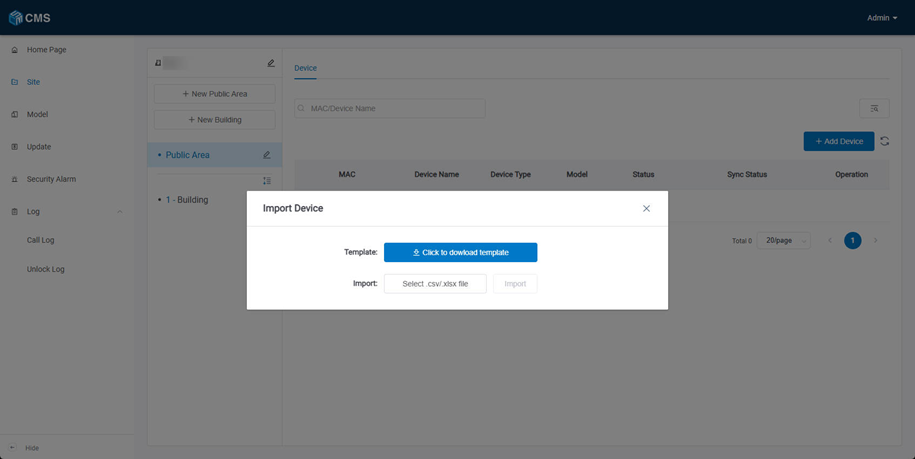
- Step 3: After clicking Add in Batch, click Template to fill in the devices’ information, and click Import to upload the completed template.
5.2.4 Add Device One by One
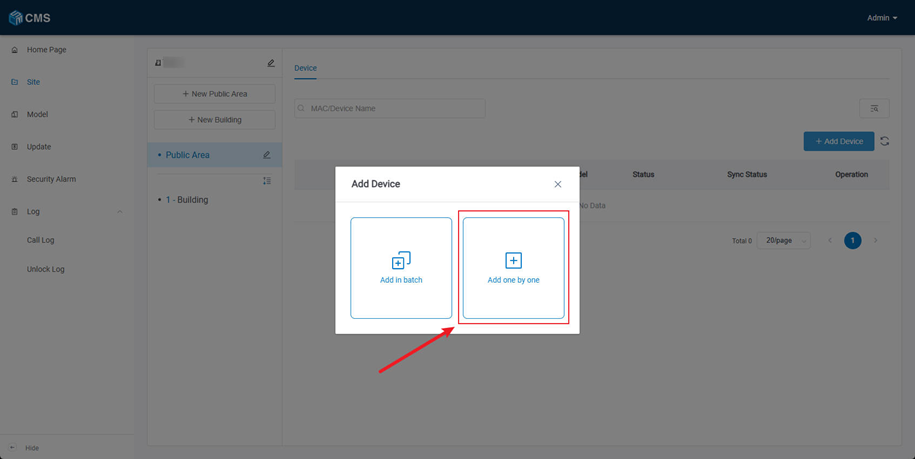
- Step 1: After clicking Add Device, select Add One by One to proceed.
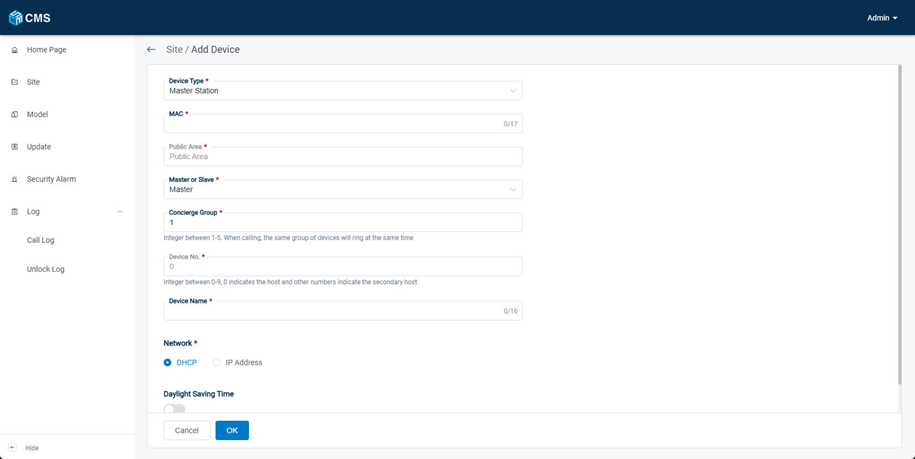
- Step 2: Select the site and fill in device’s information. Device Type, MAC address, device number and device name should be filled in or chosen according to your device and needs. All of the other settings will be synced to your device.
5.2.5 Configure DNAKE Devices
Please make sure devices and CMS-installed computer are connected to Internet and under the same LAN. The following will take Indoor Monitor settings as an example. Please refer to it when configuring on other DNAKE devices.
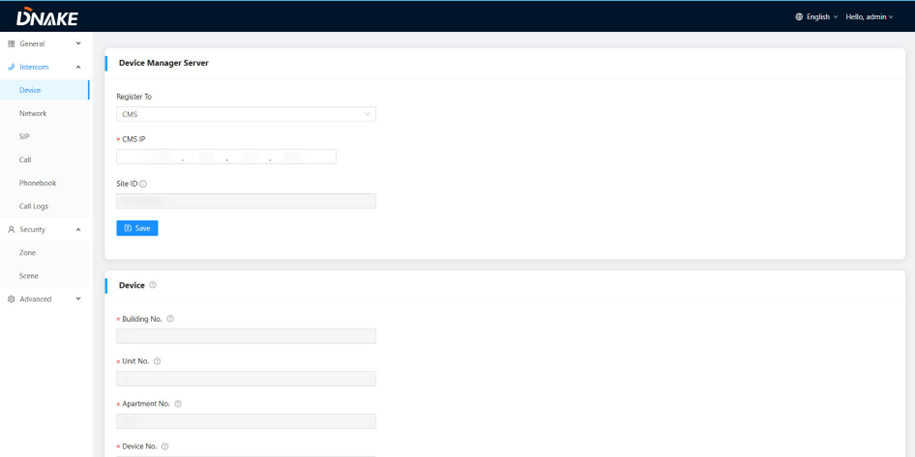
1. Fill in IP address of CMS and Site ID on Indoor Monitor webpage
- Step 1: Please go to Device on the webpage of Indoor Monitor to configure. Click Register To, and select CMS.
- Step 2:Fill in CMS IP address which is the IP address of CMS-installed computer.
- Step 3: Enter the Site ID in the Site ID field, click save to save the configuration.
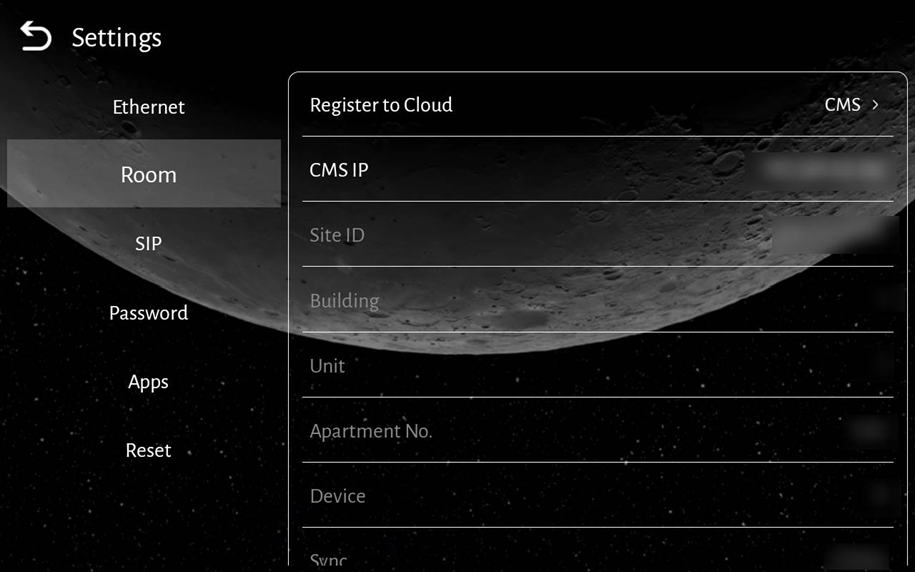
2. If you don't want to login to webpage to set CMS IP address and Site ID, you can also set it on Indoor Monitor GUI.
- Step 1: Please go to Room Settings on Indoor Monitor GUI to configure. Click Register To Cloud, and select CMS.
- Step 2: Fill in CMS IP which is the IP address of CMS-installed computer.
- Step 3: Enter the Site ID in the Site ID field, click save to save the configuration.
5.3 Building Management
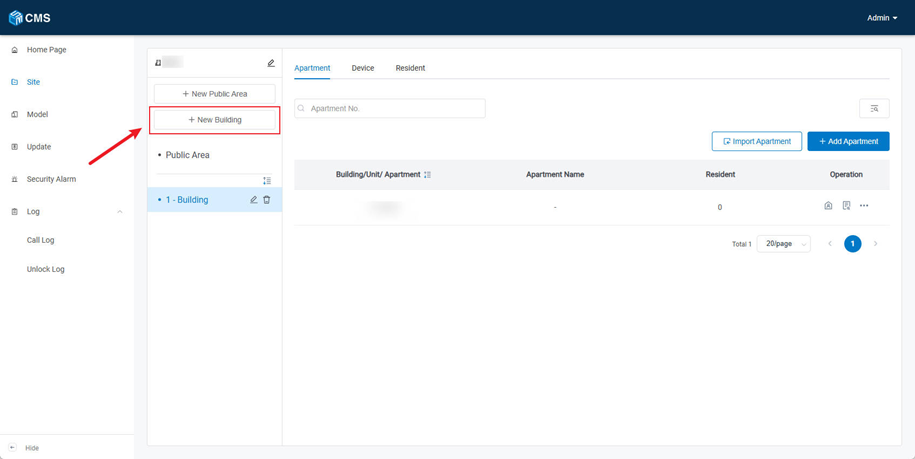
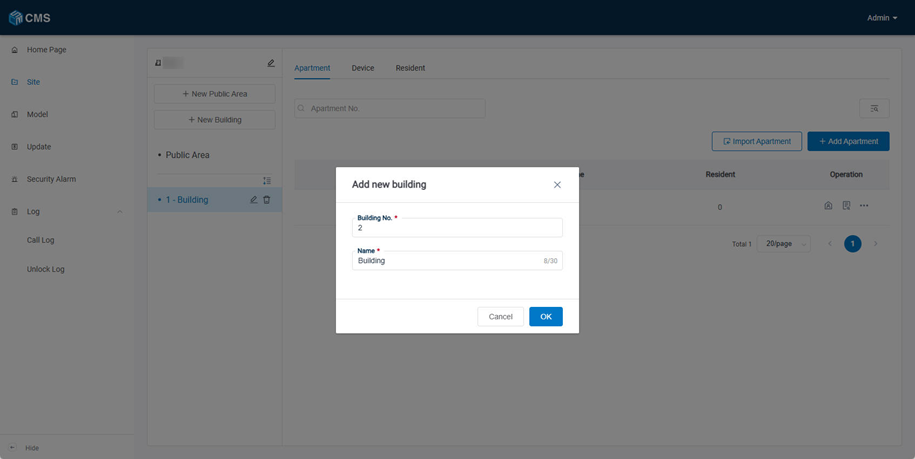
5.3.1 Add Building
- Step 1: Click Add New Building to add a new building to the Site.
5.3.2 Apartment
5.3.2.1 Add Apartment
1.Click Add Apartment to add a new apartment. You can select to add a new resident on the same page.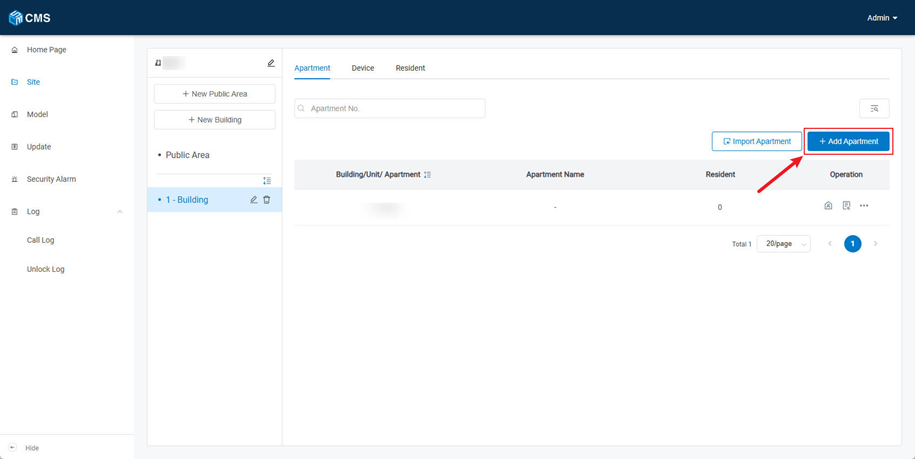
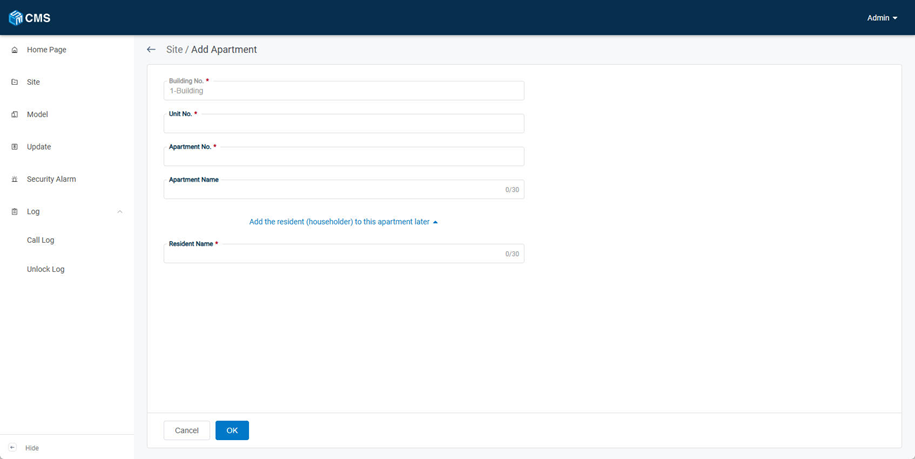
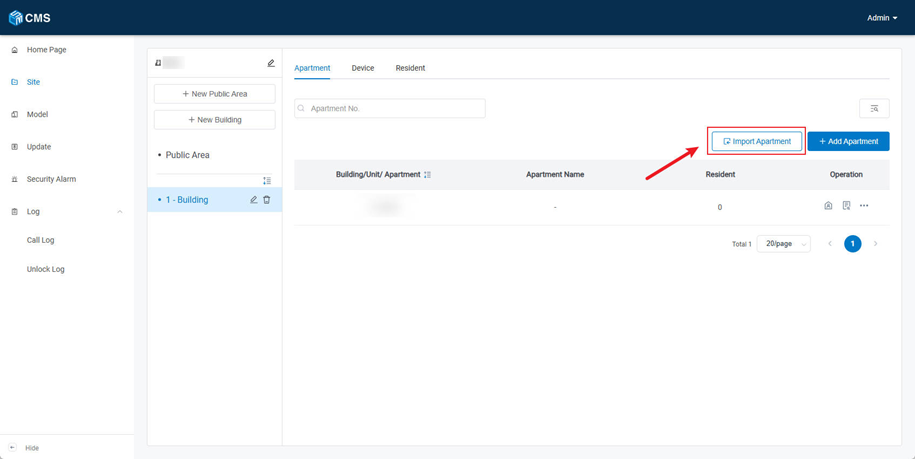
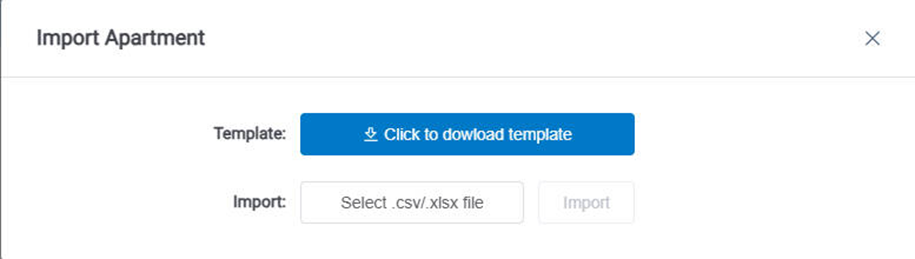
2. Alternatively, you can click Import Apartment to add devices in batch; click Template to download the template, then click Import to upload it.
5.3.2.2 Apartment Management
1. Click the Resident button to navigate to the Resident page.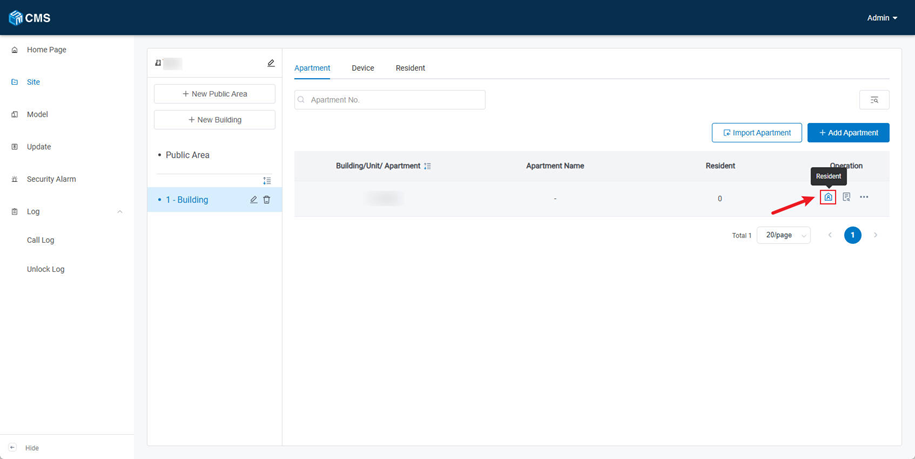
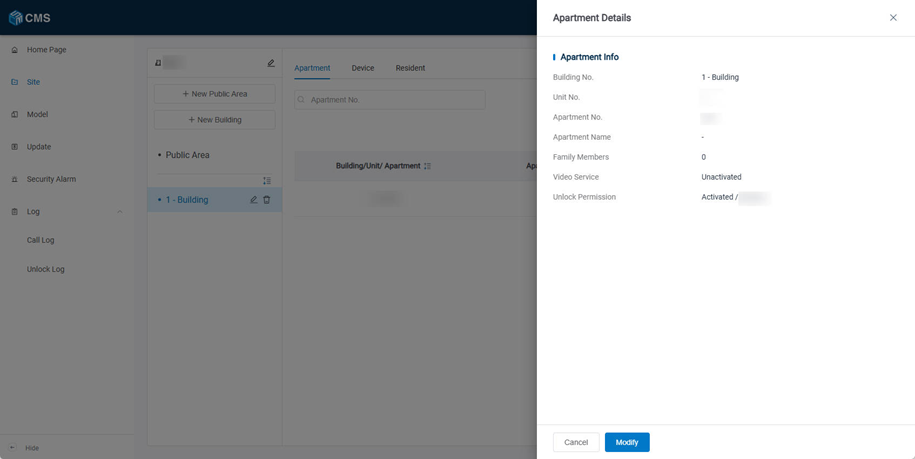
2. Click Detail to view and modify the apartment information.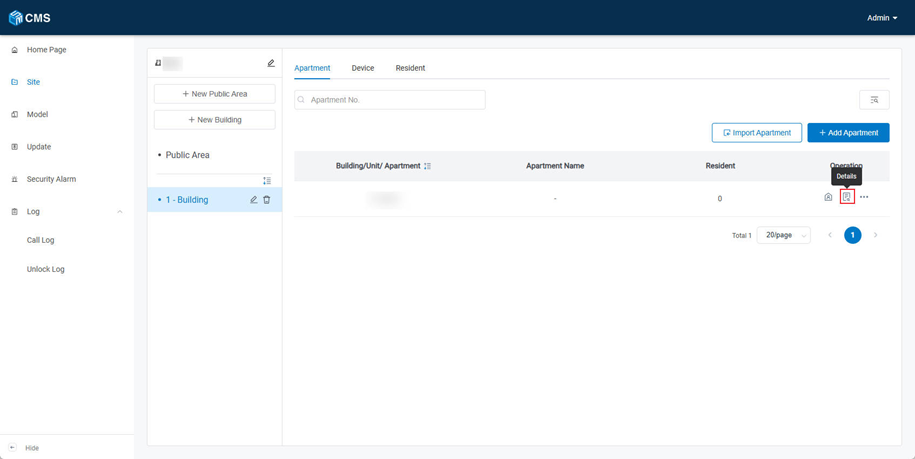
3. Click the Delete button to remove the building.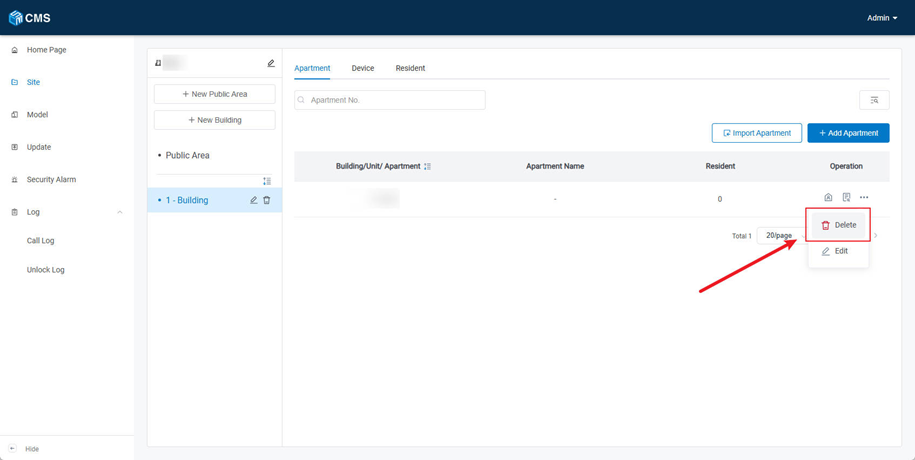
Notes: The devices and residents attached to this apartment will be deleted at the same time.
5.3.3 Device
On this page, you can view the devices under the building, including each device’s MAC address, associated building/unit/apartment, device name, device type, device status, and synchronization status.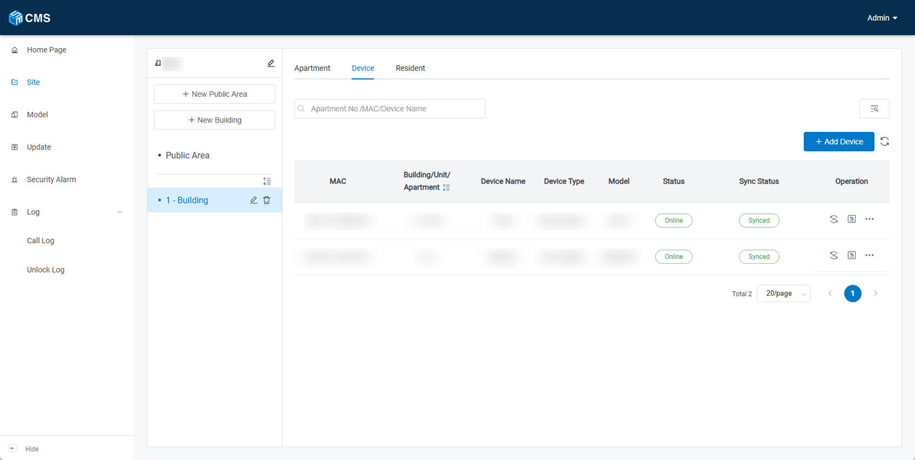
5.3.3.1 Add Device
The methods for adding devices are the same as those in the Public Area; see sections 5.2.3 and 5.2.4 for details.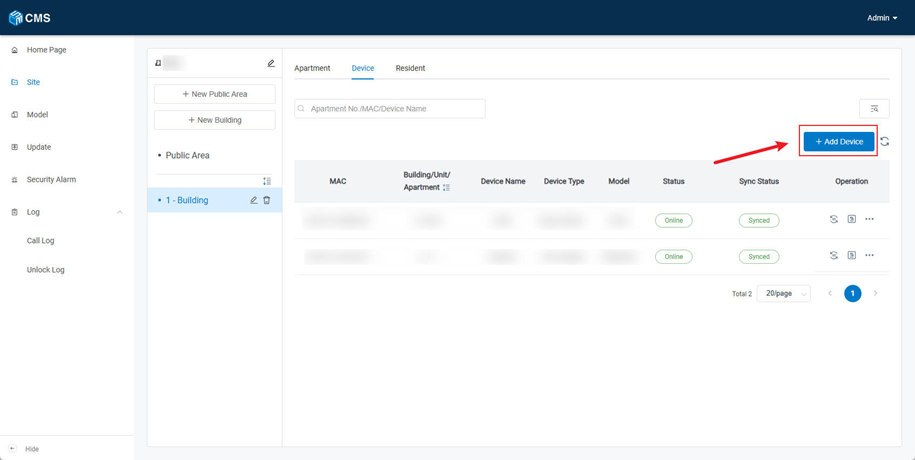
5.3.3.2 Replace Device
It’s only supported to replace device with same model.
1. Here are the steps to replace a device
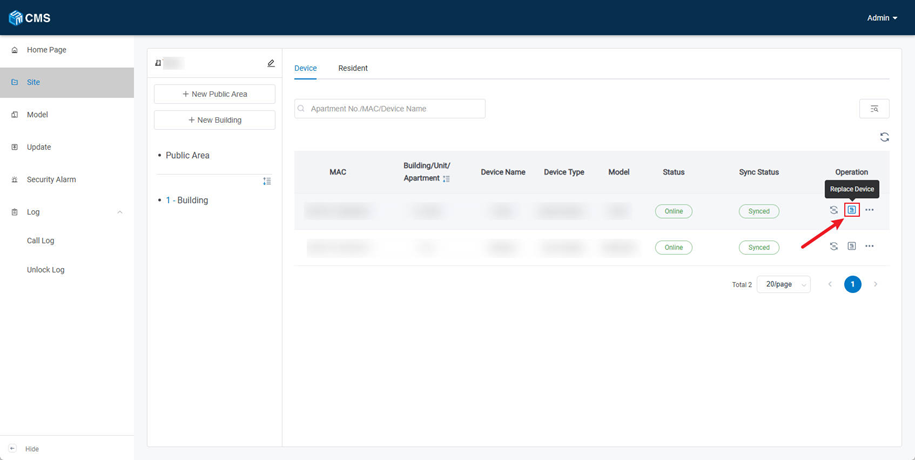
- Step 1: Go to Device column and click Replace Device to replace this device.
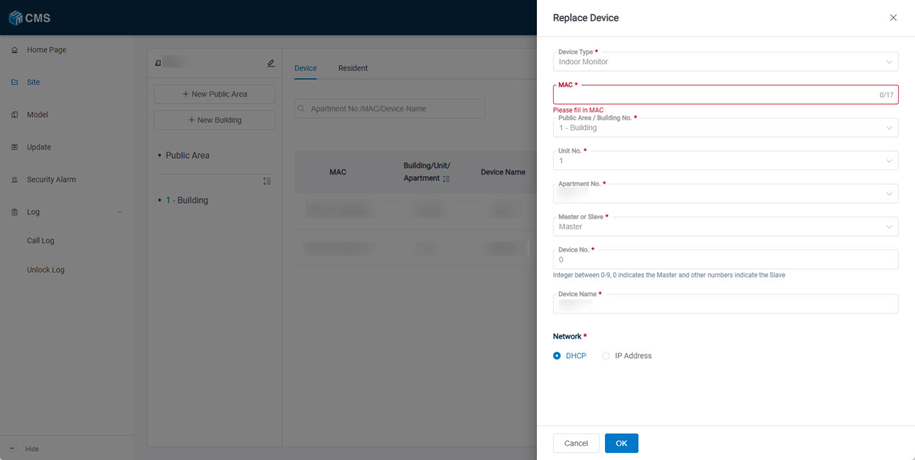
- Step 2: Fill in MAC address of the new same-model device. You can also change its network.
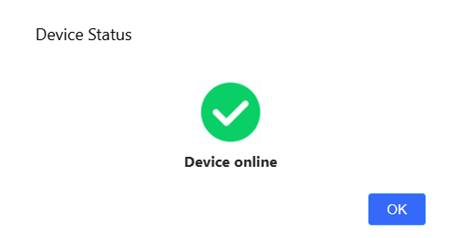
- Step 3: The platform will check the status of the device.
- Step 4: After that, the data will be transferred to the new one.
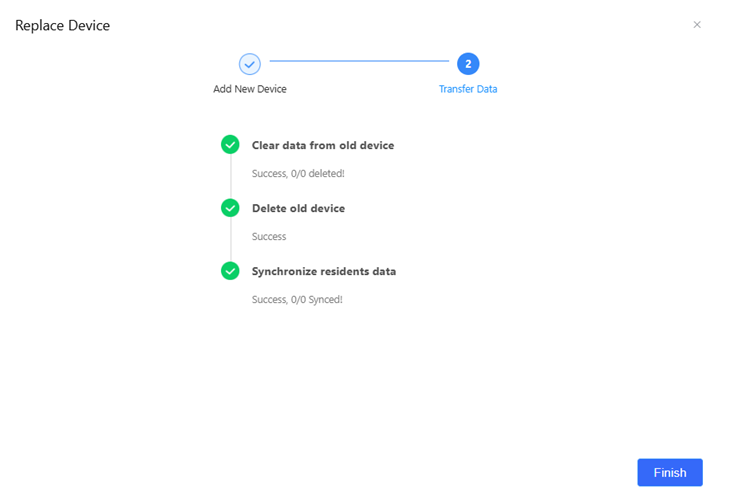
Notes:Replacing this device is estimated to take 1 minutes
5.3.3.3 Access Device Webserver
1. Here are the steps to access device webserver
- Step 1: Click Access Device Webserver
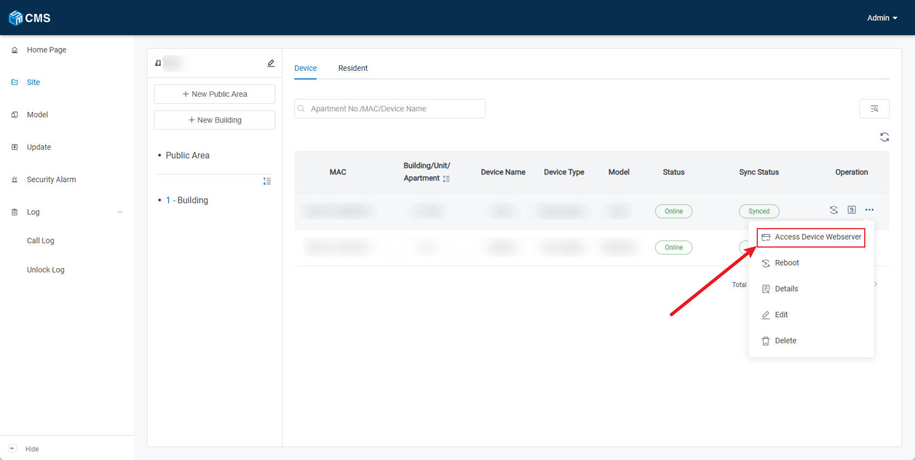
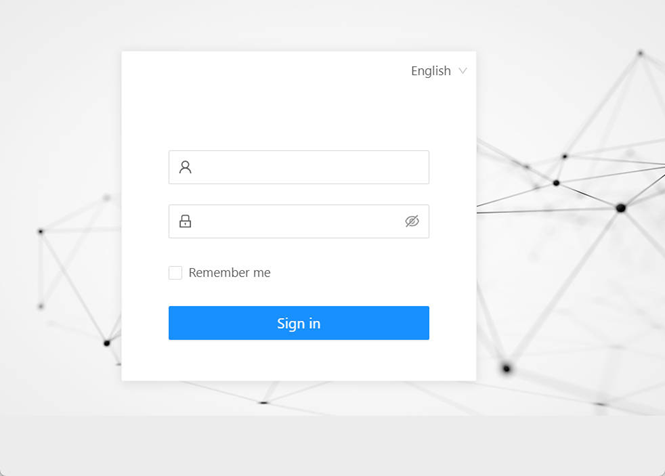
- Step 2: Click Open to browse. The device webserver will open in a new window. Access will remain valid for 30 minutes.
5.3.3.4 Relay Setting
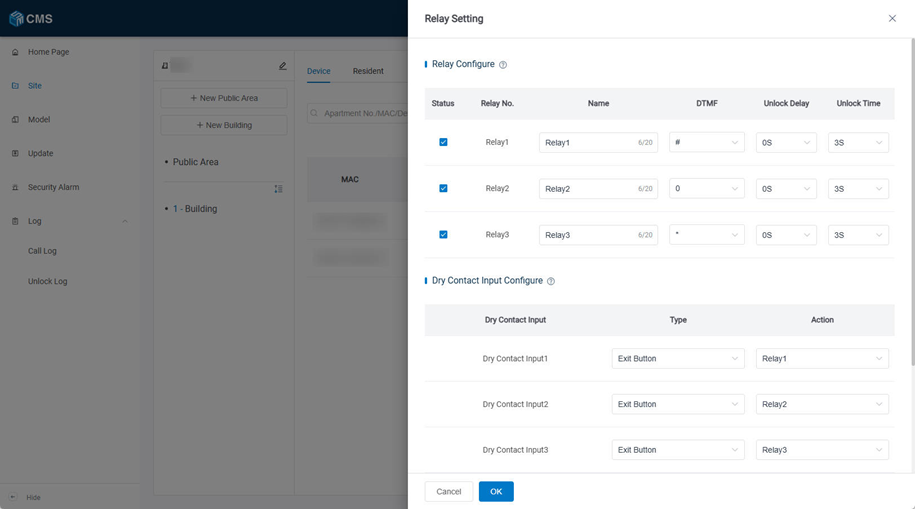
When managing the door station, you can configure the Relay Settings in this section, including the configuration name, DTMF unlocking, unlocking delay time, and unlocking duration. You can also modify the Dry Contact Input Configurations, including the input type and corresponding action. In addition, elevator floor information can be configured here.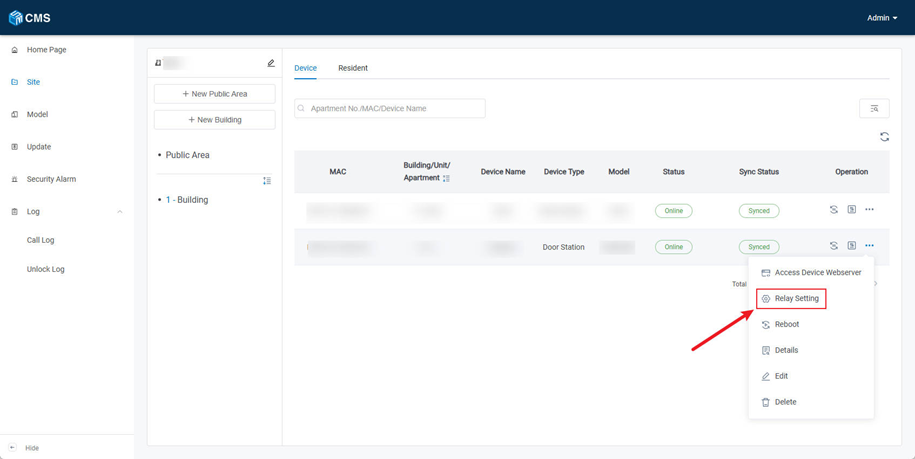
5.3.3.5 Reboot the Device
Click More > Reboot to Reboot the device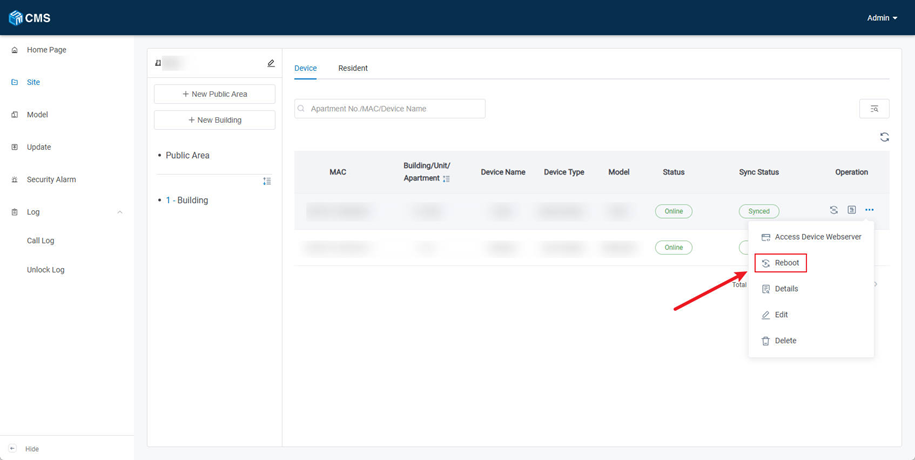
5.3.3.6 Device Detail
In this section, you can view detailed device information, including Basic Information, Product Information, and Network Information.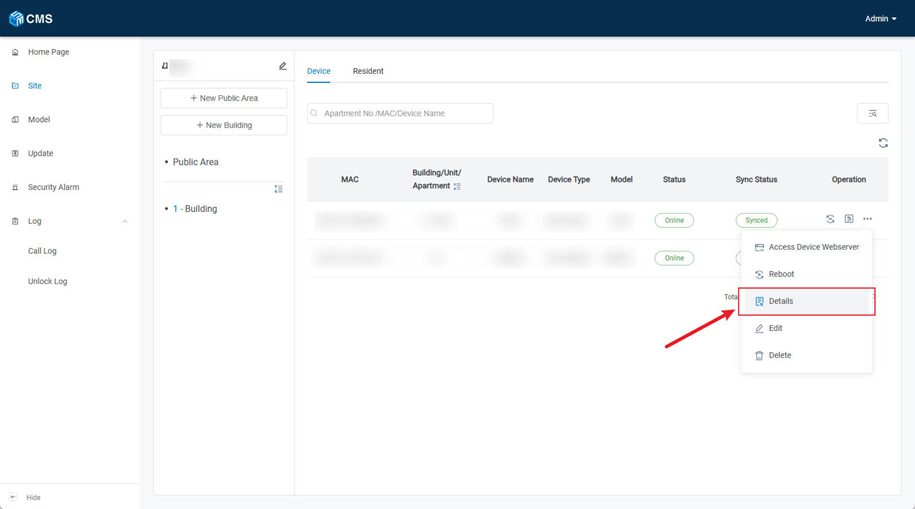
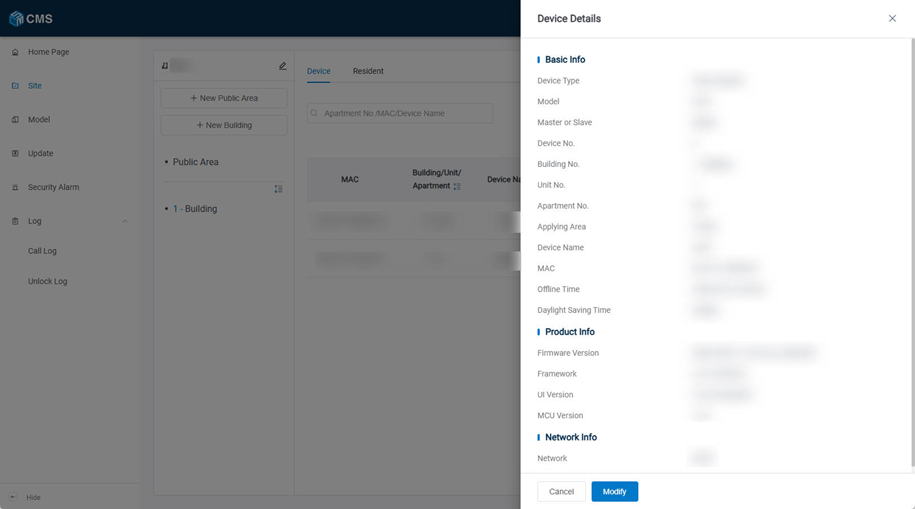
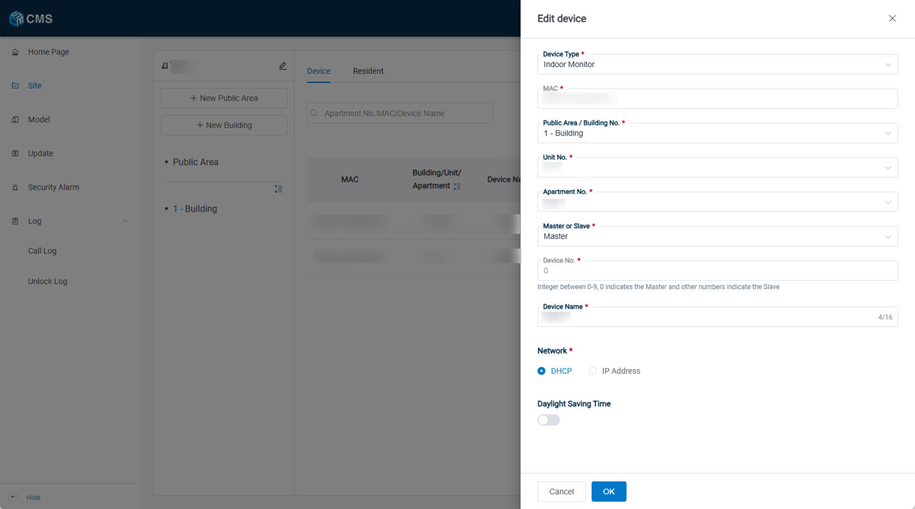
5.3.3.7 Edit Device
In this section, you can modify device information, including reassigning the building, unit, and apartment, as well as configuring network settings and enabling or disabling Daylight Saving Time.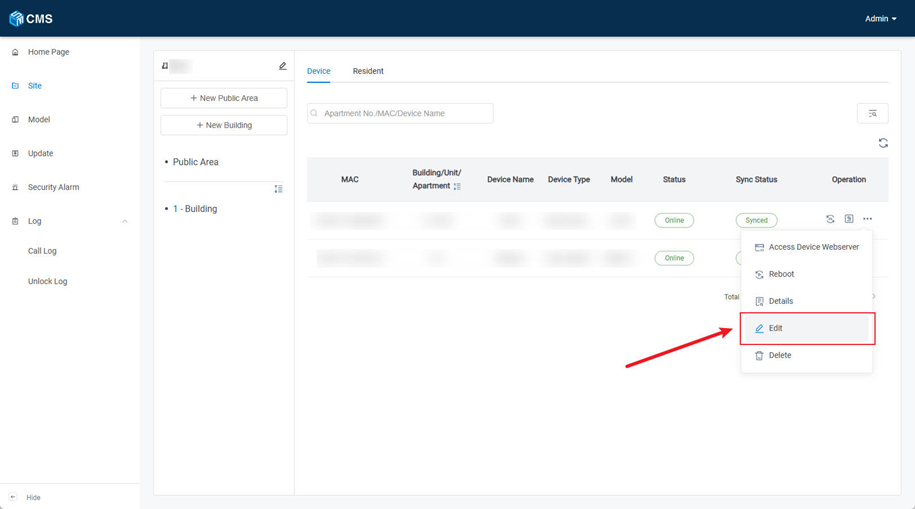
5.3.4 Resident
On this page, you can view resident information, including the resident’s name, ID, associated building, unit, and apartment, as well as whether facial recognition and card access are activated.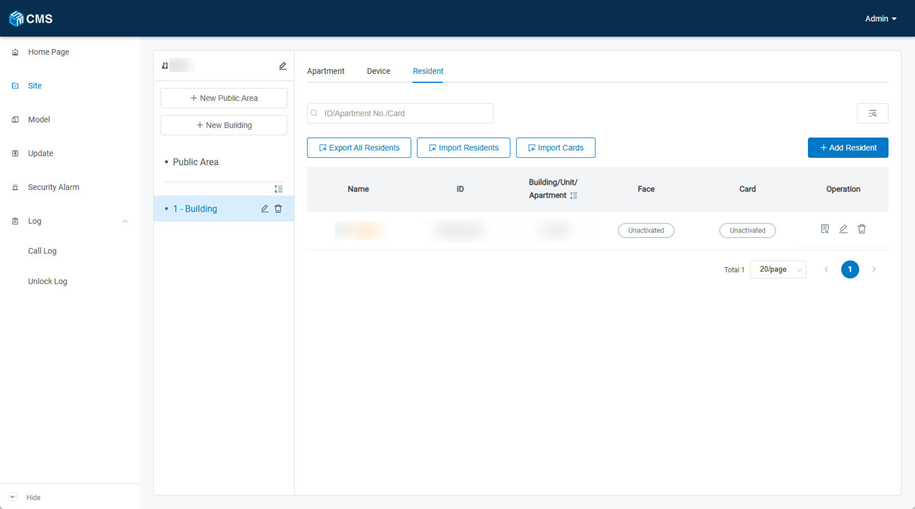
5.3.4.1 Add a New Resident
1. Here are the steps to create a new resident
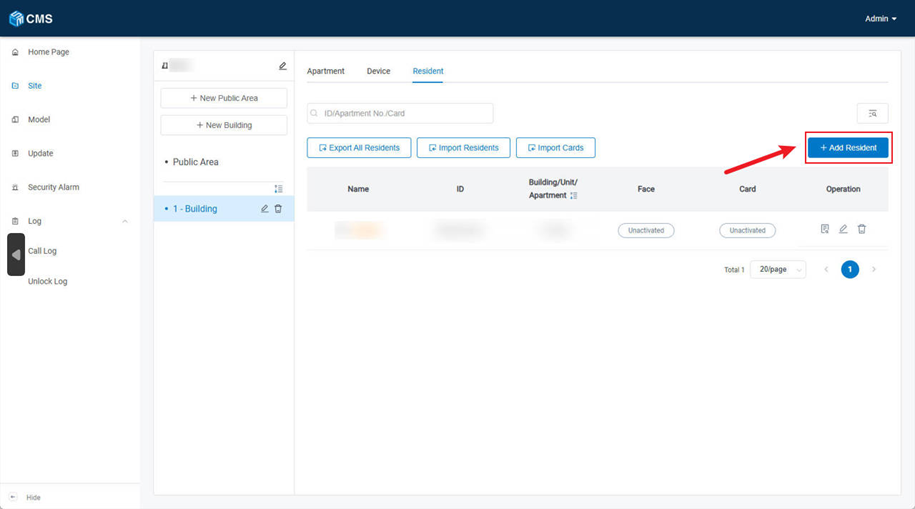
- Step 1: Go to the Site column and select the desired building, then click Resident and choose Add Resident to add a new resident.
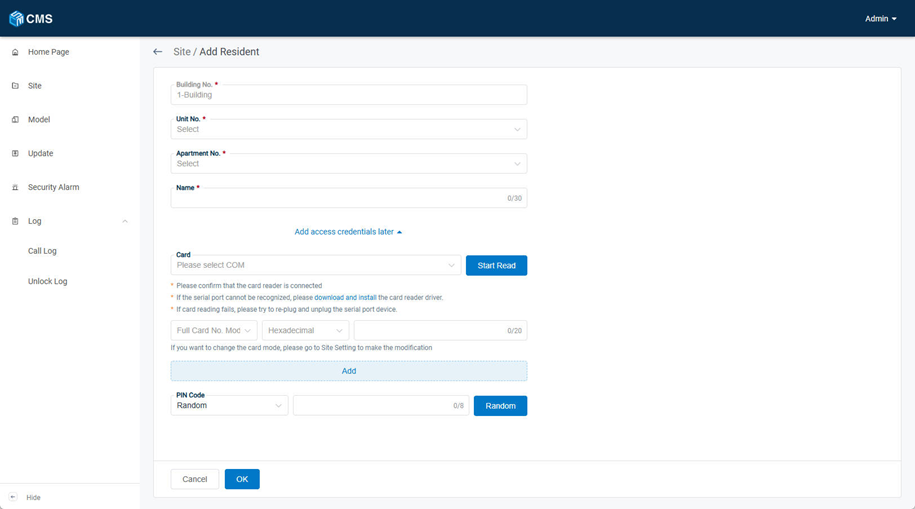
- Step 2: Select the apartment no., and enter the name, email, and Optional settings include phone, syncing to the door station phonebook, card and pin assignment.
2. Here are the steps to import residents
- Step 1: Go to the Site column and select the desired building, then click Resident and choose Import Residents to import residents.
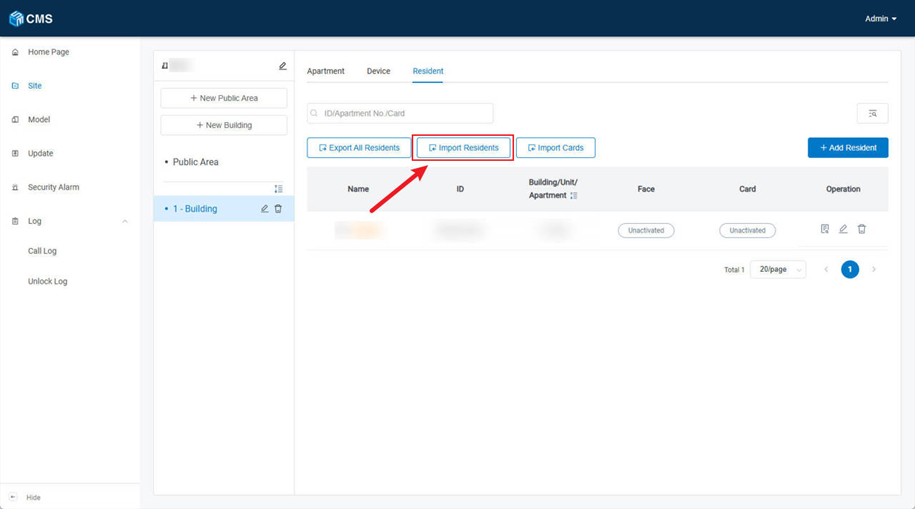
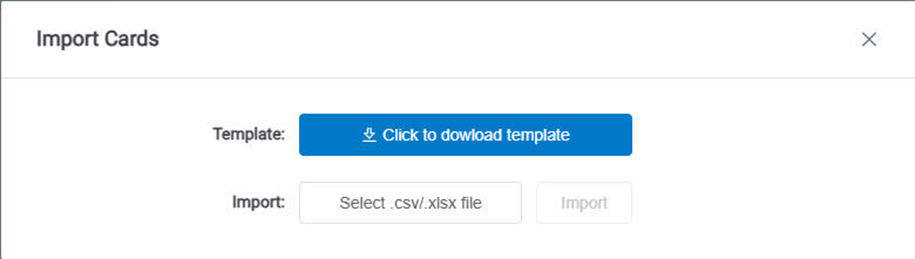
- Step 2: Click Note to view the Template Fields and click to download template to download the template to fill in the necessary information
- Step 3: Click Select .scv file to upload the file and click Import to import the cards information.
5.3.4.2 Add Cards
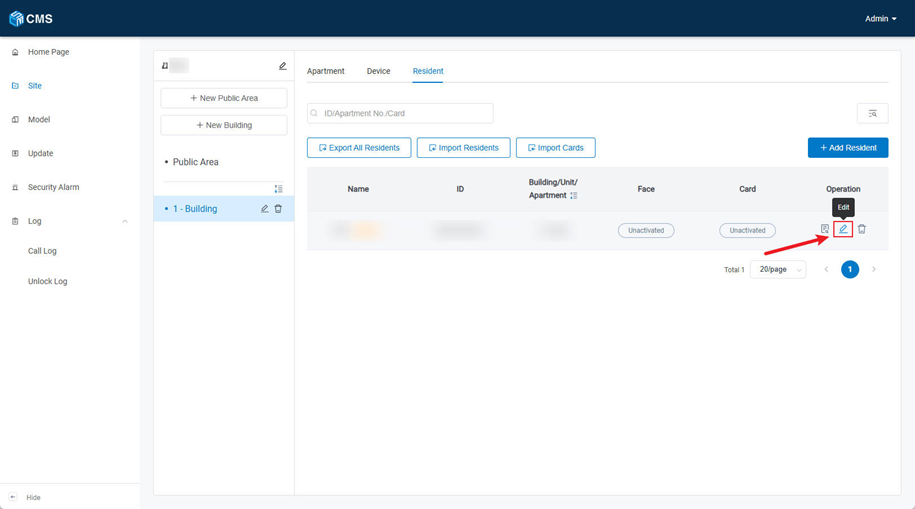
1. Here are the steps to add a new card for dedicated resident
- Step 1: Go to the Site column and select the desired building, then choose Resident and click Edit to add a new card for a dedicated resident.
- Step 2: Select the COM port, then click Start Read (ensure the card reader is connected and drivers are installed).
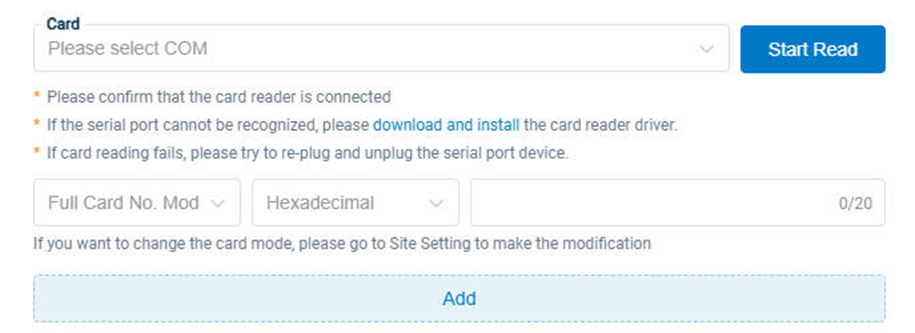
Notes: Compatible Mode is used when you read cards by card reader, while Full Card No. Mode is used when you need to input full card number.
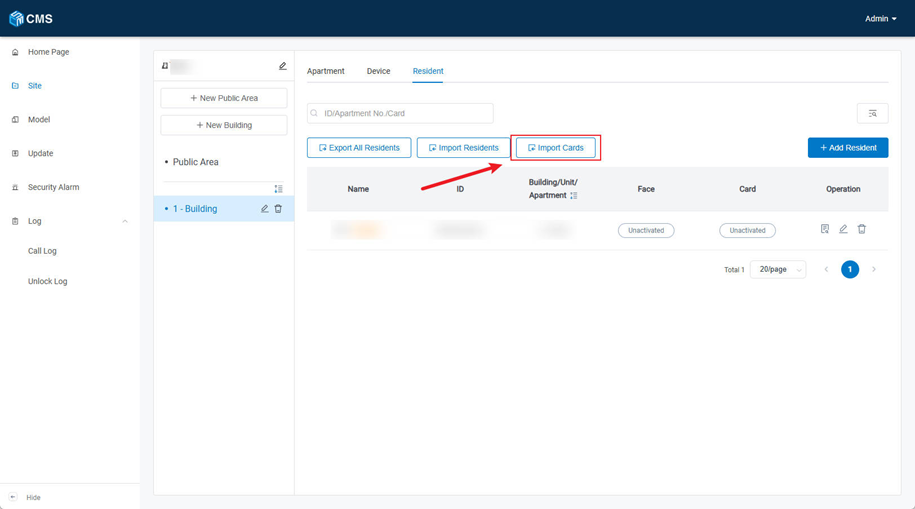
2. Here are the steps to import cards for residents
- Step 1: Go to the Site column and select the desired building, then choose Resident and click Import Cards to import cards for residents
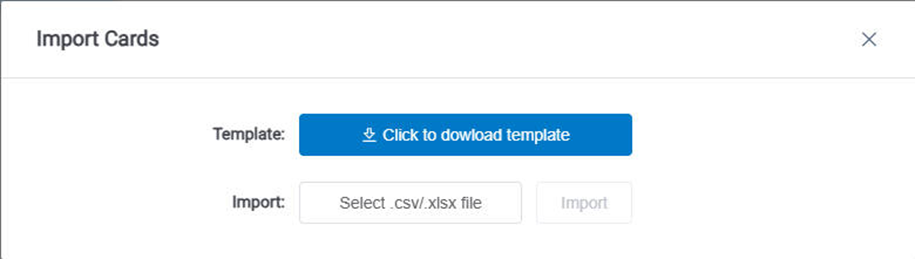
- Step 2: Click Template to download template to download the template to fill in the necessary information
- Step 3: Click Select .scv file to upload the file and click Import to import the cards information.
5.3.4.3 Add Pin Code
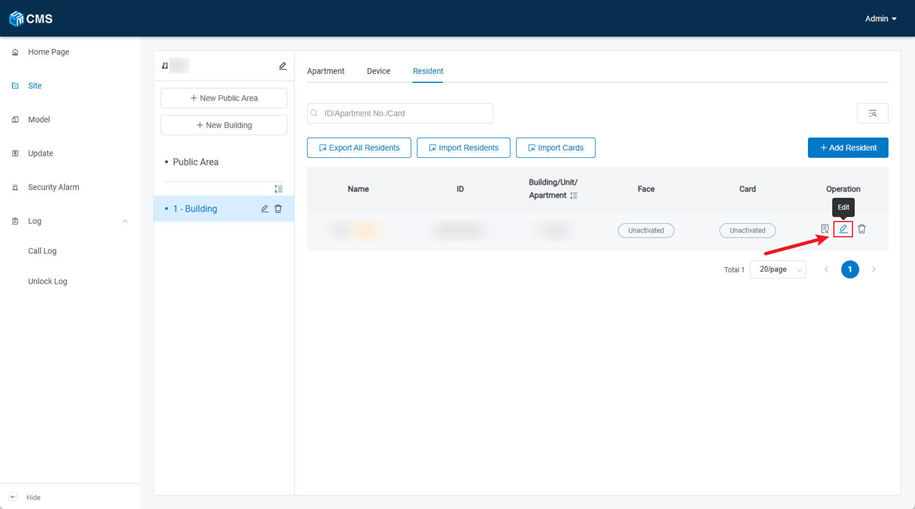
1. Here are the steps to add a new card for dedicated resident
- Step 1: Go to the Site column and select the desired building, then choose Resident and click Edit to add a new Pin code for a dedicated resident.
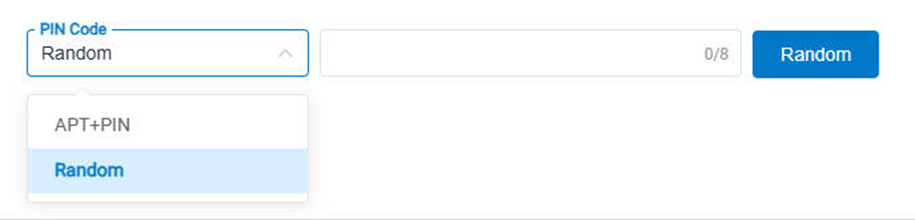
- Step 2: Select the generation mode, generate the Pin code and click Save to save it.
5.3.4.4 Export All Residents
Go to the Site column and select the desired building, then choose Resident and click Export All Residents to export all residents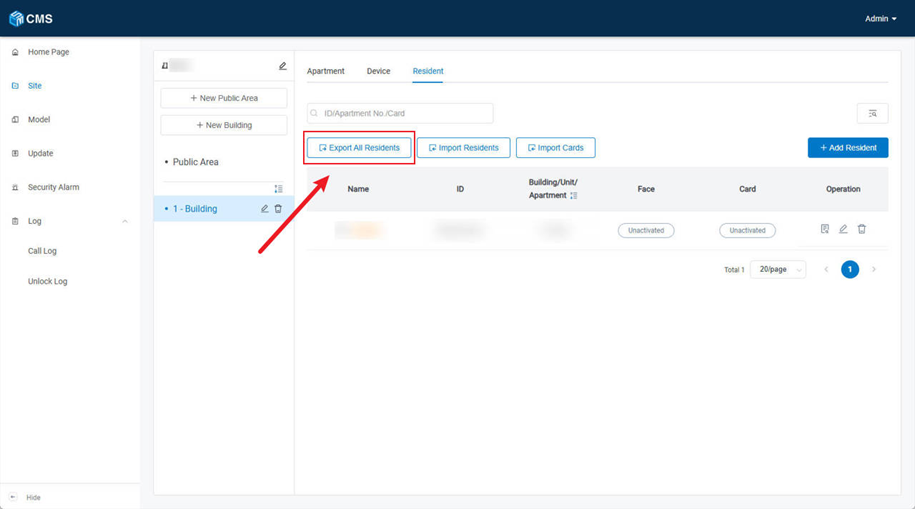
6.Model
When the CMS supports a new model, users can manually add the corresponding model information here.
6.1 Add Model
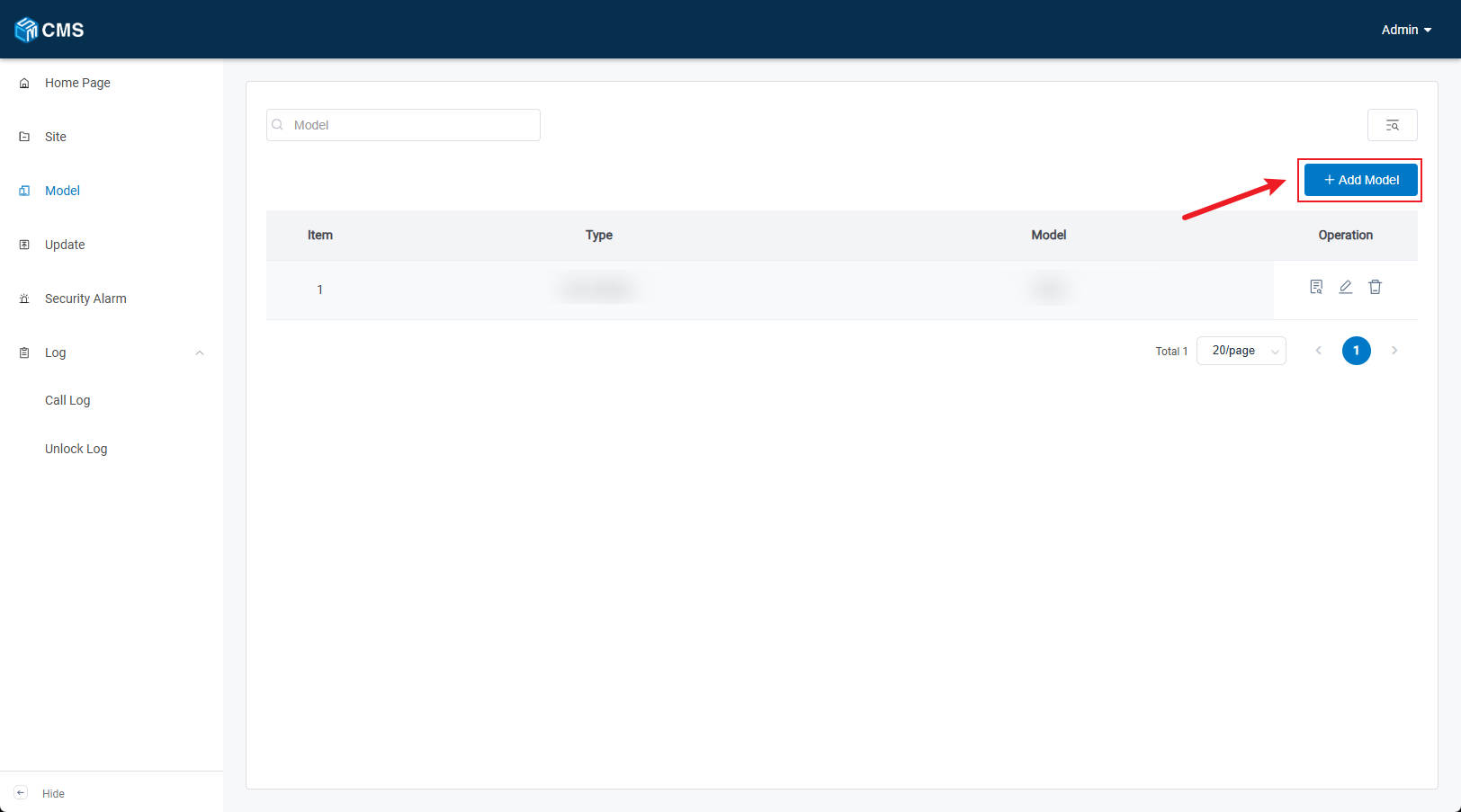
- Step 1: Go to the Model column and Click Add Model
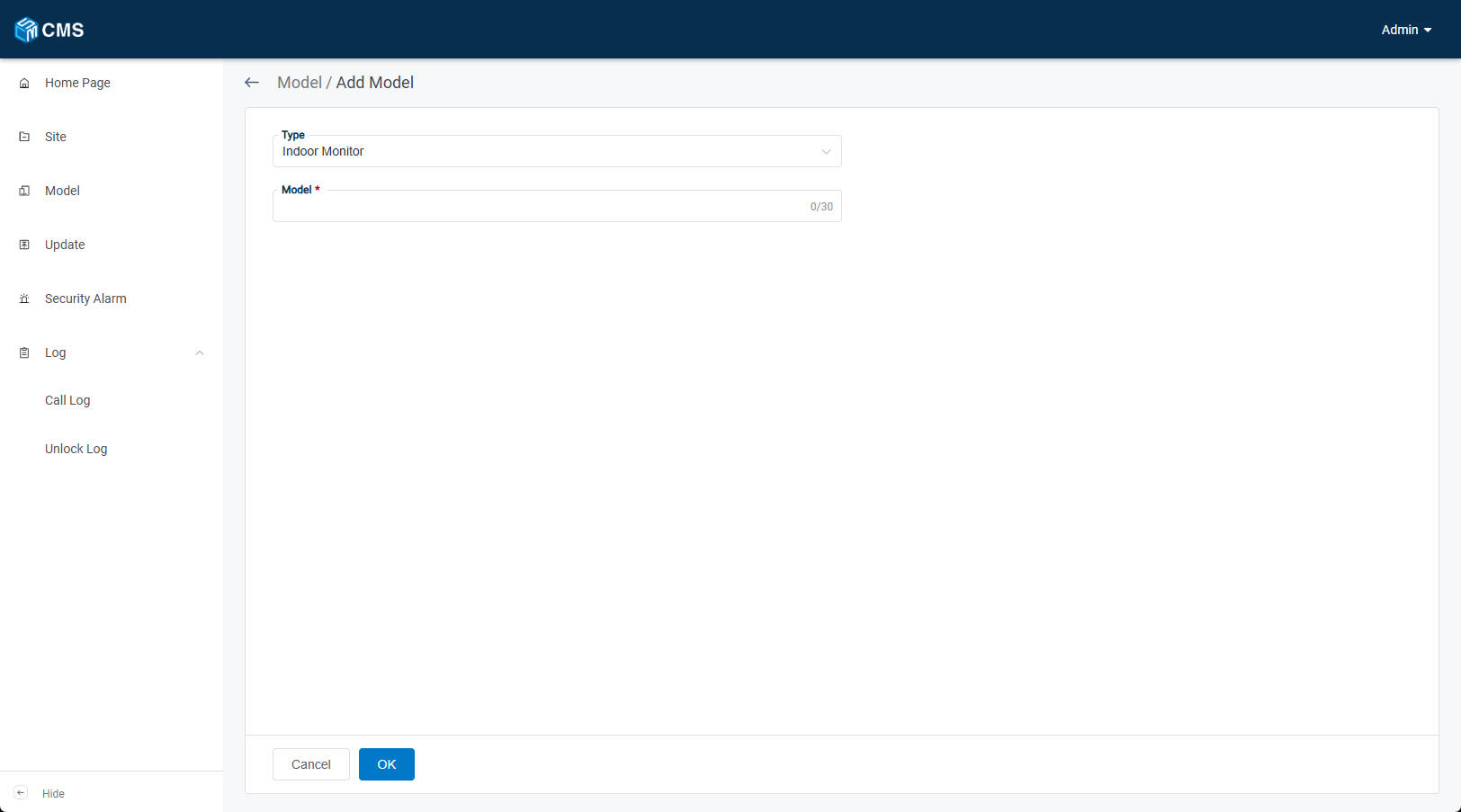
- Step 2: Select the device type to be added, enter the corresponding device model, and click OK to save.
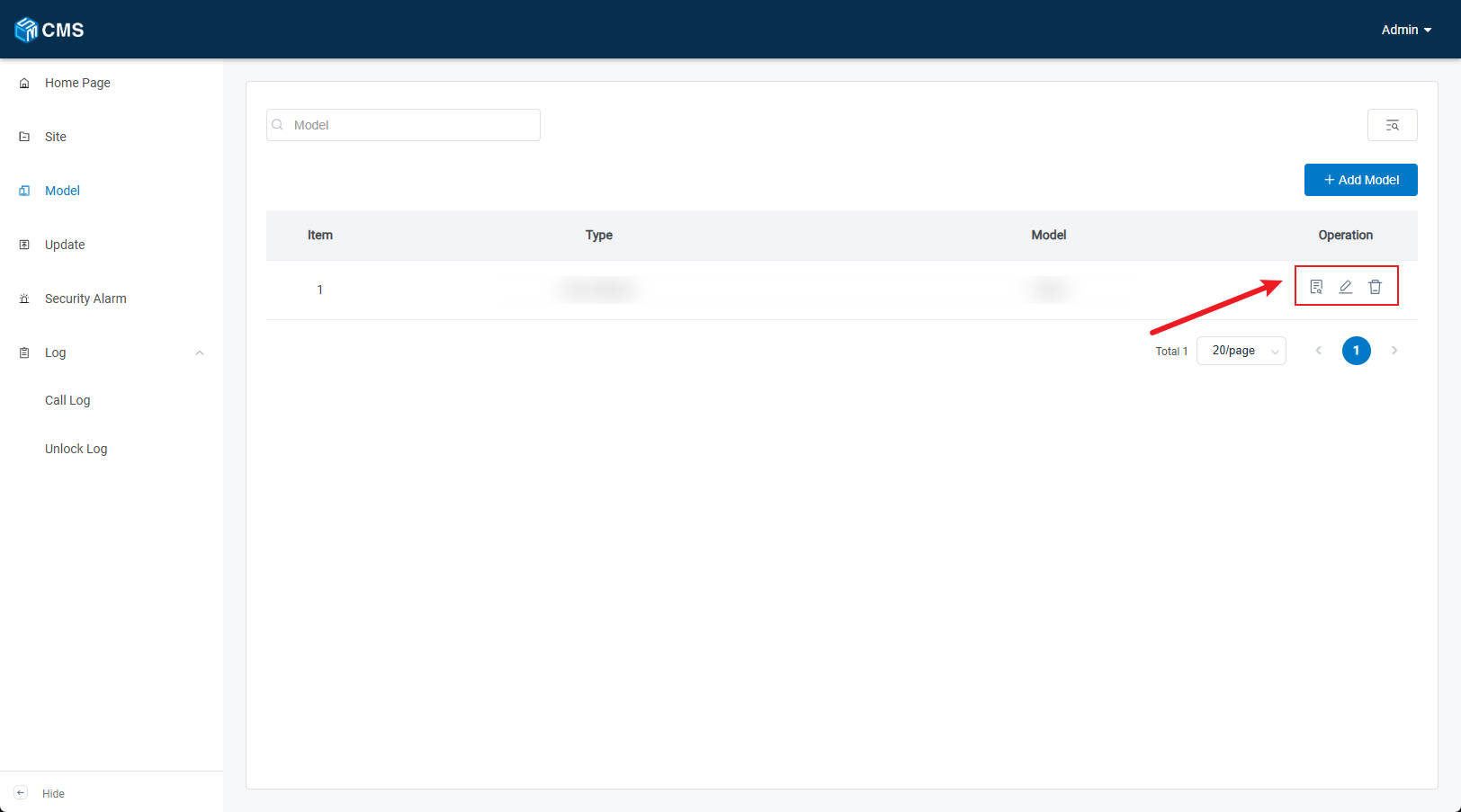
6.2 Model Management
At Operation, you can view the Model Info, modify the model’s Optional Features, and delete the added model.
7. Update
7.1 Upgrade Device
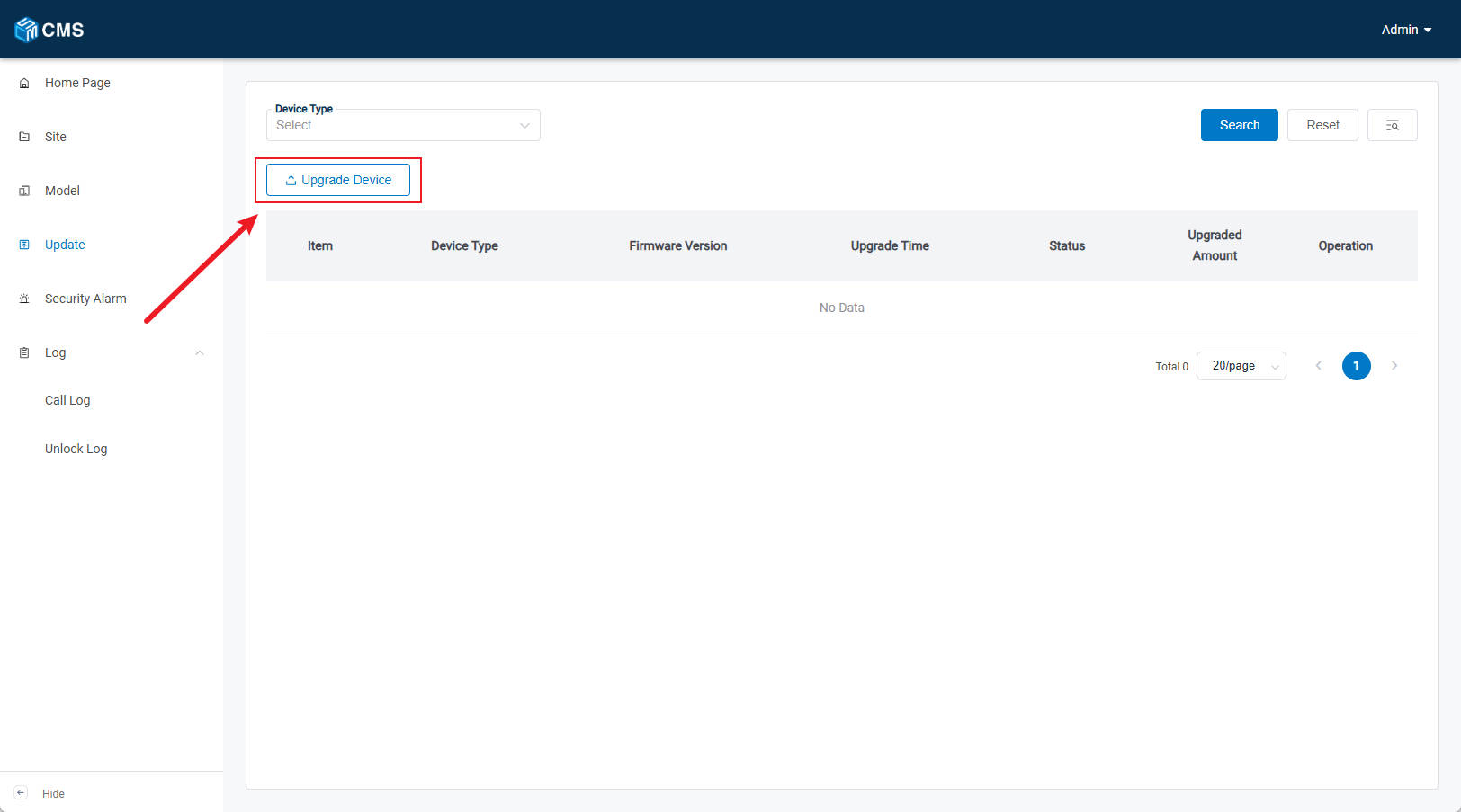
- Step 1: Go to Upgrade column and click Upgrade Device
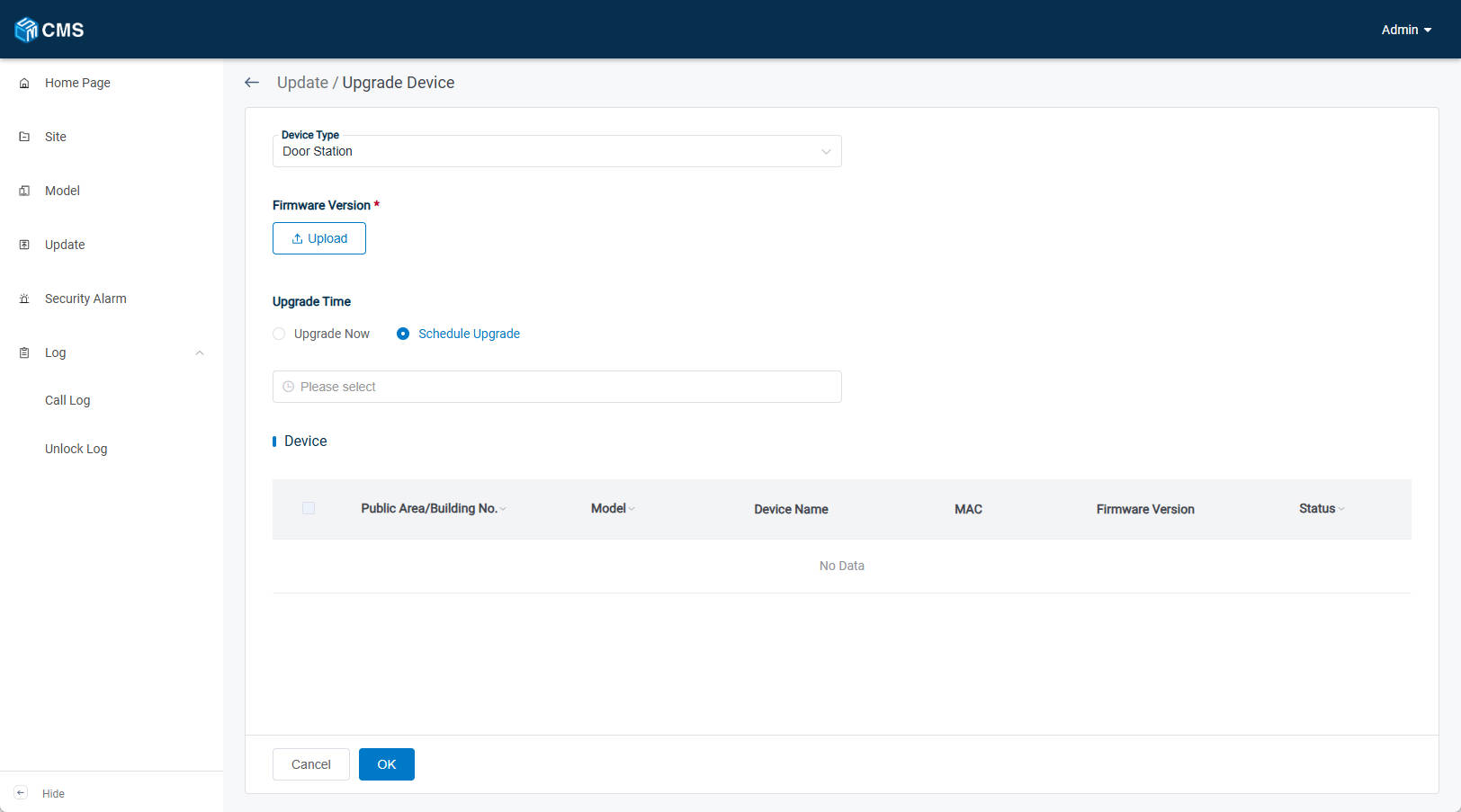
- Step 2: Choose the corresponding Device Type, Model and Firmware Version according to the device. After choosing, the devices can be selected to upgrade and Upgrade Time can also be set.
8. Security Alarm
8.1 Security Alarm Log
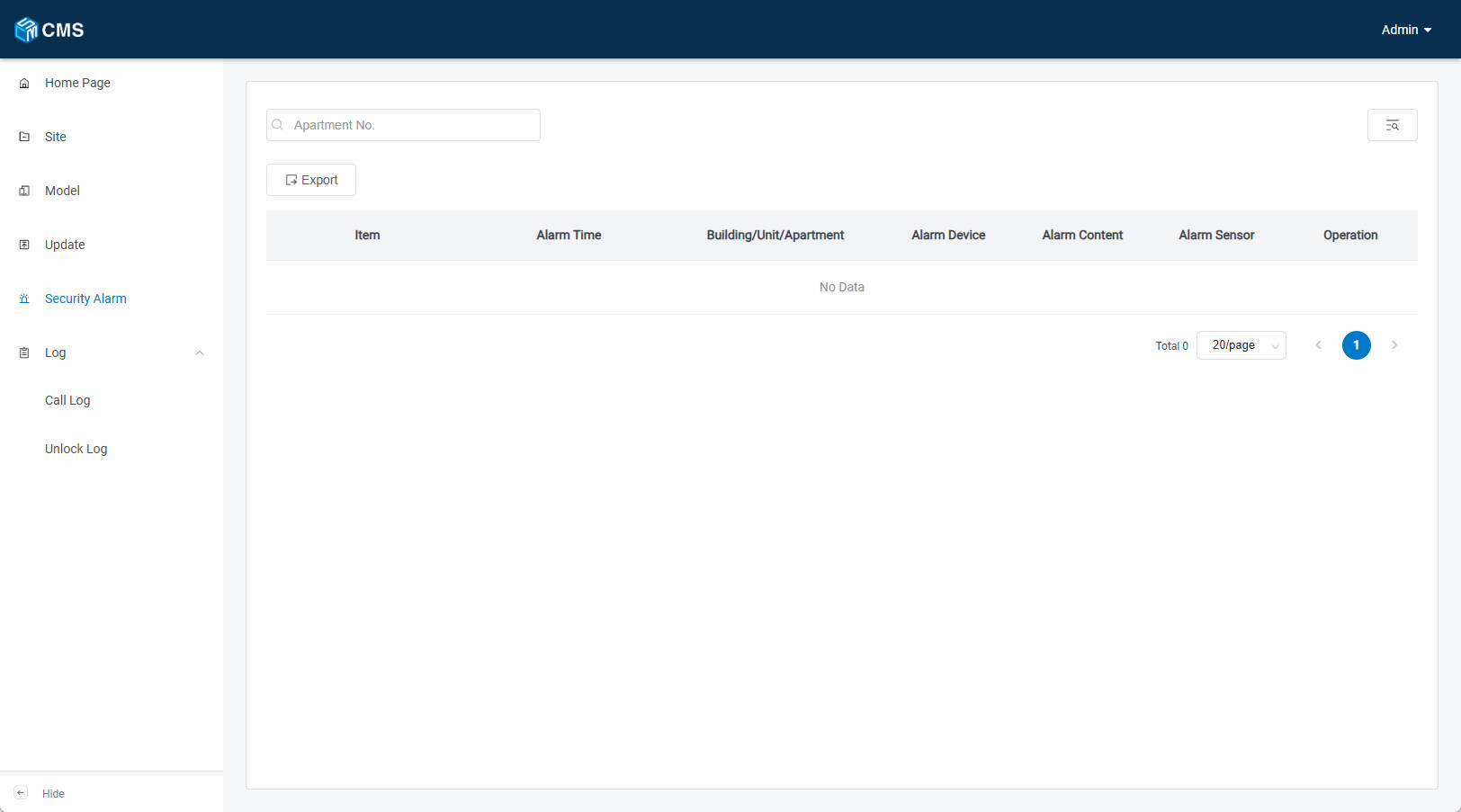
1. You can receive security alarms sending from Indoor Monitors. You can view the records for recent one month.
9. Log
9.1 Call Log
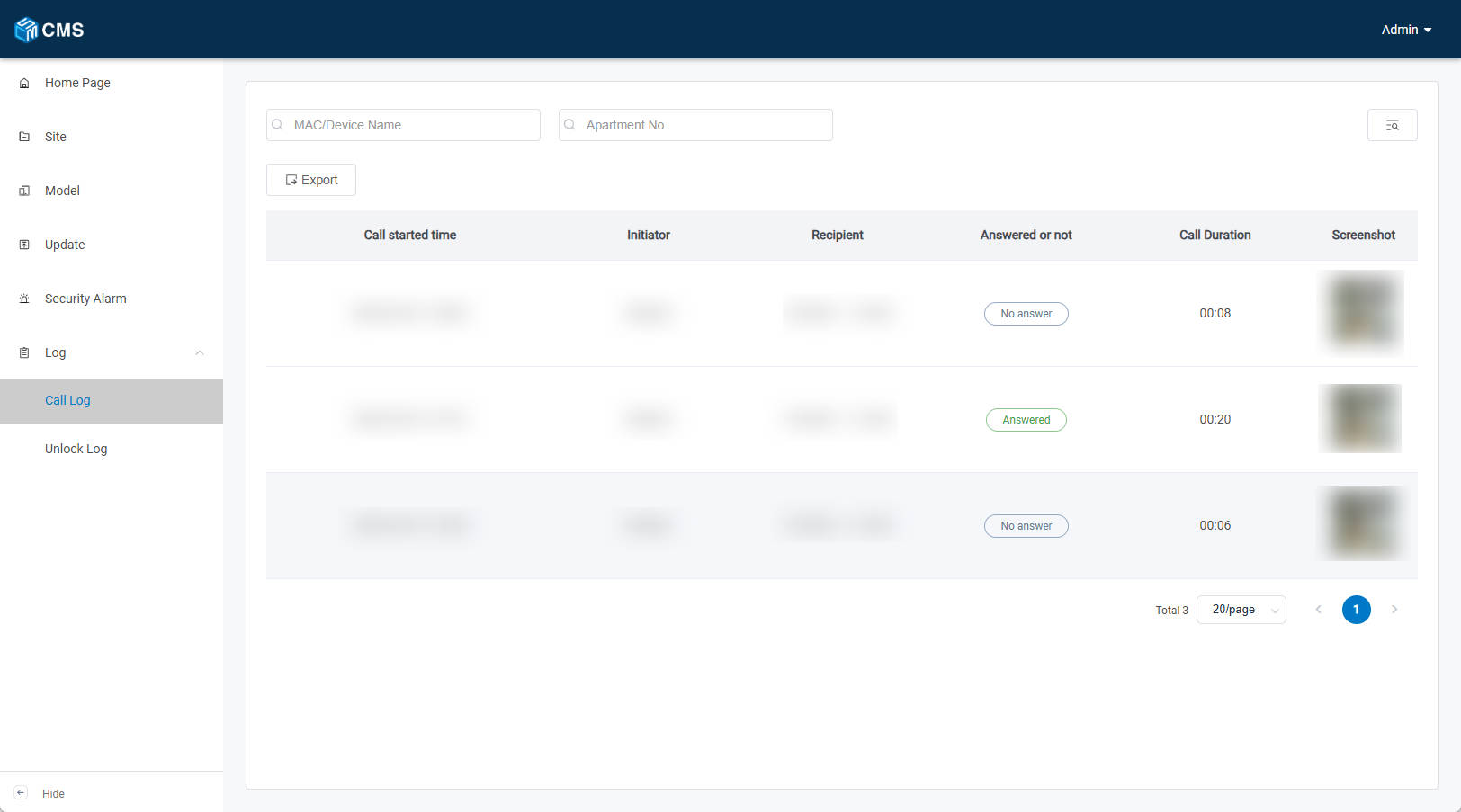
1. You can check call logs of devices. Including information such as Call Started Time, Initiator, Recipients, whether the call was Answered or Not, Call Duration, and Screenshot.
9.2 Unlock Log
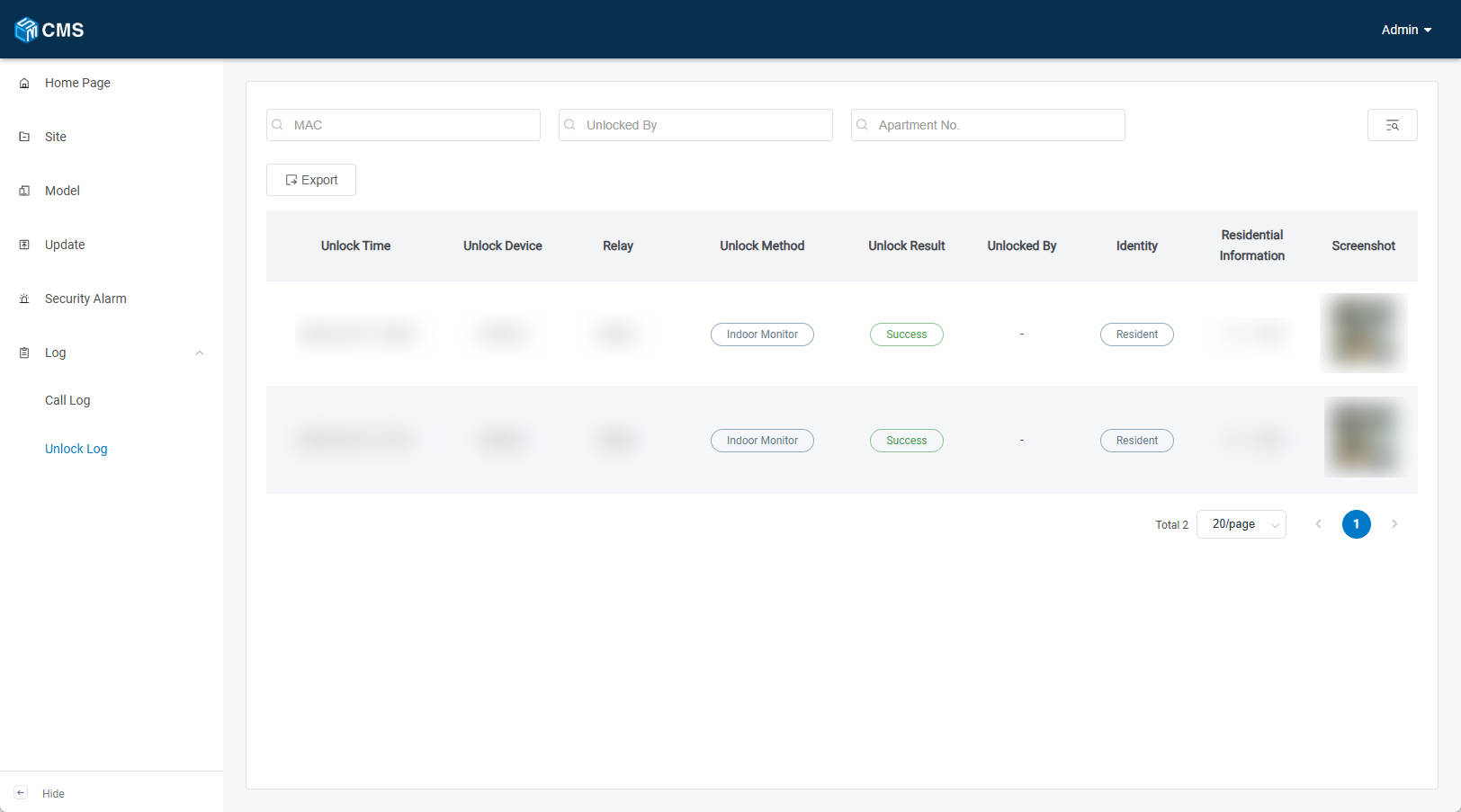
1. You can check Unlock logs of devices. Including information like Unlock Time, Unlock Device, Relay, Unlock Method, Unlocked By, Identity, Residential Information and Screenshot.
Was this article helpful?
That’s Great!
Thank you for your feedback
Sorry! We couldn't be helpful
Thank you for your feedback
Feedback sent
We appreciate your effort and will try to fix the article